> ## Documentation Index
> Fetch the complete documentation index at: https://moengage-docs-limits-messaging.mintlify.site/llms.txt
> Use this file to discover all available pages before exploring further.
# Push Templates
> Customize expanded push notification appearance using Notification Content Extension with MoEngage.
Starting from MoEngage iOS SDK version `6.2.0` and MORichNotification version `4.0.0`, push templates will be supported where you would be able to customize the way notification looks in expanded mode. This feature is supported in**iOS 12.0 and above**. For info on how to create campaigns with templates in the dashboard refer to this [link](https://help.moengage.com/hc/en-us/articles/4415622460948-Push-Templates?_gl=1*1oma0f1*_ga*MTU4NTM0MzI0NS4xNzI3MTcwMzYy*_ga_SEBHW7YTZ7*czE3NzA2OTUzMDIkbzE0NiRnMSR0MTc3MDcxODYxOSRqNjAkbDAkaDA.).
**iOS 15.0 Update**
With iOS 15.0 update, we have released `MORichNotification` version `5.2.0` where for iOS 15.0 and above we have updated the layout to show content at the top and media at bottom, to have it in line with the standard notification layout.
 Make sure you have completed the [App Target](https://developers.moengage.com/hc/en-us/articles/43960004257428-iOS-Push-Integration-Tutorial#h_01K4MBZ6WN3PTSSS6N6K2YQ8S2) and [Notification Service Extension](https://developers.moengage.com/hc/en-us/articles/43960004257428-iOS-Push-Integration-Tutorial#h_01K4MBZ6WN3PTSSS6N6K2YQ8S2) Implementation for supporting Rich Push in your project before proceeding with the below steps.
# STEPS:
For supporting these custom push templates, your project needs to have a Notification Content Extension. Follow the below steps to create a Content Extension and to set it up to support MoEngage templates:
## 1. Create a Notification Content Extension
Make sure you have completed the [App Target](https://developers.moengage.com/hc/en-us/articles/43960004257428-iOS-Push-Integration-Tutorial#h_01K4MBZ6WN3PTSSS6N6K2YQ8S2) and [Notification Service Extension](https://developers.moengage.com/hc/en-us/articles/43960004257428-iOS-Push-Integration-Tutorial#h_01K4MBZ6WN3PTSSS6N6K2YQ8S2) Implementation for supporting Rich Push in your project before proceeding with the below steps.
# STEPS:
For supporting these custom push templates, your project needs to have a Notification Content Extension. Follow the below steps to create a Content Extension and to set it up to support MoEngage templates:
## 1. Create a Notification Content Extension
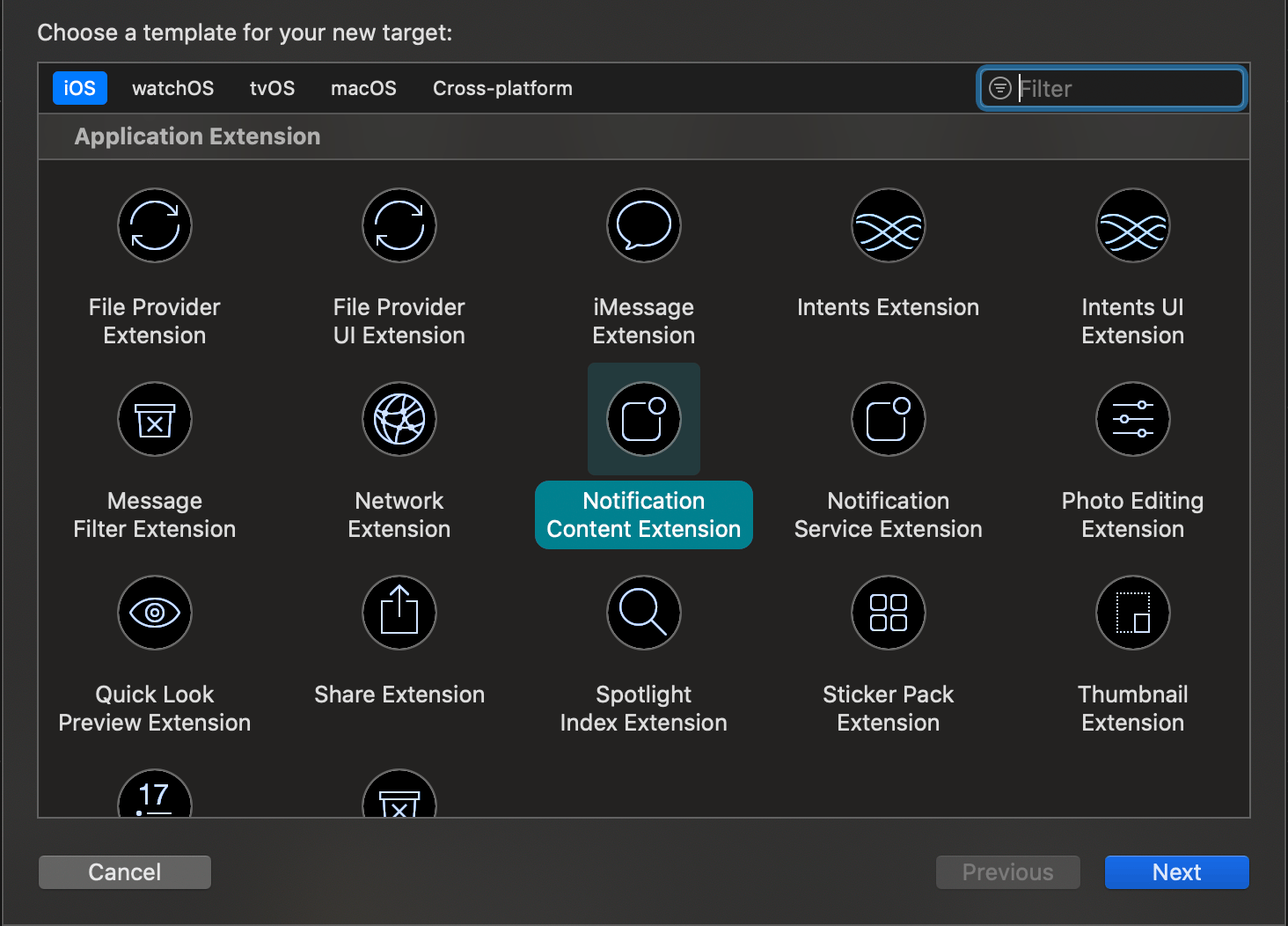
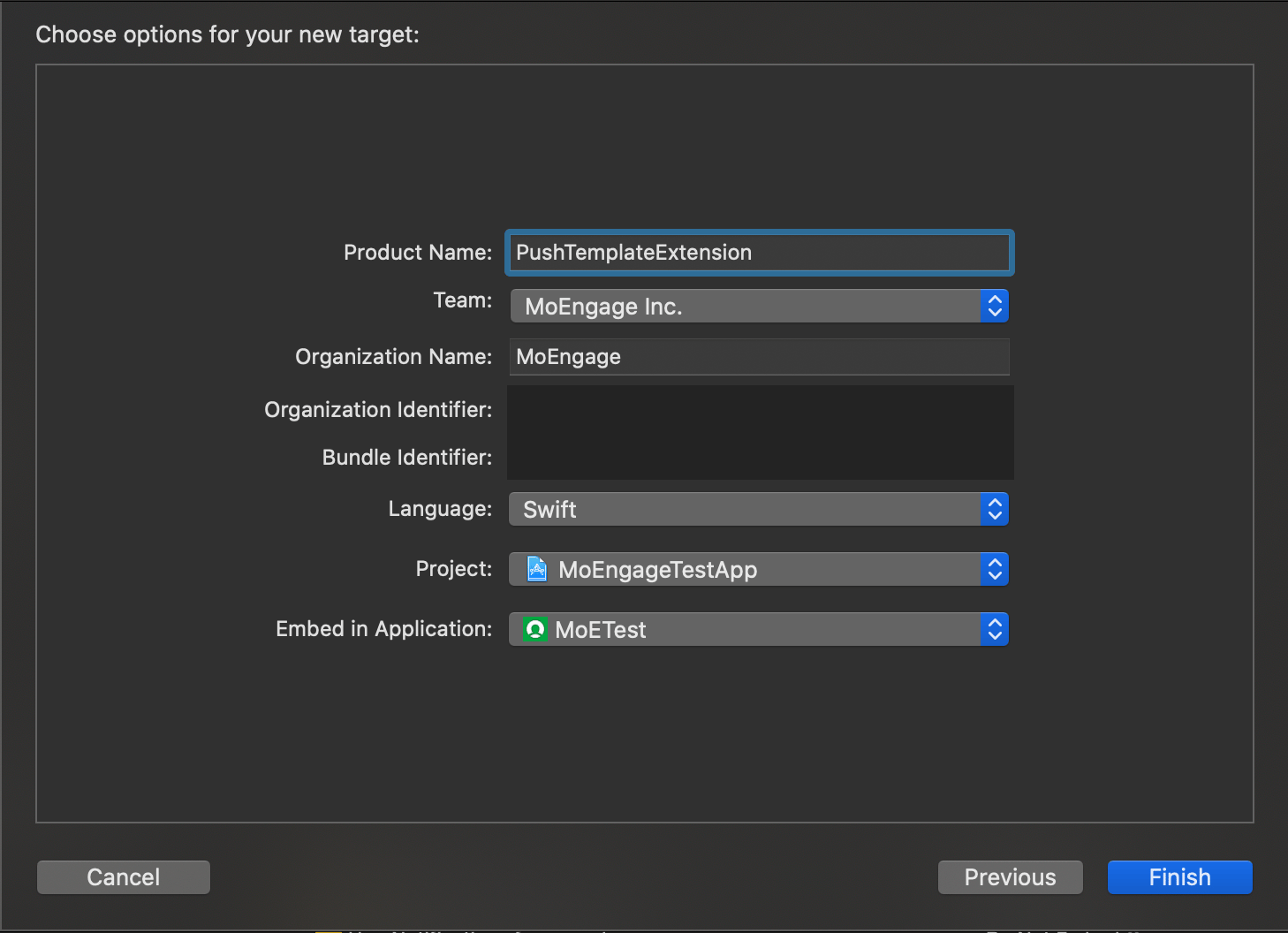 After the target is created, Activate the scheme for Extension when prompted for the same. After this, your extension will be added to the project you will see a class with the extension name provided by you while creating and .plist file associated with it.
## 2. Set deployment target and Add Required frameworks
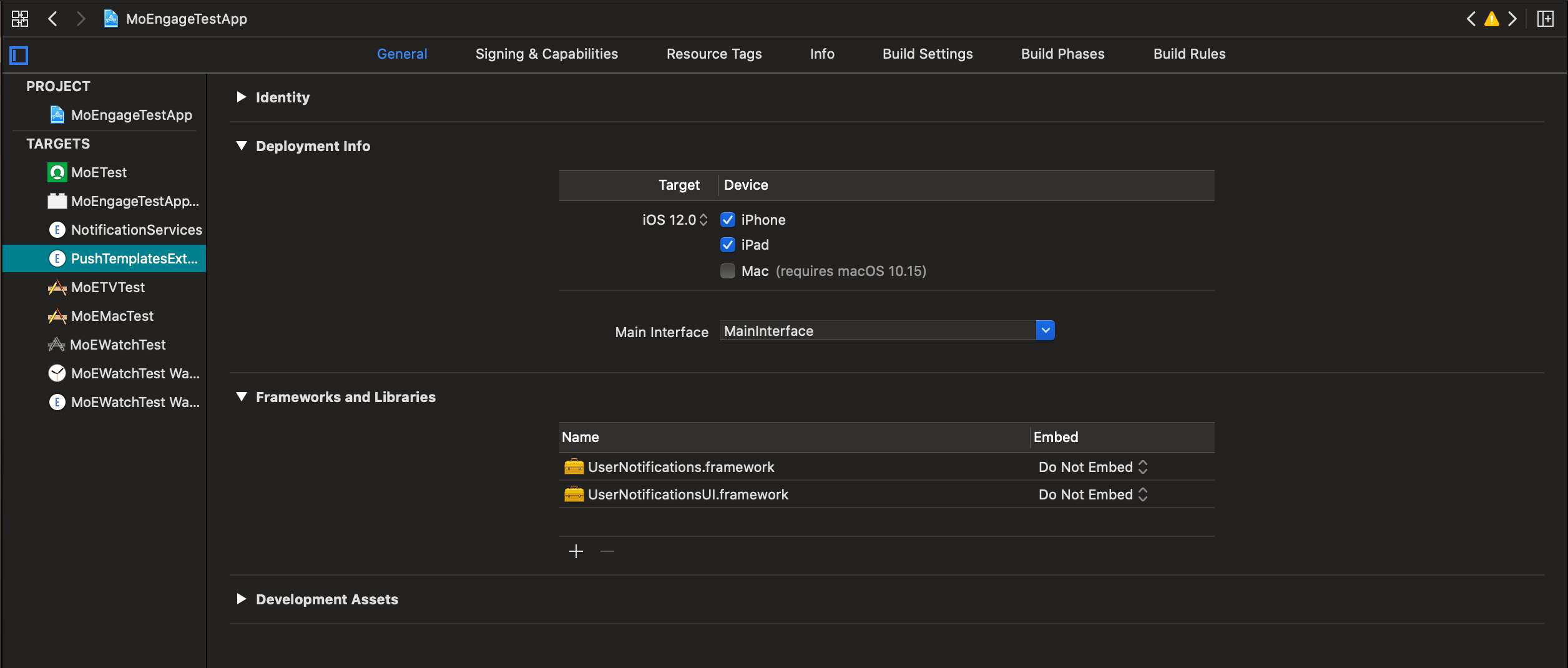
Now set the deployment target to **iOS 12.0** or above, since we support this feature from iOS 12.0. After that add `UserNotifications.framework` and `UserNotificationsUI.framework` in Frameworks and Libraries as shown:
After the target is created, Activate the scheme for Extension when prompted for the same. After this, your extension will be added to the project you will see a class with the extension name provided by you while creating and .plist file associated with it.
## 2. Set deployment target and Add Required frameworks
Now set the deployment target to **iOS 12.0** or above, since we support this feature from iOS 12.0. After that add `UserNotifications.framework` and `UserNotificationsUI.framework` in Frameworks and Libraries as shown:
 ## 3. Add required Capabilities
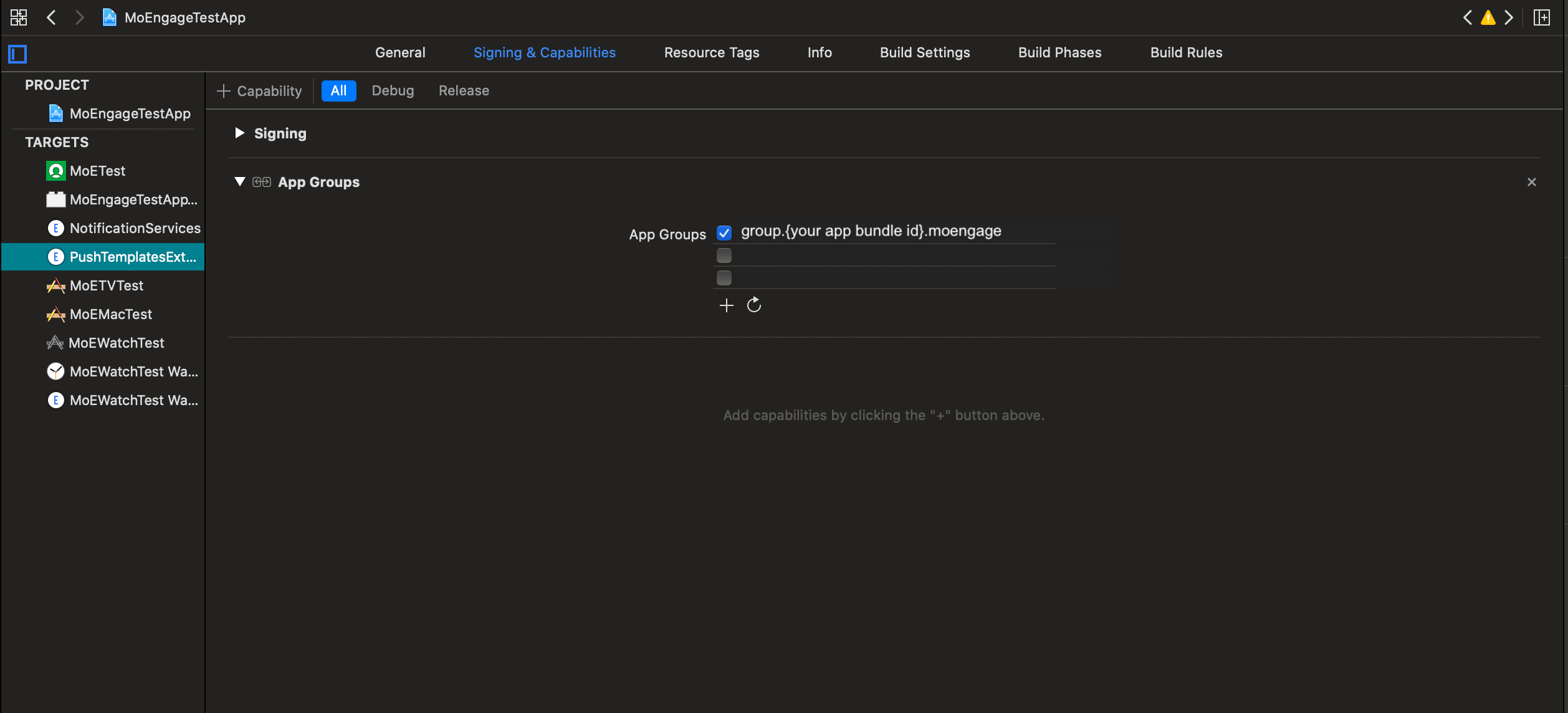
In Capabilities Section add **App Groups** and select the same app group id which you have configured in your App target and Notification Service Extension target.
## 3. Add required Capabilities
In Capabilities Section add **App Groups** and select the same app group id which you have configured in your App target and Notification Service Extension target.
 **App Group ID Recommendation**
We recommend having a separate App Group ID set for MoEngage with the format `group.{app bundle id}.MoEngage`. And make sure the same app group id is enabled for all the targets where MoEngage is being used.
## 4. Info.plist changes
**App Group ID Recommendation**
We recommend having a separate App Group ID set for MoEngage with the format `group.{app bundle id}.MoEngage`. And make sure the same app group id is enabled for all the targets where MoEngage is being used.
## 4. Info.plist changes
 Make the changes in the `Info.plist` of your Notification Content Extension, as shown above, set NSExtensionAttributes as following:
| Attribute | Attribute Value |
| ---------------------------------------------- | ------------------- |
| UNNotificationExtensionCategory | MOE\_PUSH\_TEMPLATE |
| UNNotificationExtensionInitialContentSizeRatio | 1.2 |
| UNNotificationExtensionDefaultContentHidden | YES |
| UNNotificationExtensionUserInteractionEnabled | YES |
## 5. Storyboard changes
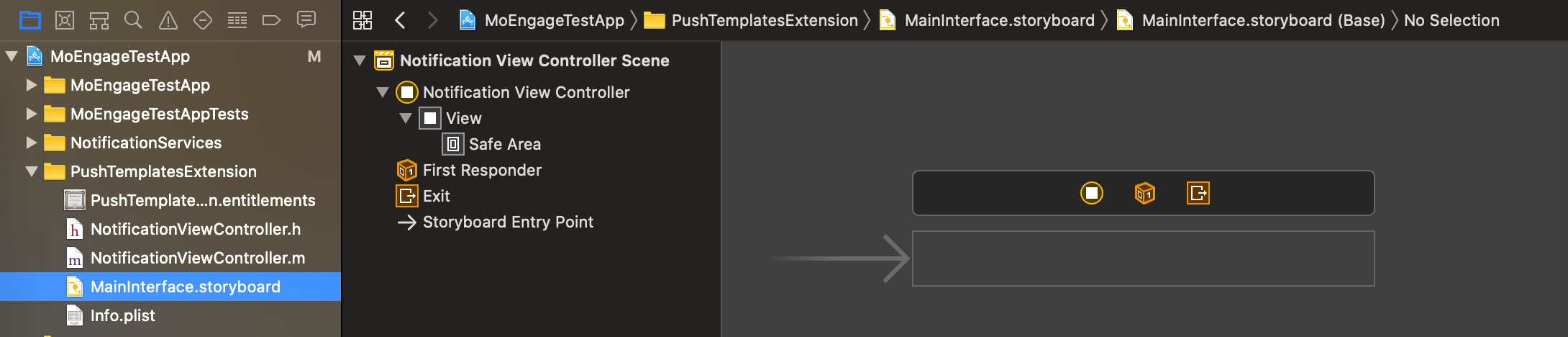
Select `MainInterface.storyboard` in your Content extension and remove the default label which is placed there and set the background color of the view to clear color, as shown:
Make the changes in the `Info.plist` of your Notification Content Extension, as shown above, set NSExtensionAttributes as following:
| Attribute | Attribute Value |
| ---------------------------------------------- | ------------------- |
| UNNotificationExtensionCategory | MOE\_PUSH\_TEMPLATE |
| UNNotificationExtensionInitialContentSizeRatio | 1.2 |
| UNNotificationExtensionDefaultContentHidden | YES |
| UNNotificationExtensionUserInteractionEnabled | YES |
## 5. Storyboard changes
Select `MainInterface.storyboard` in your Content extension and remove the default label which is placed there and set the background color of the view to clear color, as shown:
 ## 6. MoEngageRichNotification Integration
### Integration via CocoaPod
For integrating through CocoaPod, include **MoEngageRichNotification** pod for your Notification Content Extension as shown below, and run pod update / install command :
```Ruby theme={null}
target "PushTemplatesExtension" do
pod 'MoEngageRichNotification','~>6.2.0'
end
```
### Integration via Swift Package Manager
For integrating through SPM, use the following github url link and set the branch as master or version as 6.2.0 and above [https://github.com/moengage/MoEngage-iOS-RichNotification.git](https://github.com/moengage/MoEngage-iOS-RichNotification.git)
**Manual Integration**
* To integrate the `MoEngageRichNotification` SDK manually to your project follow this [doc](https://developers.moengage.com/hc/en-us/articles/4404183451412).
* Add `MoEngageRichNotification` to embedded binaries in the App target, and ensure it is linked to your Notification Content Extension target.
## 7. Code Changes in Content Extension:
```swift Swift theme={null}
import UIKit
import UserNotifications
import UserNotificationsUI
import MoEngageRichNotification
class NotificationViewController: UIViewController, UNNotificationContentExtension {
override func viewDidLoad() {
super.viewDidLoad()
// Set App Group ID
MORichNotification.setAppGroupID("Your App Group ID")
}
func didReceive(_ notification: UNNotification) {
// Method to add template to UI
MORichNotification.addPushTemplate(toController: self, withNotification: notification)
}
}
```
```objectivec Objective-C theme={null}
#import "NotificationViewController.h"
#import
#import
#import
@interface NotificationViewController ()
@end
@implementation NotificationViewController
- (void)viewDidLoad {
[super viewDidLoad];
// Set App Group ID
[MORichNotification setAppGroupID:@"Your App Group ID"];
}
- (void)didReceiveNotification:(UNNotification *)notification {
// Method to add template to UI
[MORichNotification addPushTemplateToController:self withNotification:notification];
}
@end
```
As shown above, make these changes in your `NotificationViewController` class:
1. Set the same App Group ID in `viewDidLoad()` method which was enabled in [Capabilities](https://developers.moengage.com/hc/en-us/articles/4403956104084-Push-Templates#3-add-required-capabilities-0-3). `[Recommended: group.{app bundle id}.MoEngage]`
2. Call `addPushTemplateToController:withNotification:` method to add template in `didReceiveNotification()` callback.
## 8. Notification Click callback in App:
In the case of Simple Image Carousel notification, to know which slide was clicked by the user, make use of `MOMessagingDelegate` to get `notificationClicked(withScreenName: andKVPairs:)` callback to get key-value pairs and screen name if set for the clicked slide. Refer to the example below, here we are registering for the callback in AppDelegate:
```swift Swift theme={null}
class AppDelegate: UIResponder, UIApplicationDelegate, UNUserNotificationCenterDelegate, MOMessagingDelegate{
func application(_ application: UIApplication, didFinishLaunchingWithOptions launchOptions: [UIApplication.LaunchOptionsKey: Any]?) -> Bool {
// Set the delegate
MOMessaging.sharedInstance.setMessagingDelegate(self)
//Rest of the implementation
}
// Notification Clicked Callback
func notificationClicked(withScreenName screenName: String?, andKVPairs kvPairs: [AnyHashable : Any]?) {
if let screenName = screenName {
print("Navigate to Screen:\(screenName)")
}
if let actionKVPairs = kvPairs {
print("Selected Action KVPair:\(actionKVPairs)")
}
}
// Notification Clicked Callback with Push Payload
func notificationClicked(withScreenName screenName: String?, kvPairs: [AnyHashable : Any]?, andPushPayload userInfo: [AnyHashable : Any]) {
print("Push Payload: \(userInfo)")
if let screenName = screenName {
print("Navigate to Screen:\(screenName)")
}
if let actionKVPairs = kvPairs {
print("Selected Action KVPair:\(actionKVPairs)")
}
}
}
```
```objectivec Objective-C theme={null}
@interface AppDelegate ()
@end
@implementation AppDelegate
- (BOOL)application:(UIApplication *)application didFinishLaunchingWithOptions:(NSDictionary *)launchOptions {
// Set the delegate
[[MOMessaging sharedInstance] setMessagingDelegate:self forAppID:@"YOUR WORKSPACE ID"];
//Rest of the implementation
}
// Notification Clicked Callback
-(void)notificationClickedWithScreenName:(NSString *)screenName andKVPairs:(NSDictionary *)kvPairs{
if (screenName) {
NSLog(@"Screen Name : %@",screenName);
}
if (kvPairs) {
NSLog(@"KV Pairs : %@",kvPairs);
}
}
// Notification Clicked Callback with Push Payload
-(void)notificationClickedWithScreenName:(NSString *)screenName KVPairs:(NSDictionary *)kvPairs andPushPayload:(NSDictionary *)userInfo{
NSLog(@"Push Payload: %@",userInfo);
if (screenName) {
NSLog(@"Screen Name : %@",screenName);
}
if (kvPairs) {
NSLog(@"KV Pairs : %@",kvPairs);
}
}
@end
```
This callback will also be called for normal and Stylized Basic Notifications and could be made use of there as well.
## 6. MoEngageRichNotification Integration
### Integration via CocoaPod
For integrating through CocoaPod, include **MoEngageRichNotification** pod for your Notification Content Extension as shown below, and run pod update / install command :
```Ruby theme={null}
target "PushTemplatesExtension" do
pod 'MoEngageRichNotification','~>6.2.0'
end
```
### Integration via Swift Package Manager
For integrating through SPM, use the following github url link and set the branch as master or version as 6.2.0 and above [https://github.com/moengage/MoEngage-iOS-RichNotification.git](https://github.com/moengage/MoEngage-iOS-RichNotification.git)
**Manual Integration**
* To integrate the `MoEngageRichNotification` SDK manually to your project follow this [doc](https://developers.moengage.com/hc/en-us/articles/4404183451412).
* Add `MoEngageRichNotification` to embedded binaries in the App target, and ensure it is linked to your Notification Content Extension target.
## 7. Code Changes in Content Extension:
```swift Swift theme={null}
import UIKit
import UserNotifications
import UserNotificationsUI
import MoEngageRichNotification
class NotificationViewController: UIViewController, UNNotificationContentExtension {
override func viewDidLoad() {
super.viewDidLoad()
// Set App Group ID
MORichNotification.setAppGroupID("Your App Group ID")
}
func didReceive(_ notification: UNNotification) {
// Method to add template to UI
MORichNotification.addPushTemplate(toController: self, withNotification: notification)
}
}
```
```objectivec Objective-C theme={null}
#import "NotificationViewController.h"
#import
#import
#import
@interface NotificationViewController ()
@end
@implementation NotificationViewController
- (void)viewDidLoad {
[super viewDidLoad];
// Set App Group ID
[MORichNotification setAppGroupID:@"Your App Group ID"];
}
- (void)didReceiveNotification:(UNNotification *)notification {
// Method to add template to UI
[MORichNotification addPushTemplateToController:self withNotification:notification];
}
@end
```
As shown above, make these changes in your `NotificationViewController` class:
1. Set the same App Group ID in `viewDidLoad()` method which was enabled in [Capabilities](https://developers.moengage.com/hc/en-us/articles/4403956104084-Push-Templates#3-add-required-capabilities-0-3). `[Recommended: group.{app bundle id}.MoEngage]`
2. Call `addPushTemplateToController:withNotification:` method to add template in `didReceiveNotification()` callback.
## 8. Notification Click callback in App:
In the case of Simple Image Carousel notification, to know which slide was clicked by the user, make use of `MOMessagingDelegate` to get `notificationClicked(withScreenName: andKVPairs:)` callback to get key-value pairs and screen name if set for the clicked slide. Refer to the example below, here we are registering for the callback in AppDelegate:
```swift Swift theme={null}
class AppDelegate: UIResponder, UIApplicationDelegate, UNUserNotificationCenterDelegate, MOMessagingDelegate{
func application(_ application: UIApplication, didFinishLaunchingWithOptions launchOptions: [UIApplication.LaunchOptionsKey: Any]?) -> Bool {
// Set the delegate
MOMessaging.sharedInstance.setMessagingDelegate(self)
//Rest of the implementation
}
// Notification Clicked Callback
func notificationClicked(withScreenName screenName: String?, andKVPairs kvPairs: [AnyHashable : Any]?) {
if let screenName = screenName {
print("Navigate to Screen:\(screenName)")
}
if let actionKVPairs = kvPairs {
print("Selected Action KVPair:\(actionKVPairs)")
}
}
// Notification Clicked Callback with Push Payload
func notificationClicked(withScreenName screenName: String?, kvPairs: [AnyHashable : Any]?, andPushPayload userInfo: [AnyHashable : Any]) {
print("Push Payload: \(userInfo)")
if let screenName = screenName {
print("Navigate to Screen:\(screenName)")
}
if let actionKVPairs = kvPairs {
print("Selected Action KVPair:\(actionKVPairs)")
}
}
}
```
```objectivec Objective-C theme={null}
@interface AppDelegate ()
@end
@implementation AppDelegate
- (BOOL)application:(UIApplication *)application didFinishLaunchingWithOptions:(NSDictionary *)launchOptions {
// Set the delegate
[[MOMessaging sharedInstance] setMessagingDelegate:self forAppID:@"YOUR WORKSPACE ID"];
//Rest of the implementation
}
// Notification Clicked Callback
-(void)notificationClickedWithScreenName:(NSString *)screenName andKVPairs:(NSDictionary *)kvPairs{
if (screenName) {
NSLog(@"Screen Name : %@",screenName);
}
if (kvPairs) {
NSLog(@"KV Pairs : %@",kvPairs);
}
}
// Notification Clicked Callback with Push Payload
-(void)notificationClickedWithScreenName:(NSString *)screenName KVPairs:(NSDictionary *)kvPairs andPushPayload:(NSDictionary *)userInfo{
NSLog(@"Push Payload: %@",userInfo);
if (screenName) {
NSLog(@"Screen Name : %@",screenName);
}
if (kvPairs) {
NSLog(@"KV Pairs : %@",kvPairs);
}
}
@end
```
This callback will also be called for normal and Stylized Basic Notifications and could be made use of there as well.