> ## Documentation Index
> Fetch the complete documentation index at: https://moengage-docs-limits-messaging.mintlify.site/llms.txt
> Use this file to discover all available pages before exploring further.
# Configure MSG91
MoEngage natively integrates with MSG91 to send Templated WhatsApp messages, show delivery, and read analytics for senders.
Configuring MSG91 with MoEngage is a two-step process:
Step 1: [Sender Configuration](#sender-configuration)
Step 2: [Delivery Tracking](#delivery-tracking)
# Sender Configuration
To configure a Sender from MSG91 on the MoEngage Dashboard, follow the steps below:
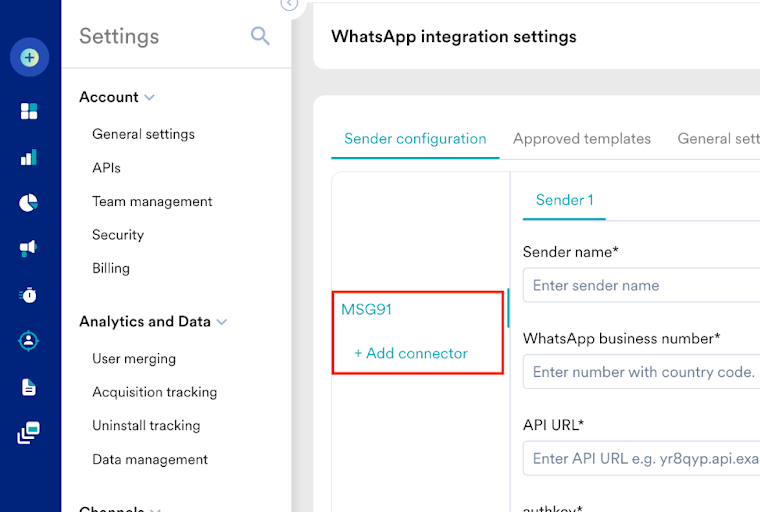
1. Go to **Settings** **>** **WhatsApp >** **Sender Configuration**.
2. Click the **+Add connector** from the left pane under the **Sender configuration** tab.
You can choose MSG91 from the left pane if you have already added MSG91 to your connector list.
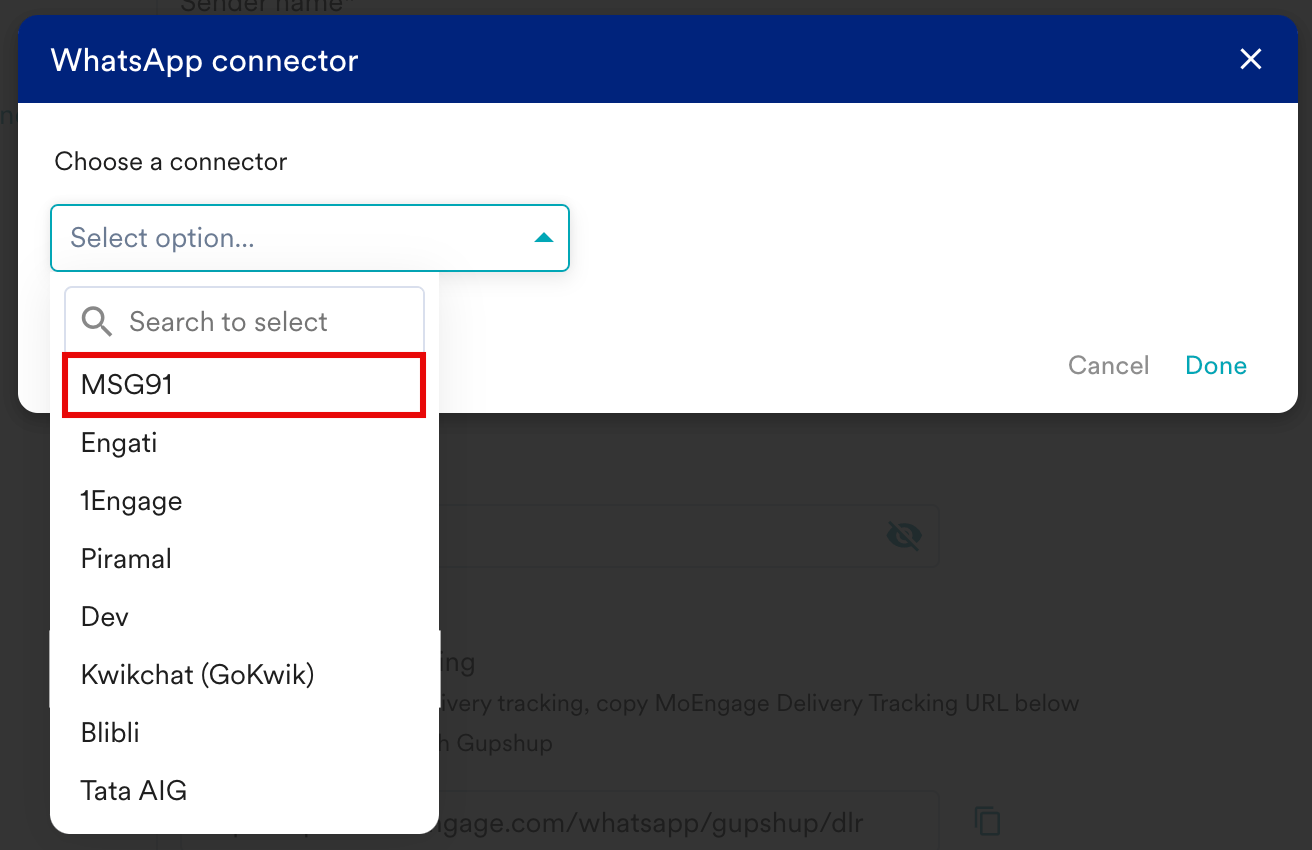
 3. Select **MSG91** from the **Choose a connector** dropdown and then click **Done**.
 4. Add the following details:
| Field Name | Description |
| ------------------------ | ------------------------------------------------------------------------------------------------------------------------------------------------------------------------------------------------------------------------------------------------------------------------------------------------------------------------- |
| Sender Name |
4. Add the following details:
| Field Name | Description |
| ------------------------ | ------------------------------------------------------------------------------------------------------------------------------------------------------------------------------------------------------------------------------------------------------------------------------------------------------------------------- |
| Sender Name | - Provide a name to the Sender profile.
- This would be available in the Sender so that you can recognize this easily while using it to create a campaign inside MoEngage.
- The **Sender Name** is a mandatory field that should be between 5-50 characters.
|
| WhatsApp business number | - Enter the phone number with the country code registered with WhatsApp (through MSG91) using which you want to send out WhatsApp Messages to your users. Note that do not add a plus sign while entering the phone number.
- This is a mandatory field and is also referred to as the WABA number.
|
| API URL | Collect the API URL from your vendor and enter it into the **API URL** field. Sample URL:
[**https://control.msg91.com/api/v5/whatsapp/whatsapp-outbound-message/**](https://control.msg91.com/api/v5/whatsapp/whatsapp-outbound-message/) |
| Authkey | Enter your MSG91 authkey |
5. Click **Save**.
6. Notify MSG91 to enable/validate the API token.
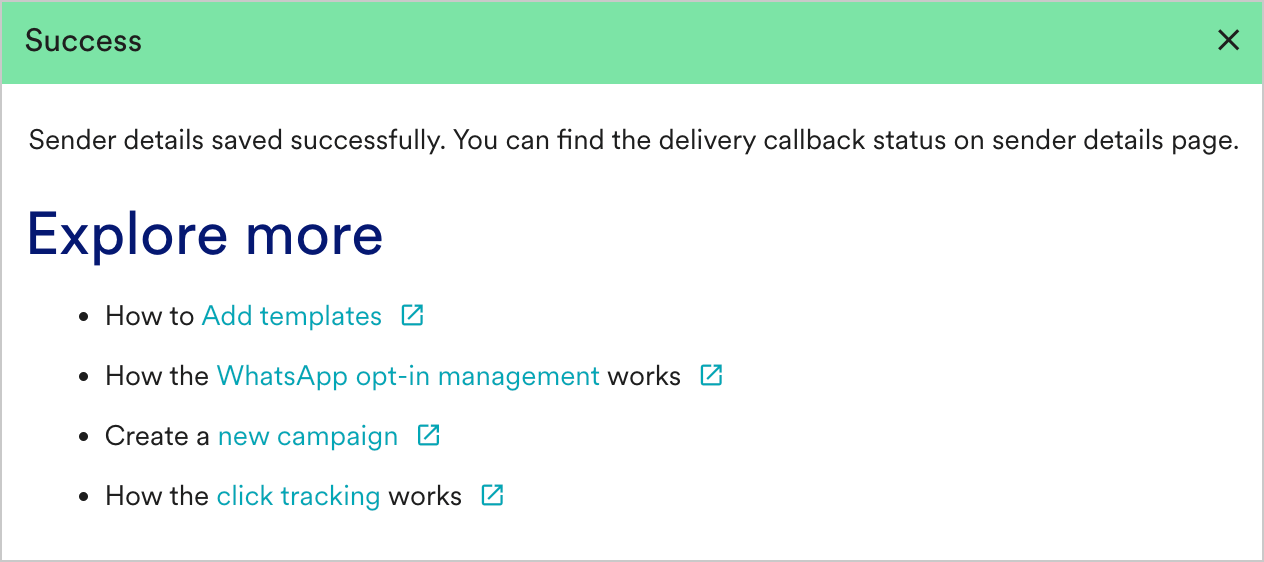
7. Upon successful integration, you get the following message.
 # Delivery Tracking
To track the delivery of your WhatsApp Messages inside MoEngage, you need to copy the **MoEngage Delivery Tracking URL** and update it on the MSG91 dashboard.
# Delivery Tracking
To track the delivery of your WhatsApp Messages inside MoEngage, you need to copy the **MoEngage Delivery Tracking URL** and update it on the MSG91 dashboard.
 The URL in the image above is a sample URL. Copy the exact URL from your MoEngage dashboard and update it on the MSG91 dashboard.
## Steps to Add Delivery Tracking URL
Perform the following steps to add the MoEngage Delivery Tracking URL to the MSG91 dashboard:
1. Login to your MSG91 dashboard and go to **WhatsApp > Webhooks**.
2. Add the **Delivery Tracking URL** in the **Outbound Message** webhook.
The URL in the image above is a sample URL. Copy the exact URL from your MoEngage dashboard and update it on the MSG91 dashboard.
## Steps to Add Delivery Tracking URL
Perform the following steps to add the MoEngage Delivery Tracking URL to the MSG91 dashboard:
1. Login to your MSG91 dashboard and go to **WhatsApp > Webhooks**.
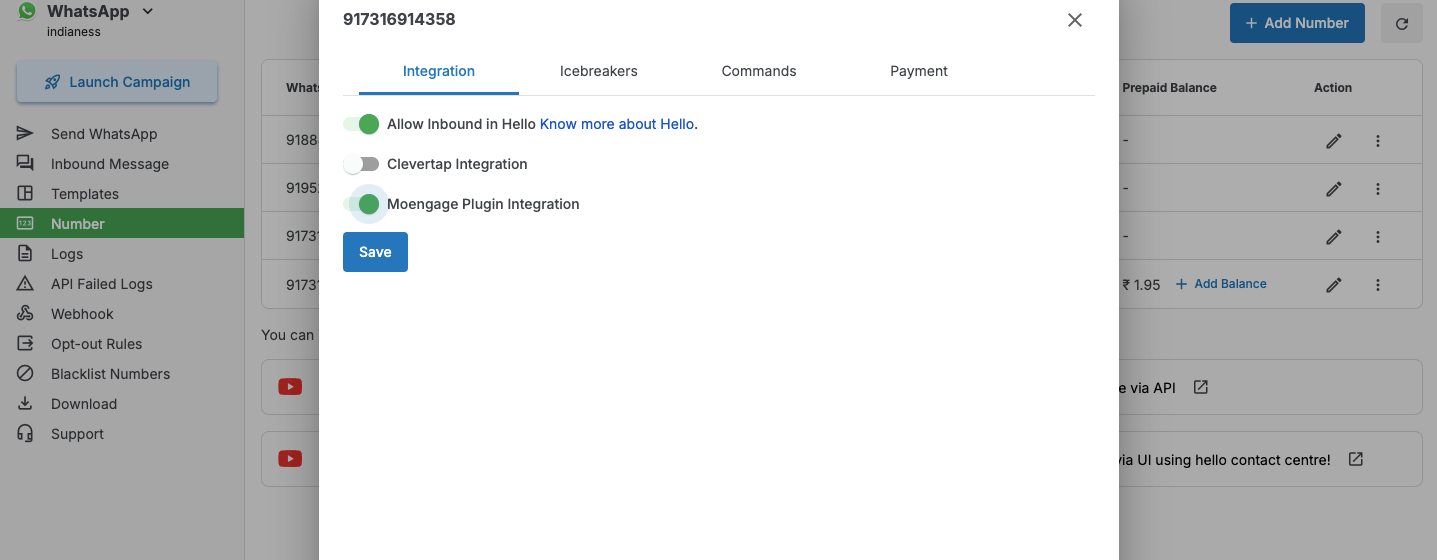
2. Add the **Delivery Tracking URL** in the **Outbound Message** webhook.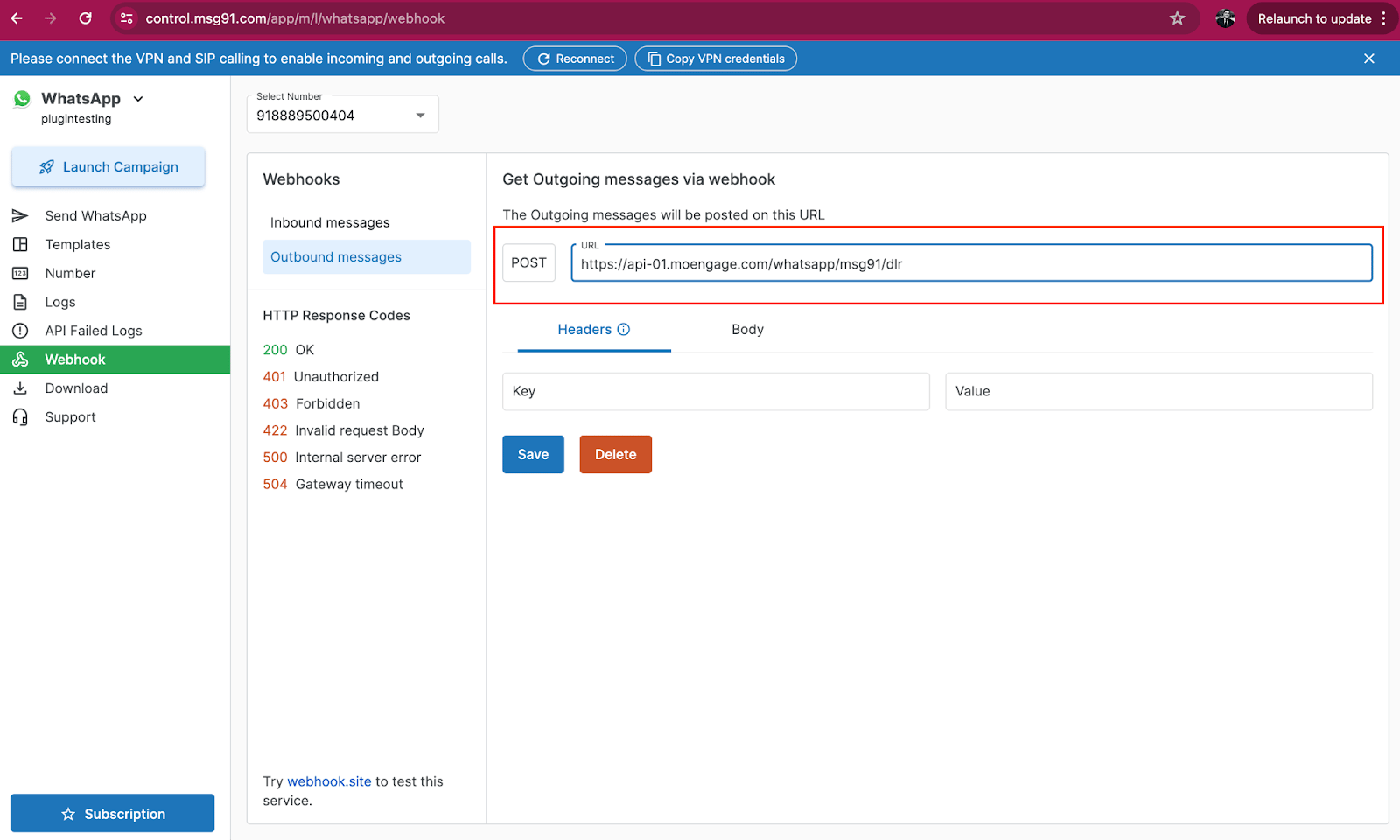 3. Click **Number** in the left side panel and click the edit option against the WhatsApp number you are integrating with MoEngage.
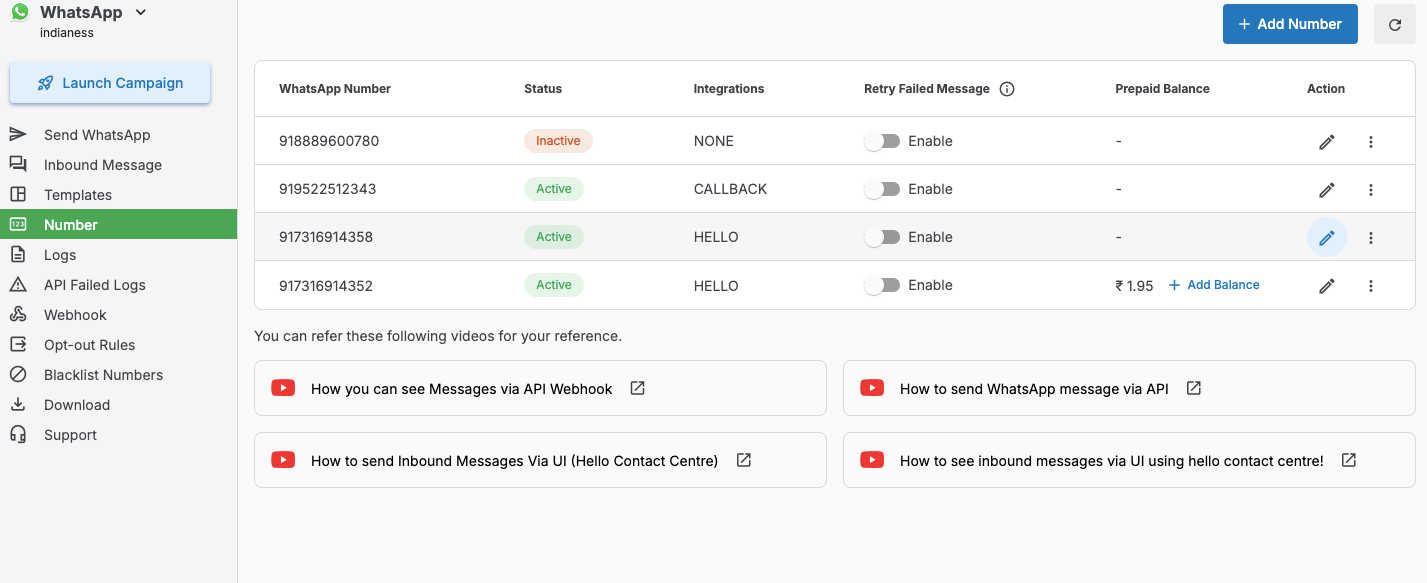 4. On the following page, in the **Integration** tab, turn on the **MoEngage Plugin Integration** and click **Save**.