> ## Documentation Index
> Fetch the complete documentation index at: https://moengage-docs-limits-messaging.mintlify.site/llms.txt
> Use this file to discover all available pages before exploring further.
# TikTok Conversions
> Send web and offline conversion events from MoEngage to the TikTok Events API, with event deduplication, to track and optimize ad performance.
# Introduction
The TikTok Conversions integration bridges MoEngage and TikTok through a robust server-to-server (S2S) framework. By moving beyond client-side dependencies like ad blockers and cookie limitations, it secures a high-fidelity data stream. This ensures peak data reliability, precision attribution, and a measurable boost in ad performance.
MoEngage supports the following distinct connectors for TikTok:
* [**TikTok Web Conversions**](#integration-with-tiktok-web-conversions): Use this to streamline website events (such as Add to Cart or Purchase) captured by the MoEngage Web SDK.
* [**TikTok Offline Conversions**](#integration-with-tiktok-offline-conversions): Use this to sync high-value offline interactions (such as in-store purchases, CRM leads, or phone orders) directly to TikTok.
## Use Cases
Integrating TikTok Conversions with MoEngage allows you to sync event data to support the following use cases:
* **Attribute offline actions**: Connect physical storefront activity to digital ad spend and measure the total ROI of your campaigns.
* **Optimize campaign bidding**: Enhance TikTok bidding algorithms by using high-signal conversion data to lower your cost per acquisition (CPA).
* **Target with precision**: Use conversion insights to re-engage users who abandoned carts or to build lookalike audiences based on top-spending customers.
* **Maintain data resilience**: Maintain a consistent data flow even when users have strict privacy settings or ad blockers enabled.
**Prerequisites**
Before you set up either connector, ensure you have the following from your TikTok For Business account:
* **TikTok Pixel ID**: The unique ID for tracking web events.
* **Offline Event Set ID**: The unique ID for tracking offline events.
* **Access Token**: This is generated in the TikTok Events Manager on the **Settings** tab.
* **Active MoEngage Account**: Contact your MoEngage CSM if Connected Apps is not enabled.
Tiktok Ads Conversions is part of the Connected Channels add-on. Contact your dedicated MoEngage CSM (customer success manager) to enable it for your account
# Integration with TikTok Web Conversions
### Step 1: Generate Credentials in TikTok
To generate the credentials in TikTok, perform the following steps:
1. Log in to your **TikTok Ads Manager** account.
2. On the top navigation bar, click **Tools** > **Events**.
3. Click **Connect data source**.
4. In the **Connect data source** dialog box, select **Web** and then click **Next. **
5. In the **Add your website** dialog box, enter your URL or click **Skip**.
**
5. In the **Add your website** dialog box, enter your URL or click **Skip**.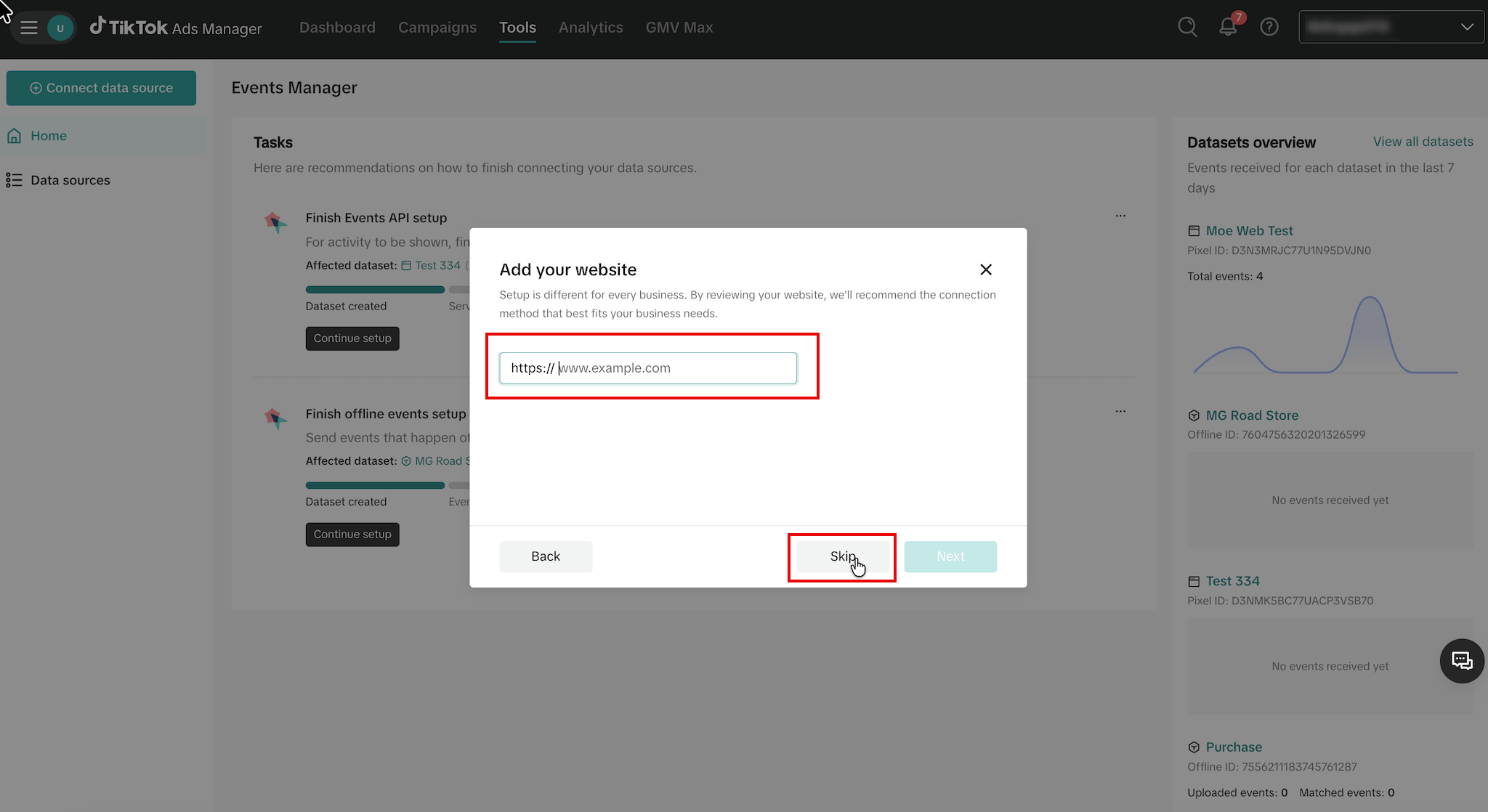 6. In the **Choose a data connection method** dialog box, select **Manual setup** and then click **Next**.
 7. In the **Choose a manual connection method** dialog box, click **TikTok Pixel + Events API** (Recommended) and then click **Next**.
 8. In the **Pixel Name** box, enter a name and then click **Create**.
 9. After the pixel is created, navigate to the **Implement Events API** tab to find your **Pixel ID**.
10. Click **Generate access token** and then copy the token.
9. After the pixel is created, navigate to the **Implement Events API** tab to find your **Pixel ID**.
10. Click **Generate access token** and then copy the token. ## Step 2: Connect TikTok Web Conversions in the App Marketplace
To connect the TikTok Web Conversions in the App marketplace, perform the following steps:
1. On the left navigation menu of the MoEngage UI, click **App marketplace**.
2. On the **App Marketplace** page, search for **TikTok Conversions**.
3. Click the **TikTok Conversions** tile.
4. On the **TikTok Conversions** page, click the **Integrate** tab.
5. Click the
## Step 2: Connect TikTok Web Conversions in the App Marketplace
To connect the TikTok Web Conversions in the App marketplace, perform the following steps:
1. On the left navigation menu of the MoEngage UI, click **App marketplace**.
2. On the **App Marketplace** page, search for **TikTok Conversions**.
3. Click the **TikTok Conversions** tile.
4. On the **TikTok Conversions** page, click the **Integrate** tab.
5. Click the  down arrow key, and then click **TikTok Web Conversions**.
6. Enter the following details:
| Field | Required | Description |
| ------------------- | -------- | --------------------------------------------------------------------------- |
| **Connection name** | Yes | A unique name for this integration (for example, TikTok\_Web\_Conversions). |
| **Pixel Code** | Yes | This is your unique TikTok Pixel ID. |
| **Access Token** | Yes | This is the token generated from the TikTok Events Manager. |
7. Click **Connect**. Your integration is now authorized.
down arrow key, and then click **TikTok Web Conversions**.
6. Enter the following details:
| Field | Required | Description |
| ------------------- | -------- | --------------------------------------------------------------------------- |
| **Connection name** | Yes | A unique name for this integration (for example, TikTok\_Web\_Conversions). |
| **Pixel Code** | Yes | This is your unique TikTok Pixel ID. |
| **Access Token** | Yes | This is the token generated from the TikTok Events Manager. |
7. Click **Connect**. Your integration is now authorized.
 ## Step 3: Create a TikTok Web Conversions Campaign
To create a TikTok Web Conversions campaign, perform the following steps:
1. On the left navigation menu in the MoEngage dashboard, click **Engage**, and then click **Campaigns**
2. On the **All campaigns** page, click **+ Create campaign**.
3. In the **Create campaign** dialog box, under **Connected Apps**, click **TikTok Conversions** and then click the most suitable delivery type.
4. In Step 1 (**Target Users**), select your audience.
5. In Step 2 (**Content**), select your Connector (**TikTok Web Conversions**) and the connection you created.
6. Under **Conversion Goals**, enter the following fields:
| Field | Required | Description |
| -------------------- | -------- | ------------------------------------------------------------------------------------- |
| **Event Type** | Yes | This is a standard event name (for example, CompletePayment, AddToCart, ViewContent). |
| **Event ID** | No | This is the unique ID used for deduplication (for example, `{{Event['uid']}}`). |
| **TikTok Click ID** | No | The ttclid parameter (highly recommended for matching web events to ad clicks). |
| **Conversion Value** | No | This is a transaction's numeric value. |
| **Currency Code** | No | ISO 4217 currency code (for example, USD, EUR). |
| **External ID** | No | This is the unique system ID stored within MoEngage. |
## Step 3: Create a TikTok Web Conversions Campaign
To create a TikTok Web Conversions campaign, perform the following steps:
1. On the left navigation menu in the MoEngage dashboard, click **Engage**, and then click **Campaigns**
2. On the **All campaigns** page, click **+ Create campaign**.
3. In the **Create campaign** dialog box, under **Connected Apps**, click **TikTok Conversions** and then click the most suitable delivery type.
4. In Step 1 (**Target Users**), select your audience.
5. In Step 2 (**Content**), select your Connector (**TikTok Web Conversions**) and the connection you created.
6. Under **Conversion Goals**, enter the following fields:
| Field | Required | Description |
| -------------------- | -------- | ------------------------------------------------------------------------------------- |
| **Event Type** | Yes | This is a standard event name (for example, CompletePayment, AddToCart, ViewContent). |
| **Event ID** | No | This is the unique ID used for deduplication (for example, `{{Event['uid']}}`). |
| **TikTok Click ID** | No | The ttclid parameter (highly recommended for matching web events to ad clicks). |
| **Conversion Value** | No | This is a transaction's numeric value. |
| **Currency Code** | No | ISO 4217 currency code (for example, USD, EUR). |
| **External ID** | No | This is the unique system ID stored within MoEngage. |
 7. Your campaign is now ready to be tested and sent. Using the *Test* functionality, you can also test your connector configuration.
 If your test user successfully receives the message, your setup is ready.
8. Publish the campaign.
# Integration with TikTok Offline Conversions
### Step 1: Generate Credentials in TikTok
To generate the credentials in TikTok perform the following steps:
1. Log in to your **TikTok Ads Manager** account.
2. On the top navigation bar, click **Tools** > **Events**.
3. Click **Connect data source**.
4. In the **Connect data source** dialog box, select **Offline** and then click **Next**.
**
If your test user successfully receives the message, your setup is ready.
8. Publish the campaign.
# Integration with TikTok Offline Conversions
### Step 1: Generate Credentials in TikTok
To generate the credentials in TikTok perform the following steps:
1. Log in to your **TikTok Ads Manager** account.
2. On the top navigation bar, click **Tools** > **Events**.
3. Click **Connect data source**.
4. In the **Connect data source** dialog box, select **Offline** and then click **Next**.
** **
5. In the **Create offline event set** dialog box, enter the following details:
**
5. In the **Create offline event set** dialog box, enter the following details: 1. In the **Offline event set name** box, type a name for the set.
2. In the **Description** box, type a description for your offline event set.
6. Click **Create**.
7. After the event set is created, copy the **ID** displayed in the event set details.
1. In the **Offline event set name** box, type a name for the set.
2. In the **Description** box, type a description for your offline event set.
6. Click **Create**.
7. After the event set is created, copy the **ID** displayed in the event set details. 8. Click the **Settings** tab for the event set, scroll to the **Set Up Events API** section, and then click **Generate Access Token.**
**
8. Click the **Settings** tab for the event set, scroll to the **Set Up Events API** section, and then click **Generate Access Token.**
** **
## Step 2: Connect TikTok Offline Conversions in the App Marketplace
To connect the TikTok Offline Conversions in the App marketplace, perform the following steps:
1. On the left navigation menu of the MoEngage UI, click **App marketplace**.
2. On the **App Marketplace** page, search for **TikTok Conversions**.
3. Click the **TikTok Conversions** tile.
4. On the **TikTok Conversions** page, click the **Integrate** tab.
5. Click the down arrow key, and then click **TikTok Offline Conversions**.
6. Enter the following details:
| Field | Required | Description |
| -------------------- | -------- | --------------------------------------------------------------------------- |
| Connection name | Yes | A unique name for this integration (for example, TikTok\_Web\_Conversions). |
| Offline Event Set ID | Yes | This is your unique TikTok Pixel ID. |
| Access Token | Yes | This is the token generated from the TikTok Events Manager. |
7. Click **Connect**.
**
## Step 2: Connect TikTok Offline Conversions in the App Marketplace
To connect the TikTok Offline Conversions in the App marketplace, perform the following steps:
1. On the left navigation menu of the MoEngage UI, click **App marketplace**.
2. On the **App Marketplace** page, search for **TikTok Conversions**.
3. Click the **TikTok Conversions** tile.
4. On the **TikTok Conversions** page, click the **Integrate** tab.
5. Click the down arrow key, and then click **TikTok Offline Conversions**.
6. Enter the following details:
| Field | Required | Description |
| -------------------- | -------- | --------------------------------------------------------------------------- |
| Connection name | Yes | A unique name for this integration (for example, TikTok\_Web\_Conversions). |
| Offline Event Set ID | Yes | This is your unique TikTok Pixel ID. |
| Access Token | Yes | This is the token generated from the TikTok Events Manager. |
7. Click **Connect**.
 Your integration is now authorized.
### Step 2.2: Create a TikTok Offline Conversions Campaign
To create a TikTok Offline Conversions campaign, perform the following steps:
1. On the left navigation menu of the MoEngage UI, click **Engage**, and then click **Campaigns**
2. On the **All campaigns** page, click **+ Create campaign**.
3. In the **Create campaign** dialog box, under **Connected Apps**, click **TikTok Conversions** and then click the most suitable delivery type.
4. In Step 1 (**Target Users**), select your audience.
5. In Step 2 (**Content**), select your Connector (**TikTok Offline Conversions**) and the connection you created.
6. Under **Conversion Goals**, enter the following fields:
| Field | Required | Description |
| ---------------- | -------- | ------------------------------------------------------------------------------- |
| Event Type | Yes | This is the standard event name (such as CompletePayment or AddToCart). |
| Conversion Value | No | This is the transaction's numeric value. |
| Currency Code | No | The ISO 4217 currency code (for example, USD, EUR). |
| Event ID | No | This is the unique ID used for deduplication (for example, `{{Event['uid']}}`). |
| Order ID | No | This is a specific transaction identifier for offline sales. |
| Shop ID | No | This is an identifier for the physical store or digital shop. |
Your integration is now authorized.
### Step 2.2: Create a TikTok Offline Conversions Campaign
To create a TikTok Offline Conversions campaign, perform the following steps:
1. On the left navigation menu of the MoEngage UI, click **Engage**, and then click **Campaigns**
2. On the **All campaigns** page, click **+ Create campaign**.
3. In the **Create campaign** dialog box, under **Connected Apps**, click **TikTok Conversions** and then click the most suitable delivery type.
4. In Step 1 (**Target Users**), select your audience.
5. In Step 2 (**Content**), select your Connector (**TikTok Offline Conversions**) and the connection you created.
6. Under **Conversion Goals**, enter the following fields:
| Field | Required | Description |
| ---------------- | -------- | ------------------------------------------------------------------------------- |
| Event Type | Yes | This is the standard event name (such as CompletePayment or AddToCart). |
| Conversion Value | No | This is the transaction's numeric value. |
| Currency Code | No | The ISO 4217 currency code (for example, USD, EUR). |
| Event ID | No | This is the unique ID used for deduplication (for example, `{{Event['uid']}}`). |
| Order ID | No | This is a specific transaction identifier for offline sales. |
| Shop ID | No | This is an identifier for the physical store or digital shop. |
 7. Your campaign is now ready to be tested and sent. Using the *Test* functionality, you can also test your connector configuration.
If your test user successfully receives the message, your setup is complete.
8. Publish the campaign.
**Information**
**Best Practices**:
* **Deduplication**: Always map a unique *Event ID* to prevent TikTok from counting the same conversion multiple times.
* **Timely Uploads**: Send Web events within 48 hours and Offline events within 62 days of the transaction for optimal processing.
* **Data Quality**: Ensure Email and Phone data are captured accurately in MoEngage to maintain high match rates on TikTok.
* **Attribution**: Mapping the ttclid (*TikTok Click ID*) significantly improves Web event attribution accuracy.
**Troubleshooting**:
* **Low Match Rate**: Verify that the ttclid is being captured correctly for web events or the PII fields (Email or Phone) are available in MoEngage.
* **Events Not Appearing**: Check that the Access Token hasn't expired and verify that the *Pixel ID* matches your TikTok Ads Manager setup.
7. Your campaign is now ready to be tested and sent. Using the *Test* functionality, you can also test your connector configuration.
If your test user successfully receives the message, your setup is complete.
8. Publish the campaign.
**Information**
**Best Practices**:
* **Deduplication**: Always map a unique *Event ID* to prevent TikTok from counting the same conversion multiple times.
* **Timely Uploads**: Send Web events within 48 hours and Offline events within 62 days of the transaction for optimal processing.
* **Data Quality**: Ensure Email and Phone data are captured accurately in MoEngage to maintain high match rates on TikTok.
* **Attribution**: Mapping the ttclid (*TikTok Click ID*) significantly improves Web event attribution accuracy.
**Troubleshooting**:
* **Low Match Rate**: Verify that the ttclid is being captured correctly for web events or the PII fields (Email or Phone) are available in MoEngage.
* **Events Not Appearing**: Check that the Access Token hasn't expired and verify that the *Pixel ID* matches your TikTok Ads Manager setup.