> ## Documentation Index
> Fetch the complete documentation index at: https://moengage-docs-limits-messaging.mintlify.site/llms.txt
> Use this file to discover all available pages before exploring further.
# S3 Imports
> Import users, events, and auxiliary data from Amazon S3 buckets into MoEngage. Configure S3 integration for registered and anonymous user profiles.
# Overview
MoEngage allows customers to import users and events through files stored inside S3 Buckets.
# Types of Imports
MoEngage can import the following from your S3 buckets:
1. **Registered Users**: These are users who are already registered on MoEngage.
2. **Anonymous Users**: These are users who are not yet registered on MoEngage.
3. **Events** (Standard and User-Defined): MoEngage can import standard events like Campaign Interaction Events as well as your own user-defined events.
4. **Auxiliary Data**: These are users added temporarily.
# Prepare the Files
Refer to the [File Imports help doc](/user-guide/data/imports/overview/overview-imports) to understand the supported file types, naming conventions, file structure, etc. Once you are ready with the files, you need to place them inside a folder on your S3 bucket.
## Folder Structure
Place all files into an Amazon S3 Folder. You can configure the folder path while setting up the import.
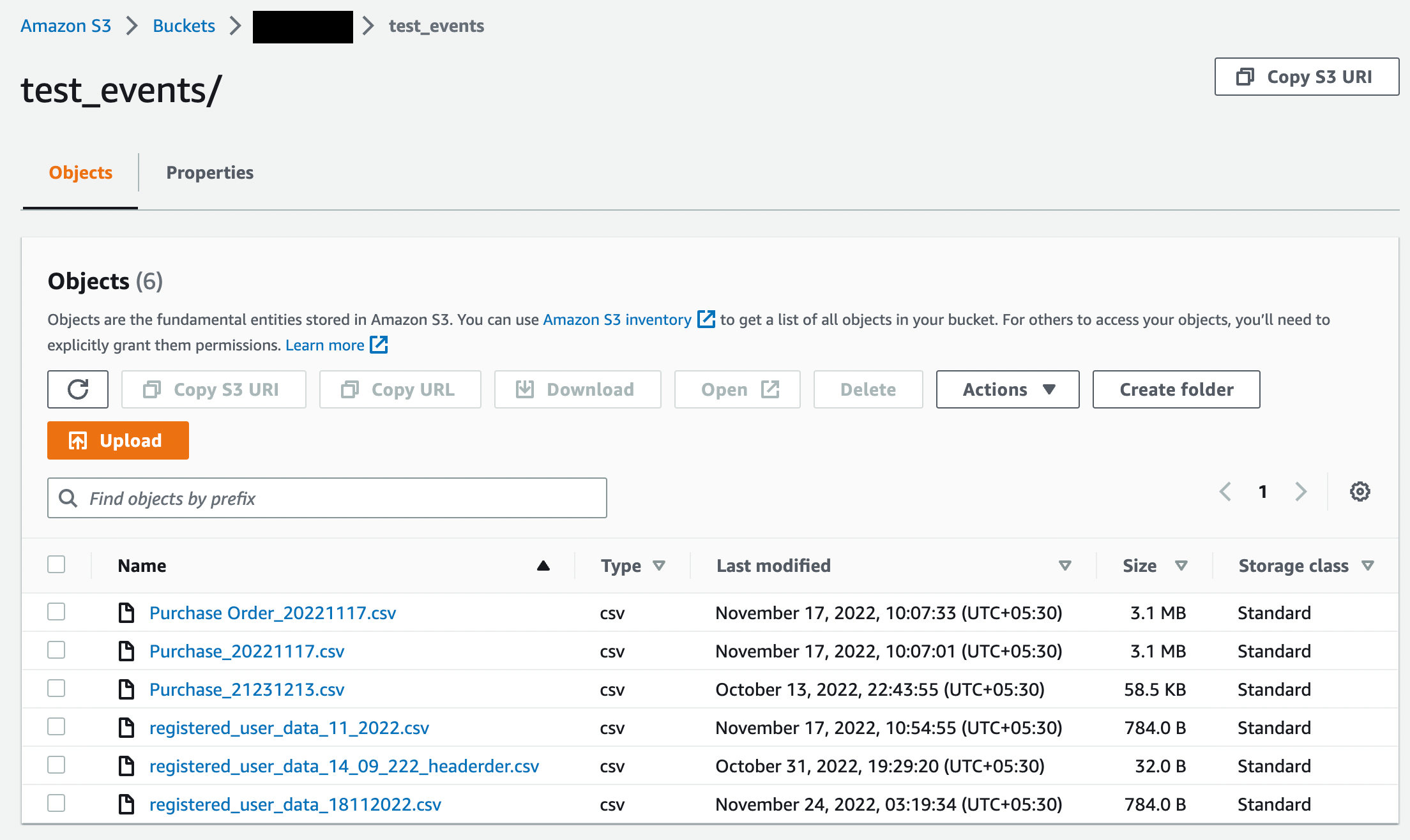 Note that MoEngage will not look for files inside any subfolders.
# Required Access Permissions
Before MoEngage can import files, grant it read access to your S3 bucket and set up a connection in the App Marketplace. For the IAM permissions and the connection setup, see [Set Up Authentication](/partner-guide/data-and-analytics/cloud-storage/amazon-s3#step-1-set-up-authentication) and [Grant Permissions](/partner-guide/data-and-analytics/cloud-storage/amazon-s3#step-2-grant-permissions) in the Amazon S3 integration guide.
# Set Up Imports from S3
**Prerequisites**
Make sure to complete all the steps mentioned in the [File Based Imports](/user-guide/data/imports/overview/overview-imports) help doc.
To set up the S3 imports, perform the following steps:
1. On the sidebar menu in MoEngage, hover over the Data menu item
Note that MoEngage will not look for files inside any subfolders.
# Required Access Permissions
Before MoEngage can import files, grant it read access to your S3 bucket and set up a connection in the App Marketplace. For the IAM permissions and the connection setup, see [Set Up Authentication](/partner-guide/data-and-analytics/cloud-storage/amazon-s3#step-1-set-up-authentication) and [Grant Permissions](/partner-guide/data-and-analytics/cloud-storage/amazon-s3#step-2-grant-permissions) in the Amazon S3 integration guide.
# Set Up Imports from S3
**Prerequisites**
Make sure to complete all the steps mentioned in the [File Based Imports](/user-guide/data/imports/overview/overview-imports) help doc.
To set up the S3 imports, perform the following steps:
1. On the sidebar menu in MoEngage, hover over the Data menu item  . The **Data** menu appears.
2. Click **Data imports**.
. The **Data** menu appears.
2. Click **Data imports**. 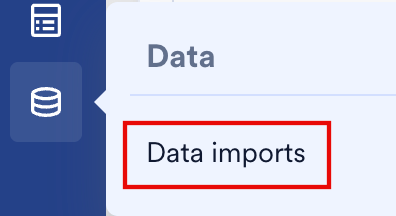 3. On the **Data imports** page, click the **Data warehouses** tab.
4. Click **+ Import** in the upper-right corner and select **Users** or **Events** to create a new import.
5. Click the **S3** tile.
6. Click **Continue**.
3. On the **Data imports** page, click the **Data warehouses** tab.
4. Click **+ Import** in the upper-right corner and select **Users** or **Events** to create a new import.
5. Click the **S3** tile.
6. Click **Continue**.  ## Step 1: Configure S3 Connection and File Format
#### **User Imports**
1. Select whether you want to import Registered users or Anonymous users.
## Step 1: Configure S3 Connection and File Format
#### **User Imports**
1. Select whether you want to import Registered users or Anonymous users.
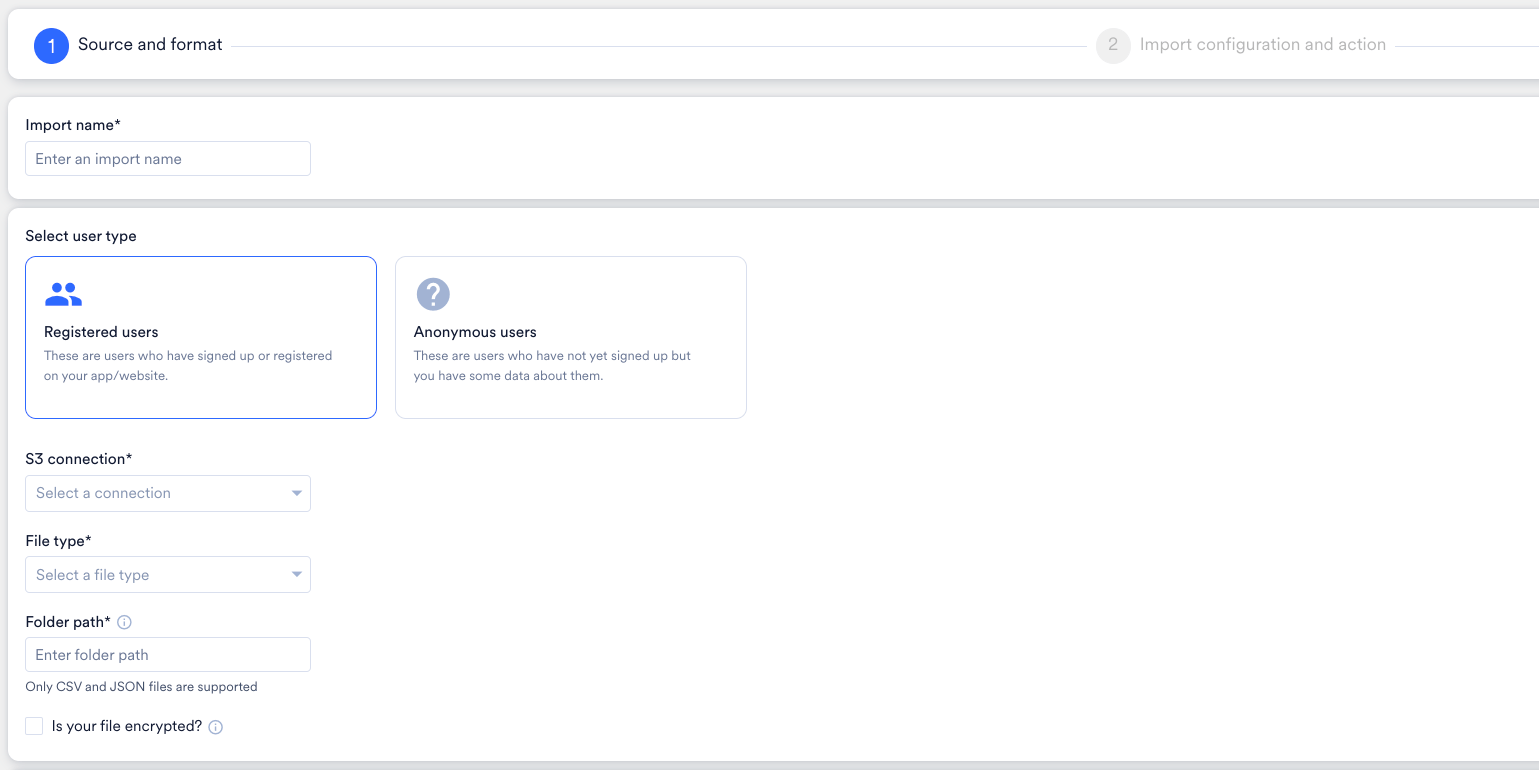 2. Choose which user type you want to import. Both registered users import and anonymous users import expect different file names. Refer to the [Naming Conventions](/user-guide/data/imports/overview/overview-imports#naming-conventions) section for more information.
#### **Event Imports**
1. For Event imports, select which event you want to import from the dropdown list.
2. Choose which user type you want to import. Both registered users import and anonymous users import expect different file names. Refer to the [Naming Conventions](/user-guide/data/imports/overview/overview-imports#naming-conventions) section for more information.
#### **Event Imports**
1. For Event imports, select which event you want to import from the dropdown list.
 2. Based on the event you pick, your file names must begin with the Event Name of your chosen event. The **Select event** dropdown displays the Display Names of all the available events in your MoEngage app.
 In the above example, "App/Site Opened" is the Display Name of the chosen event and its Event Name is `MOE_APP_OPENED`, so the file names should begin with `MOE_APP_OPENED`.
3. You can also create a new event by clicking the **+ Create new event** option at the end of the dropdown list.
In the above example, "App/Site Opened" is the Display Name of the chosen event and its Event Name is `MOE_APP_OPENED`, so the file names should begin with `MOE_APP_OPENED`.
3. You can also create a new event by clicking the **+ Create new event** option at the end of the dropdown list.
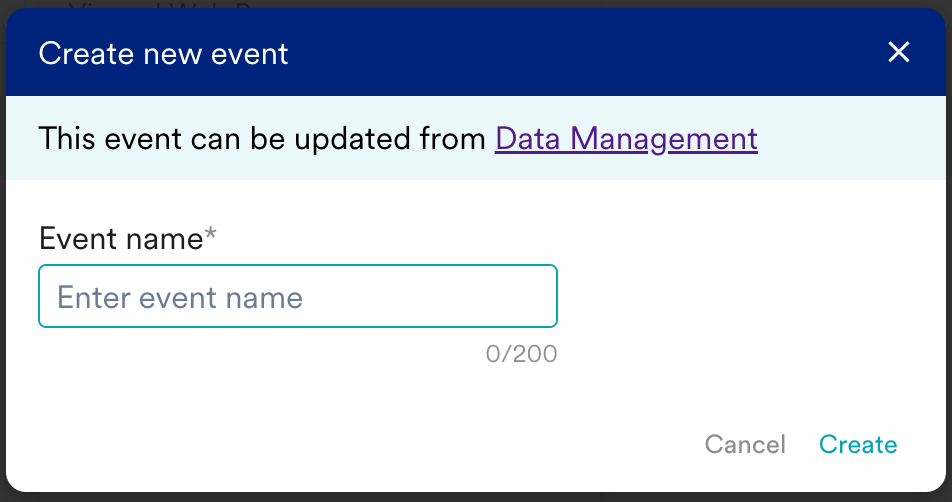 4. Give your event a unique name. By default, your Display Name will be the same as the Event Name. You can go to the [Data Management](/user-guide/settings/data-management/overview-data-management#event-tab) page to view or edit this event and your other MoEngage events. Note that any new events you create will only be available in your app after the first successful import.
### Select Your S3 Bucket Connection
To select your S3 bucket connection, perform the following steps:
1. In the **S3 connection** list, click your preconfigured connection. If you have not created an S3 connection, click **+ Add connection** to configure one in the App Marketplace. For more information, refer to [Connect Amazon S3 in the App Marketplace](/partner-guide/data-and-analytics/cloud-storage/amazon-s3#step-3-connect-amazon-s3-on-the-app-marketplace).
2. In the **File type** list, click your file format (for example, click **CSV**). Only CSV and JSON files are supported.
3. In the **Folder path** box, type your directory path (for example, type bq\_imports3). Do not include the bucket name or trailing slashes. MoEngage resolves your S3 bucket name automatically based on your marketplace connection.
4. Select the **Is your file encrypted?** check box if your source files are encrypted by using PGP. Paste your private **PGP Decryption Key**, attach your optional public **Signing Key**, and type your **Key passphrase**.
4. Give your event a unique name. By default, your Display Name will be the same as the Event Name. You can go to the [Data Management](/user-guide/settings/data-management/overview-data-management#event-tab) page to view or edit this event and your other MoEngage events. Note that any new events you create will only be available in your app after the first successful import.
### Select Your S3 Bucket Connection
To select your S3 bucket connection, perform the following steps:
1. In the **S3 connection** list, click your preconfigured connection. If you have not created an S3 connection, click **+ Add connection** to configure one in the App Marketplace. For more information, refer to [Connect Amazon S3 in the App Marketplace](/partner-guide/data-and-analytics/cloud-storage/amazon-s3#step-3-connect-amazon-s3-on-the-app-marketplace).
2. In the **File type** list, click your file format (for example, click **CSV**). Only CSV and JSON files are supported.
3. In the **Folder path** box, type your directory path (for example, type bq\_imports3). Do not include the bucket name or trailing slashes. MoEngage resolves your S3 bucket name automatically based on your marketplace connection.
4. Select the **Is your file encrypted?** check box if your source files are encrypted by using PGP. Paste your private **PGP Decryption Key**, attach your optional public **Signing Key**, and type your **Key passphrase**. 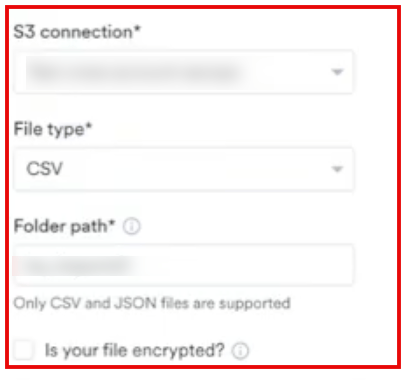
 5. Enter a unique name for this import to easily identify it on the Imports Dashboard.
### File Configurations
5. Enter a unique name for this import to easily identify it on the Imports Dashboard.
### File Configurations
 1. Select the DateTime format that will be in your file name. Your file name must end with `_.csv`. Ensure you have at least one file available in the specified folder path; otherwise, you will not be able to continue. Click the "Fetch file(s)" button to fetch your latest file.
If your S3 credentials and chosen file format are correct, MoEngage displays a preview showing the top 5 rows of your file:
1. Select the DateTime format that will be in your file name. Your file name must end with `_.csv`. Ensure you have at least one file available in the specified folder path; otherwise, you will not be able to continue. Click the "Fetch file(s)" button to fetch your latest file.
If your S3 credentials and chosen file format are correct, MoEngage displays a preview showing the top 5 rows of your file:
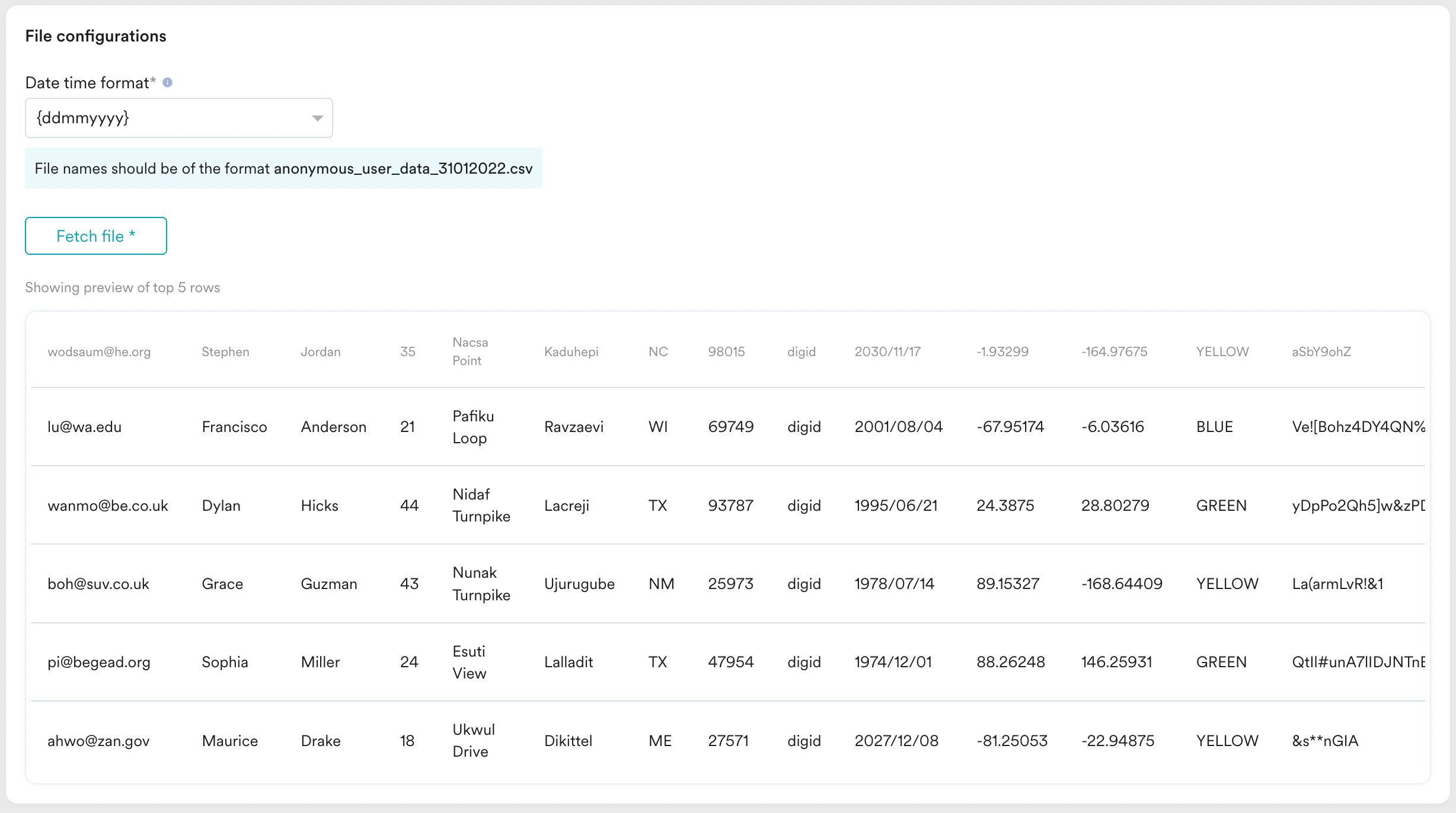 If MoEngage encounters an error while fetching the file from your S3 bucket, it displays one of the following alerts:
* **Given S3 Access Key is not valid** - Verify your S3 Marketplace connection details and try again.
* **Please check the folder path and try again** - Verify that your folder path is correct and ensure that compatible CSV files are present inside the folder.
* **Found zero data rows in the file** - The retrieved file does not contain any rows after the header row. MoEngage expects at least 2 rows (1 header row + 1 data row) in the file.
2. Once you are satisfied with the preview of the file, click **Next** to continue.
## Step 2: Map Your Columns to MoEngage Attributes
Map the columns of your CSV file to the attributes present inside MoEngage:
If MoEngage encounters an error while fetching the file from your S3 bucket, it displays one of the following alerts:
* **Given S3 Access Key is not valid** - Verify your S3 Marketplace connection details and try again.
* **Please check the folder path and try again** - Verify that your folder path is correct and ensure that compatible CSV files are present inside the folder.
* **Found zero data rows in the file** - The retrieved file does not contain any rows after the header row. MoEngage expects at least 2 rows (1 header row + 1 data row) in the file.
2. Once you are satisfied with the preview of the file, click **Next** to continue.
## Step 2: Map Your Columns to MoEngage Attributes
Map the columns of your CSV file to the attributes present inside MoEngage:
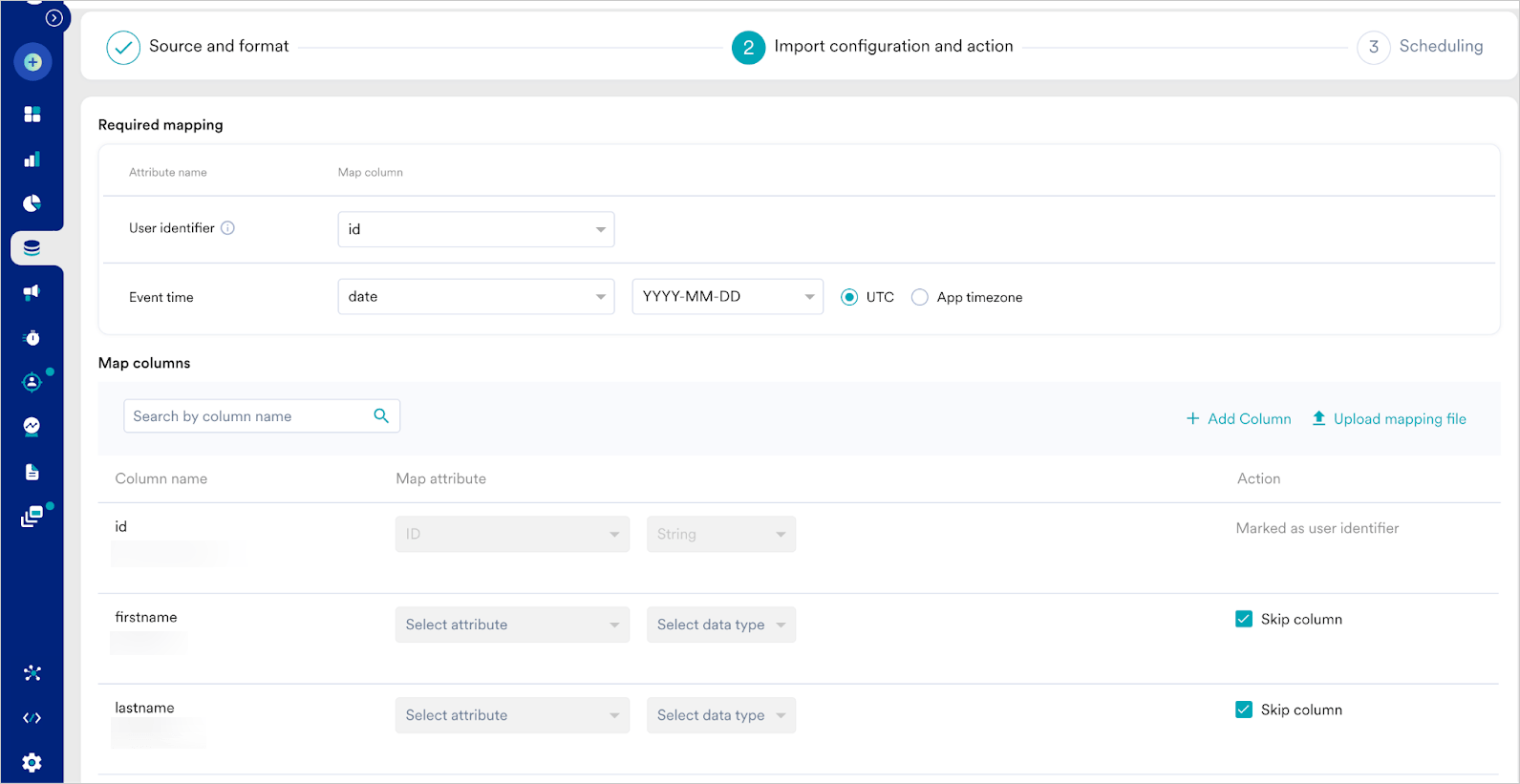 1. **Column name**: The column name is mapped. Below the column name, MoEngage displays a sample value for your reference.
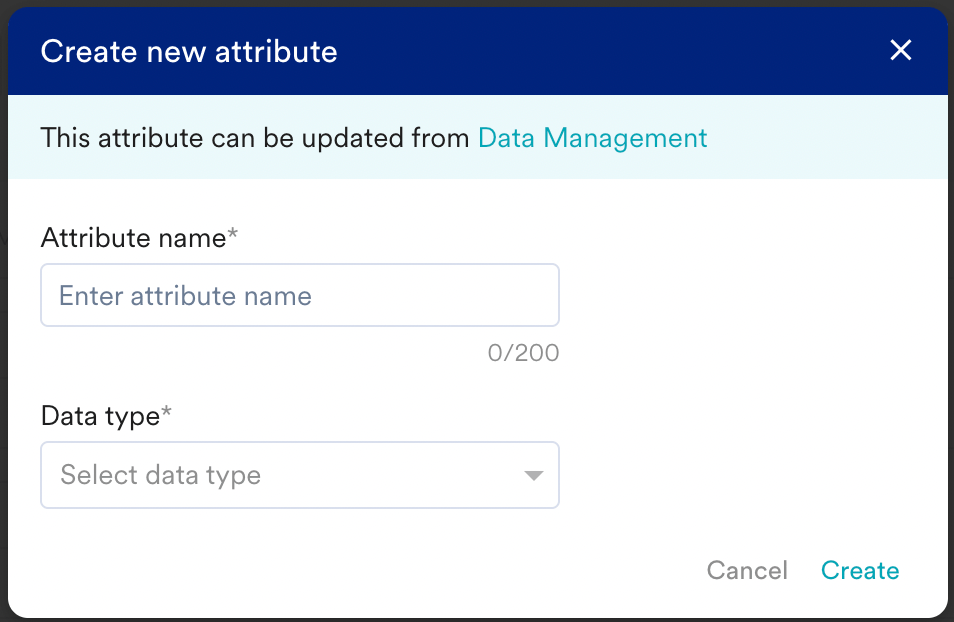
2. **Map attribute**: Select the target MoEngage attribute you want to map the column to. You can also click **+ Create attribute** to define a new parameter.
3. **More actions**: Click **Skip** to exclude this column from being imported.
Ensure you configure the required mandatory mappings based on your import type:
1. **User imports (Registered)**: You must map your identifier column to the MoEngage **User ID** attribute.
2. **User imports (Anonymous)**: You must map your identifier column to the MoEngage **Anonymous ID** attribute.
3. **Event imports**: You must map your identifier column to the **User ID** attribute and map your timestamp column to the **Event Time** attribute.
1. **Column name**: The column name is mapped. Below the column name, MoEngage displays a sample value for your reference.
2. **Map attribute**: Select the target MoEngage attribute you want to map the column to. You can also click **+ Create attribute** to define a new parameter.
3. **More actions**: Click **Skip** to exclude this column from being imported.
Ensure you configure the required mandatory mappings based on your import type:
1. **User imports (Registered)**: You must map your identifier column to the MoEngage **User ID** attribute.
2. **User imports (Anonymous)**: You must map your identifier column to the MoEngage **Anonymous ID** attribute.
3. **Event imports**: You must map your identifier column to the **User ID** attribute and map your timestamp column to the **Event Time** attribute.
 To create a new attribute, click **+ Create attribute** from the dropdown list:
 ### Add Fields
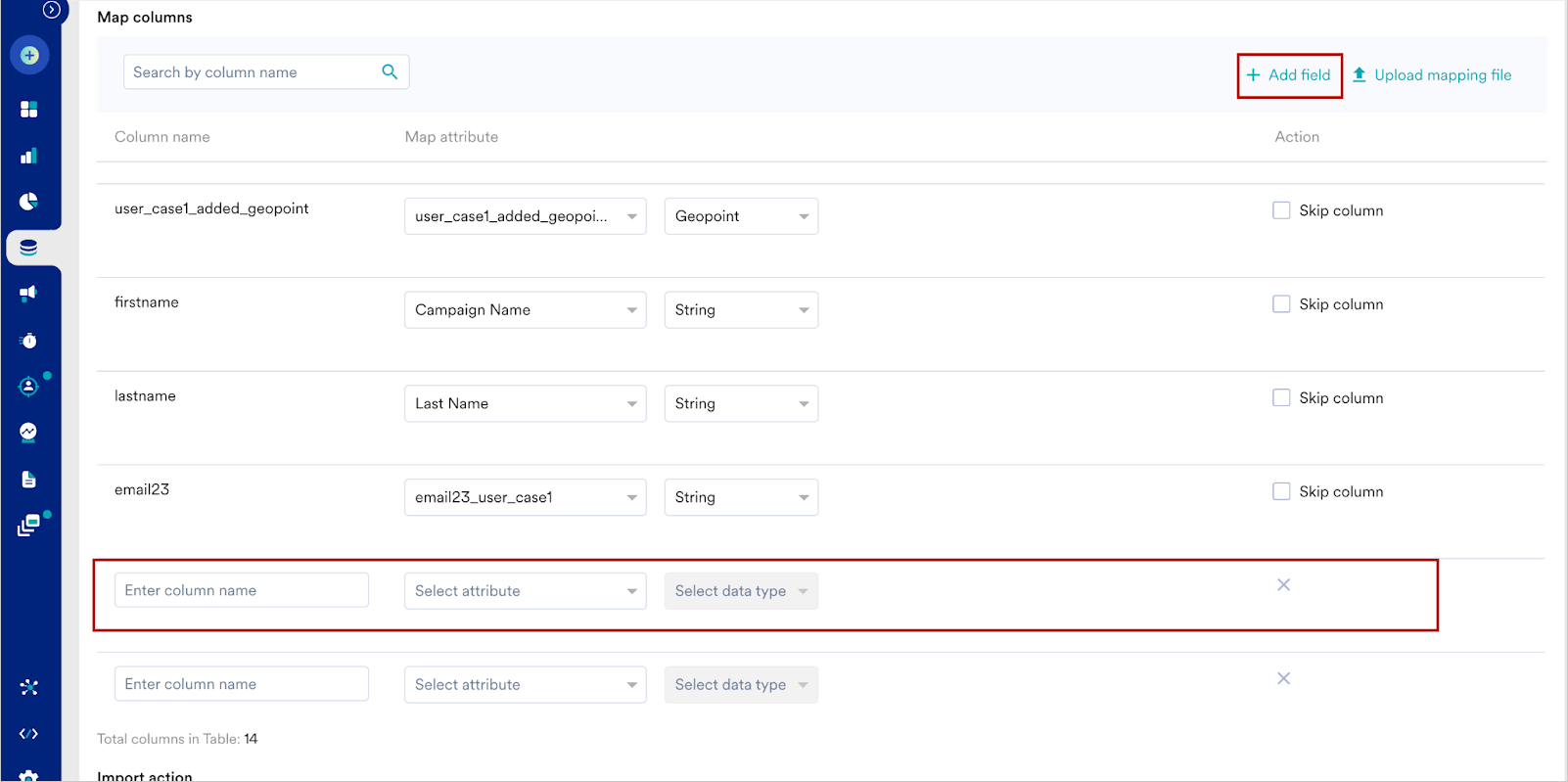
You can also add fields directly from the dashboard by clicking on **+Add Field** to enter your attribute mappings manually.
### Add Fields
You can also add fields directly from the dashboard by clicking on **+Add Field** to enter your attribute mappings manually.
 ### Manifest Files
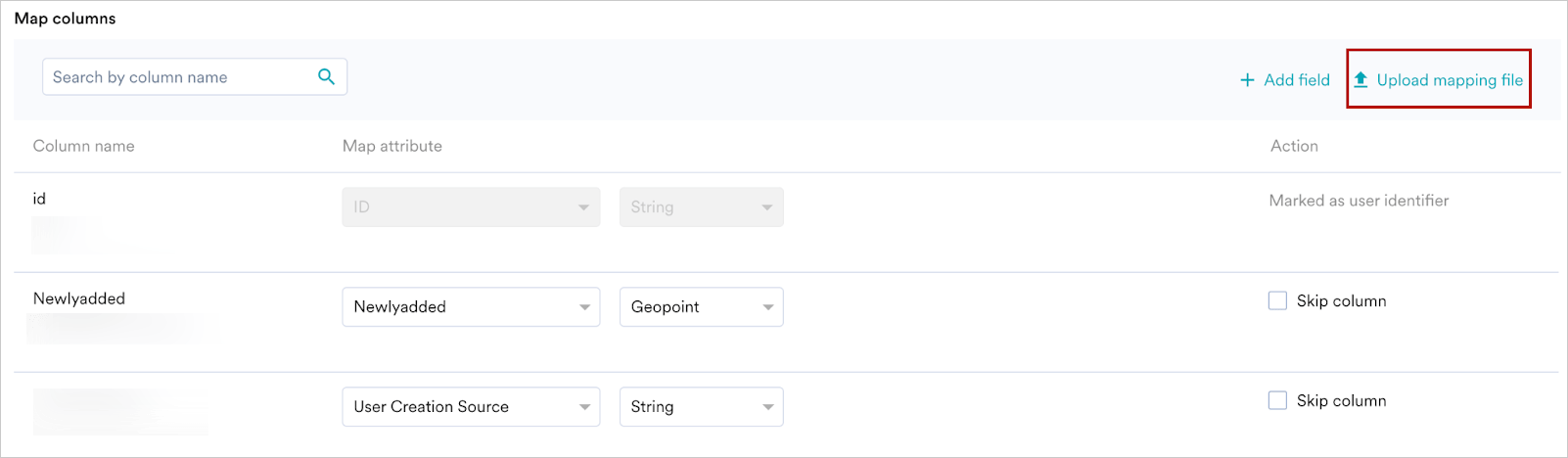
Optionally, you can choose to auto-map these columns by uploading a manifest file. To upload a manifest file, click the **Upload mapping file** option on the top-right of the mapping table:
### Manifest Files
Optionally, you can choose to auto-map these columns by uploading a manifest file. To upload a manifest file, click the **Upload mapping file** option on the top-right of the mapping table:
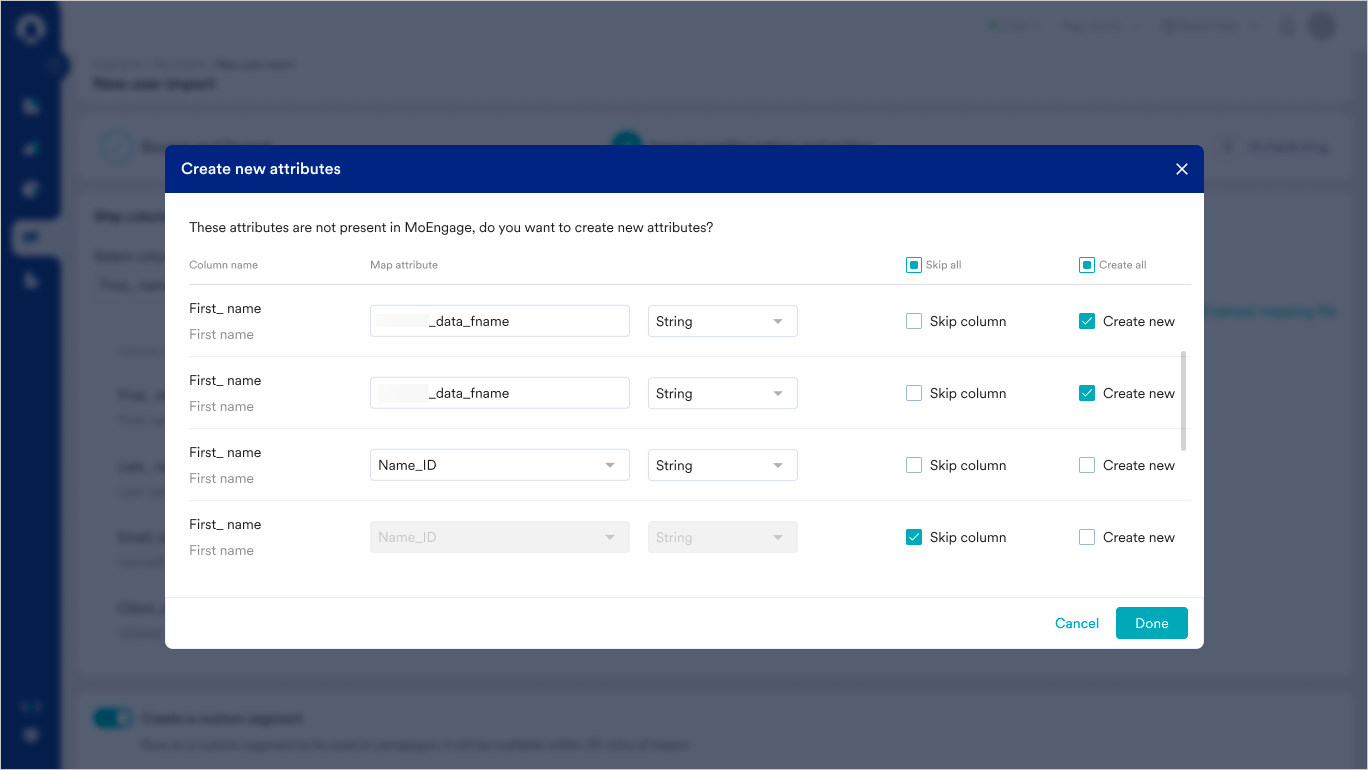
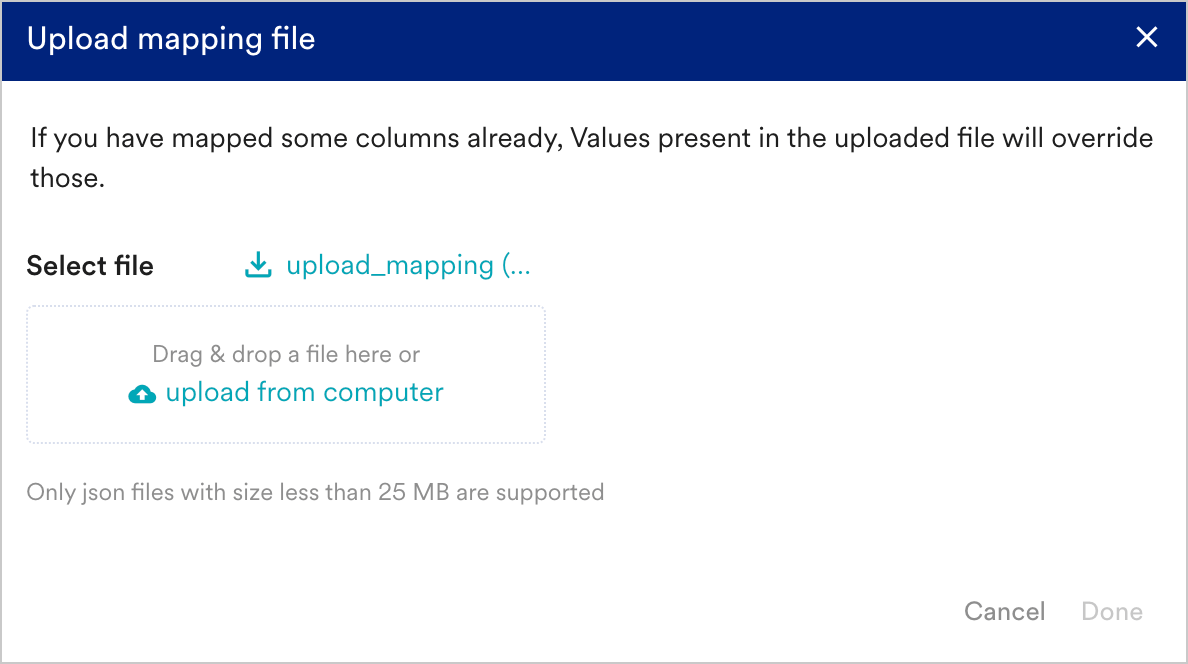 Upload your manifest file and click **Done**. Your mappings will be auto-configured. For any additional attributes not currently present in MoEngage, a modal lists down these attributes for you to create:
 ### Portfolio Support (Project-Level Routing)
**Portfolio Routing**
This feature allows you to route imported events from files stored inside your Amazon S3 bucket to specific projects within your MoEngage portfolio workspace using column mapping.
To route events to specific projects, map your S3 identifier column (such as `brand_name` or `app_id`) to the MoEngage attribute `moe_project_name` in Step 2 of the import configurations. Ensure that the source text values exactly match your MoEngage project names. Matching is case-sensitive.
* **Successful routing**: If the value matches your portfolio configuration, MoEngage ingests the user or event directly at that specific project level.
* **Fallback behavior**: If the mapping is missing, blank, or does not match a project name, MoEngage ingests the data at your global portfolio level.
### Portfolio Support (Project-Level Routing)
**Portfolio Routing**
This feature allows you to route imported events from files stored inside your Amazon S3 bucket to specific projects within your MoEngage portfolio workspace using column mapping.
To route events to specific projects, map your S3 identifier column (such as `brand_name` or `app_id`) to the MoEngage attribute `moe_project_name` in Step 2 of the import configurations. Ensure that the source text values exactly match your MoEngage project names. Matching is case-sensitive.
* **Successful routing**: If the value matches your portfolio configuration, MoEngage ingests the user or event directly at that specific project level.
* **Fallback behavior**: If the mapping is missing, blank, or does not match a project name, MoEngage ingests the data at your global portfolio level. 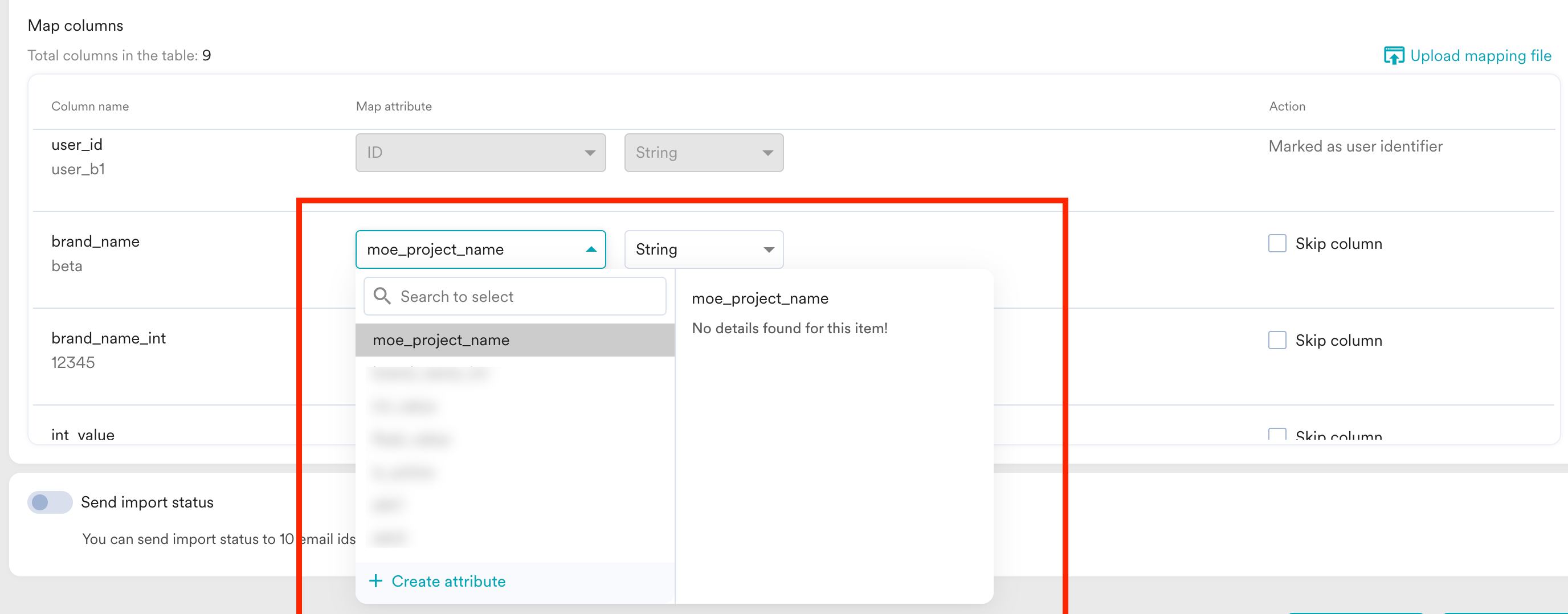 ### Send Import Notifications
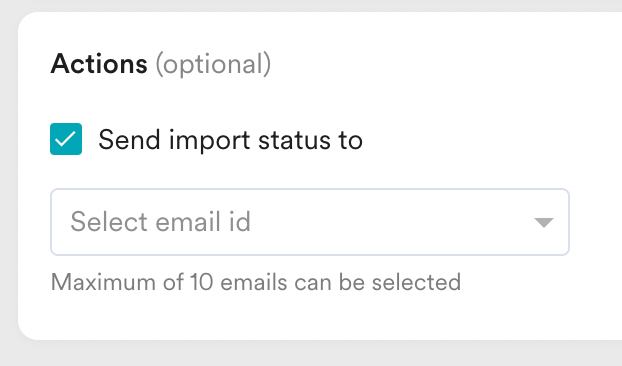 Select up to 10 emails to receive import status alerts when your import is created, succeeds, or fails.
When you are satisfied with all mappings, click **Next**.
## Step 3: Select the Import Frequency
Select up to 10 emails to receive import status alerts when your import is created, succeeds, or fails.
When you are satisfied with all mappings, click **Next**.
## Step 3: Select the Import Frequency
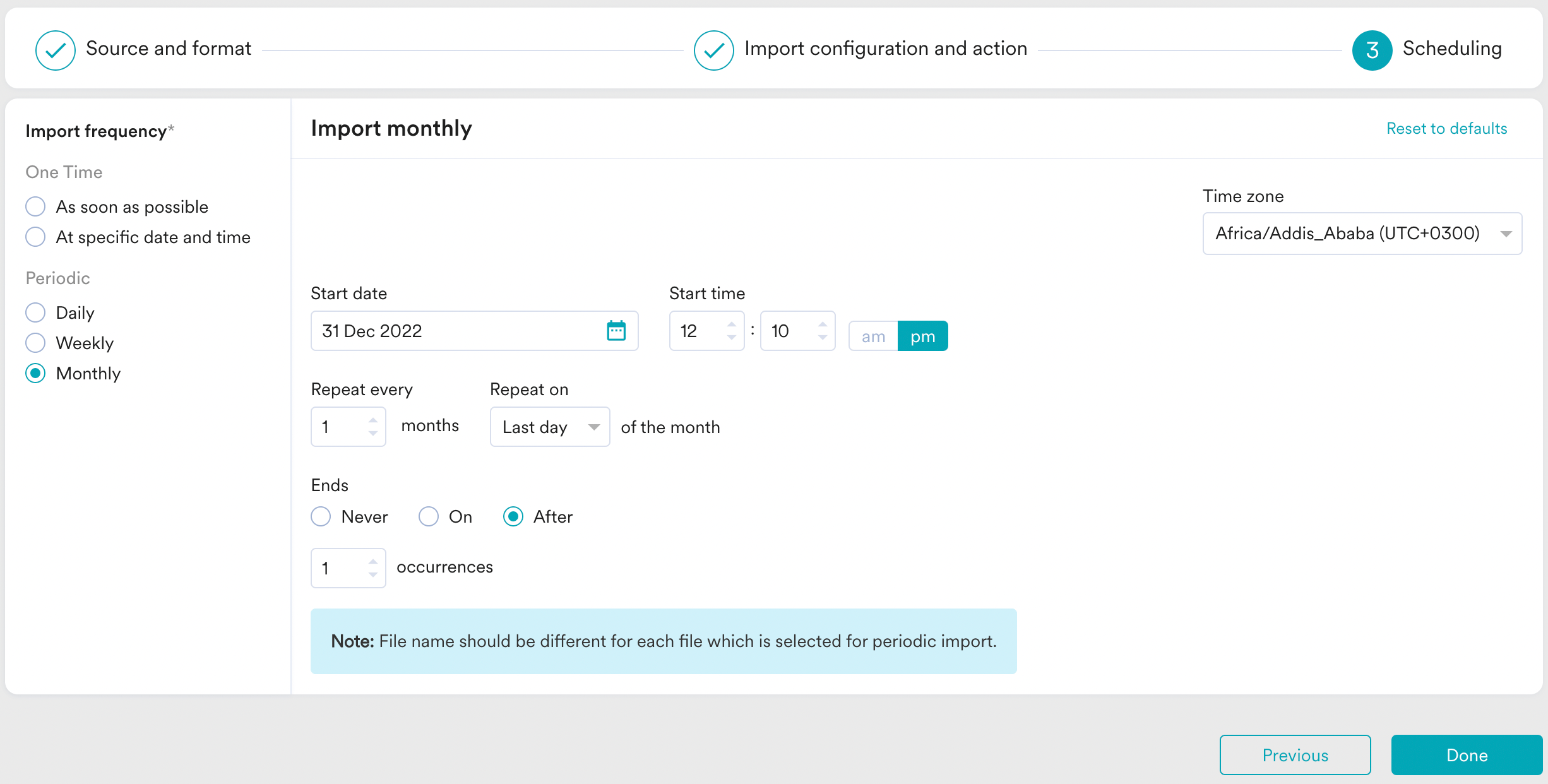 Define when MoEngage should retrieve your files:
1. **One-Time Imports**: Run the import immediately or schedule it for a future date and time.
2. **Periodic Imports**: Run your imports hourly, daily, weekly, or monthly.
Click **Done** when you are ready.
## Duplicate Imports
An import is considered a duplicate when all of the following parameters are the same as an existing active import schedule:
1. **Import Type**: Users / Events
2. **Import Sub-Type**: Event Name / Registered / Anonymous
3. **S3 Folder Path**
4. **Bucket Name**
As long as any one parameter is different, the import is considered unique.
# Frequently Asked Questions
Click the ellipsis icon on the right side of your import row and click **View** to review your details. Hover over the **Failed** status label to read the error details.
MoEngage does not automatically retry imports when they fail. You can configure to receive an email alert upon failure by selecting the notification checkbox during setup.
No. When a file exhausts its processing retries and fails with the *Applicable rate limit breached* status, MoEngage cannot replay that file on its own, so the periodic schedule does not reprocess it automatically. This retry limit protects the ingestion pipeline from being overloaded. To reprocess the affected files, rename them and re-upload them to your S3 folder so that MoEngage treats them as new files. To reduce the chance of hitting rate limits, stagger large batches instead of scheduling many files at once (see [Best Practices](/user-guide/data/imports/overview/overview-imports#best-practices)).
The new data is still added to the archived segment. You can unarchive the segment as required inside your Data Management dashboard.
During each scheduled run, MoEngage searches your designated folder path and selects new files based on your file prefix and datetime format configurations. MoEngage tracks file names and directory paths to ensure it only processes new files.
No. MoEngage does not re-process files that have already been imported as long as the file names and directories remain identical. If you place a previously processed file inside a different folder, an import task targeting that new folder will process the file again.
No. You must set up user imports and event imports as separate, distinct tasks inside MoEngage. Therefore, ensure that each source file contains only user attributes or event records.
Once an import process starts, it can't be stopped midway. This is because the data goes through several steps, and interrupting it could lead to incomplete or inconsistent results. It's best to let the current import finish processing.
You can stop future scheduled imports from running automatically. To do this, find the import schedule on the Data Imports dashboard, click the ellipsis icon, and select the **Archive** option. This prevents the import from running on its next scheduled time.
If an import appears to be stuck or is taking longer than usual, wait for the system to process the files. The system has checks in place to handle these situations automatically and will retry if necessary. Manually starting the same import again while it is still processing can cause conflicts and may prevent the original import from completing successfully.
Define when MoEngage should retrieve your files:
1. **One-Time Imports**: Run the import immediately or schedule it for a future date and time.
2. **Periodic Imports**: Run your imports hourly, daily, weekly, or monthly.
Click **Done** when you are ready.
## Duplicate Imports
An import is considered a duplicate when all of the following parameters are the same as an existing active import schedule:
1. **Import Type**: Users / Events
2. **Import Sub-Type**: Event Name / Registered / Anonymous
3. **S3 Folder Path**
4. **Bucket Name**
As long as any one parameter is different, the import is considered unique.
# Frequently Asked Questions
Click the ellipsis icon on the right side of your import row and click **View** to review your details. Hover over the **Failed** status label to read the error details.
MoEngage does not automatically retry imports when they fail. You can configure to receive an email alert upon failure by selecting the notification checkbox during setup.
No. When a file exhausts its processing retries and fails with the *Applicable rate limit breached* status, MoEngage cannot replay that file on its own, so the periodic schedule does not reprocess it automatically. This retry limit protects the ingestion pipeline from being overloaded. To reprocess the affected files, rename them and re-upload them to your S3 folder so that MoEngage treats them as new files. To reduce the chance of hitting rate limits, stagger large batches instead of scheduling many files at once (see [Best Practices](/user-guide/data/imports/overview/overview-imports#best-practices)).
The new data is still added to the archived segment. You can unarchive the segment as required inside your Data Management dashboard.
During each scheduled run, MoEngage searches your designated folder path and selects new files based on your file prefix and datetime format configurations. MoEngage tracks file names and directory paths to ensure it only processes new files.
No. MoEngage does not re-process files that have already been imported as long as the file names and directories remain identical. If you place a previously processed file inside a different folder, an import task targeting that new folder will process the file again.
No. You must set up user imports and event imports as separate, distinct tasks inside MoEngage. Therefore, ensure that each source file contains only user attributes or event records.
Once an import process starts, it can't be stopped midway. This is because the data goes through several steps, and interrupting it could lead to incomplete or inconsistent results. It's best to let the current import finish processing.
You can stop future scheduled imports from running automatically. To do this, find the import schedule on the Data Imports dashboard, click the ellipsis icon, and select the **Archive** option. This prevents the import from running on its next scheduled time.
If an import appears to be stuck or is taking longer than usual, wait for the system to process the files. The system has checks in place to handle these situations automatically and will retry if necessary. Manually starting the same import again while it is still processing can cause conflicts and may prevent the original import from completing successfully.