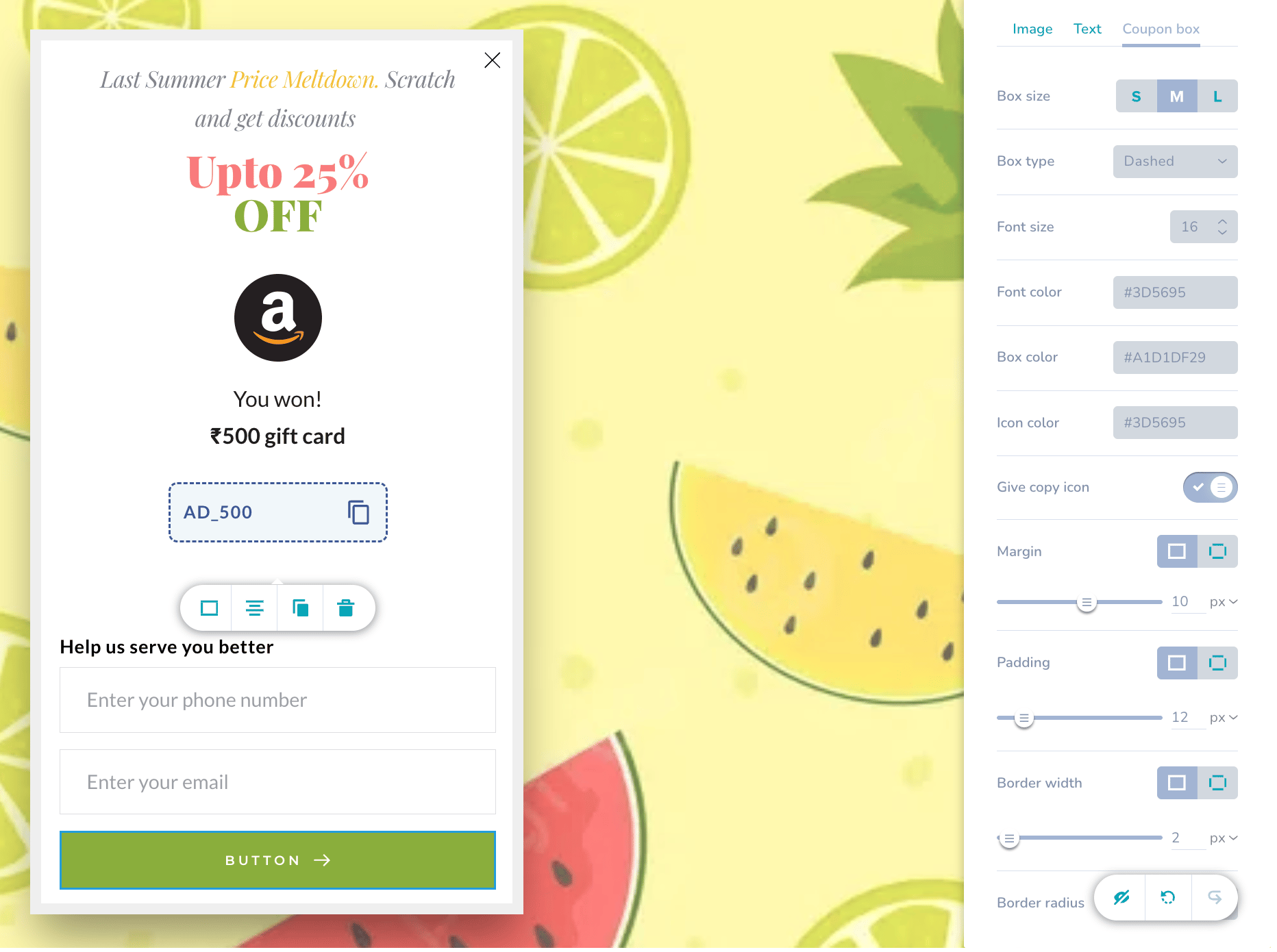
Overview
MoEngage provides no-code gamification templates for On-site Messaging (OSM) campaigns, including: These templates are fully customizable in an editor that does not require you to write code. You can create and launch these campaigns to increase user engagement on your website.Spin the Wheel
The Spin the Wheel template allows you to create an interactive prize wheel to engage and reward users.
Use cases
- Capture leads: Encourage users to sign up or provide their email/phone number to spin the wheel.
- Distribute coupons: Offer varying discount percentages (for example, “10% Off”, “Free Shipping”) as prizes.
- Drive daily engagement: Create “Daily Spin” campaigns to encourage users to return to your website.
Configure the Template
After you select the template, customize it using the Spin and Styling tabs in the editor side panel. To access these settings:- Click the wheel element on the canvas and select the Settings icon from the floating toolbar.

Configure the Default Styling
Under the Styling tab, select Default. This section lets you customize the wheel’s appearance before the user interacts with it.
Configure Wheel Sectors (Widgets)
To define prizes, probability, and appearance of the wheel sectors, configure the Addable Widgets. Each Widget corresponds to a specific sector on the wheel. To access these settings:- Select the wheel element on the canvas.
- On the floating toolbar, click the Items icon. The Addable Widgets panel appears on the right.

Configure the Winning Screen
On the Styling tab, select Winning Screen. This allows you to customize the content revealed to users after a successful spin. This section is divided into three sub-tabs: Image, Text, and Coupon box.Image

Text
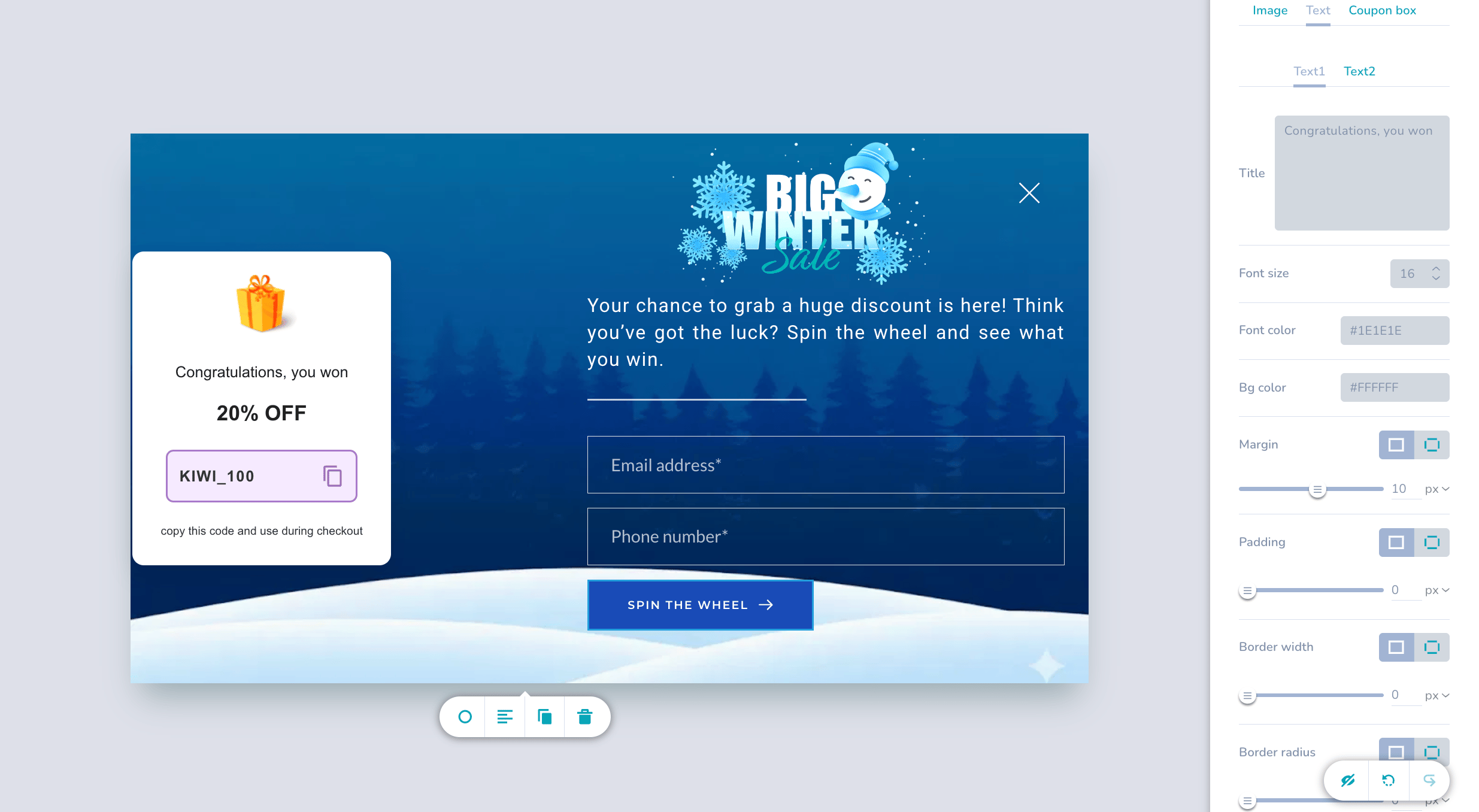
Coupon Box

Configure the Losing Screen
On the Styling tab, select Losing Screen. This allows you to customize the view displayed to users when they do not win a prize. This section is divided into two sub-tabs: Image and Text.Image
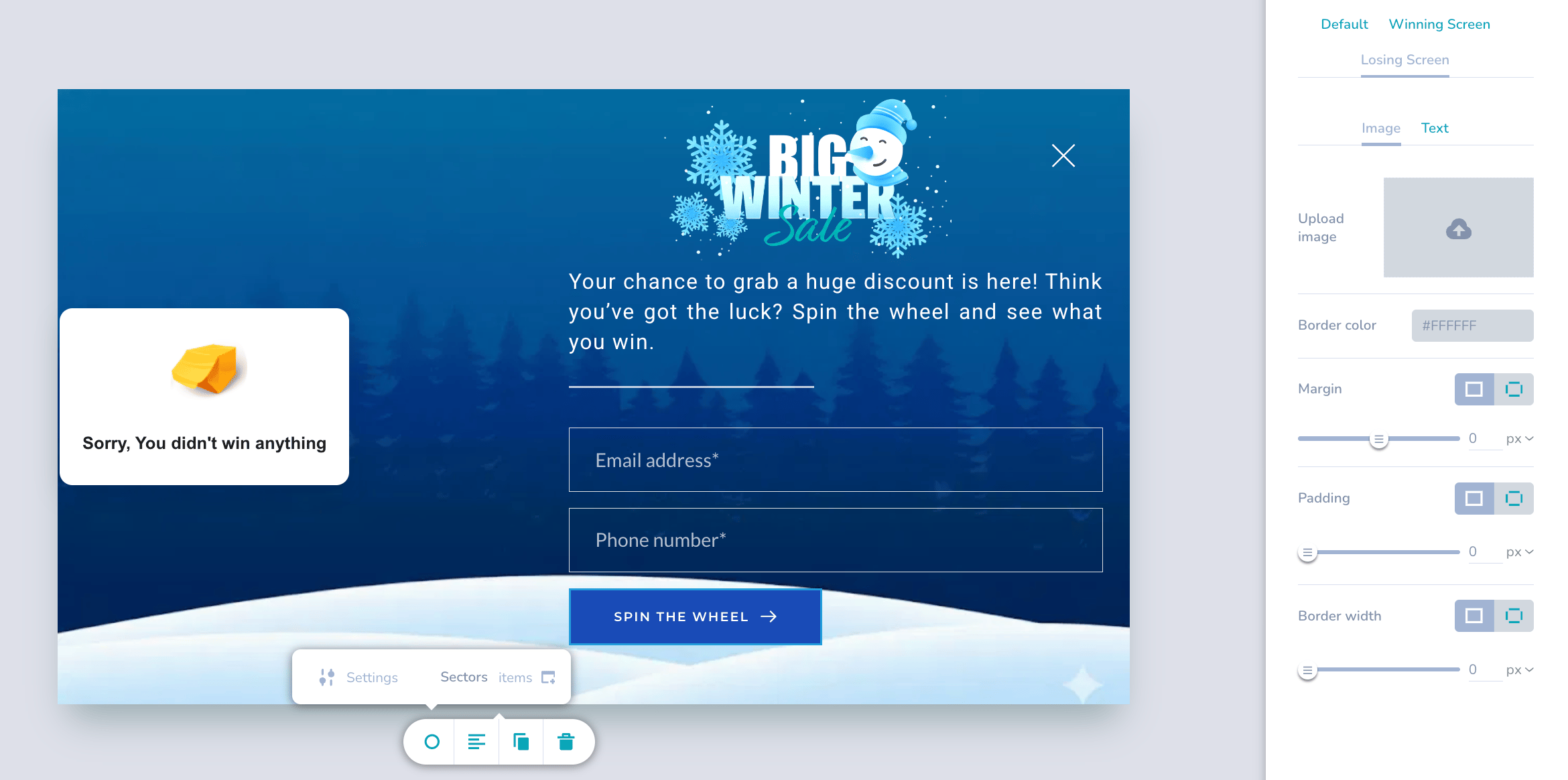
Text
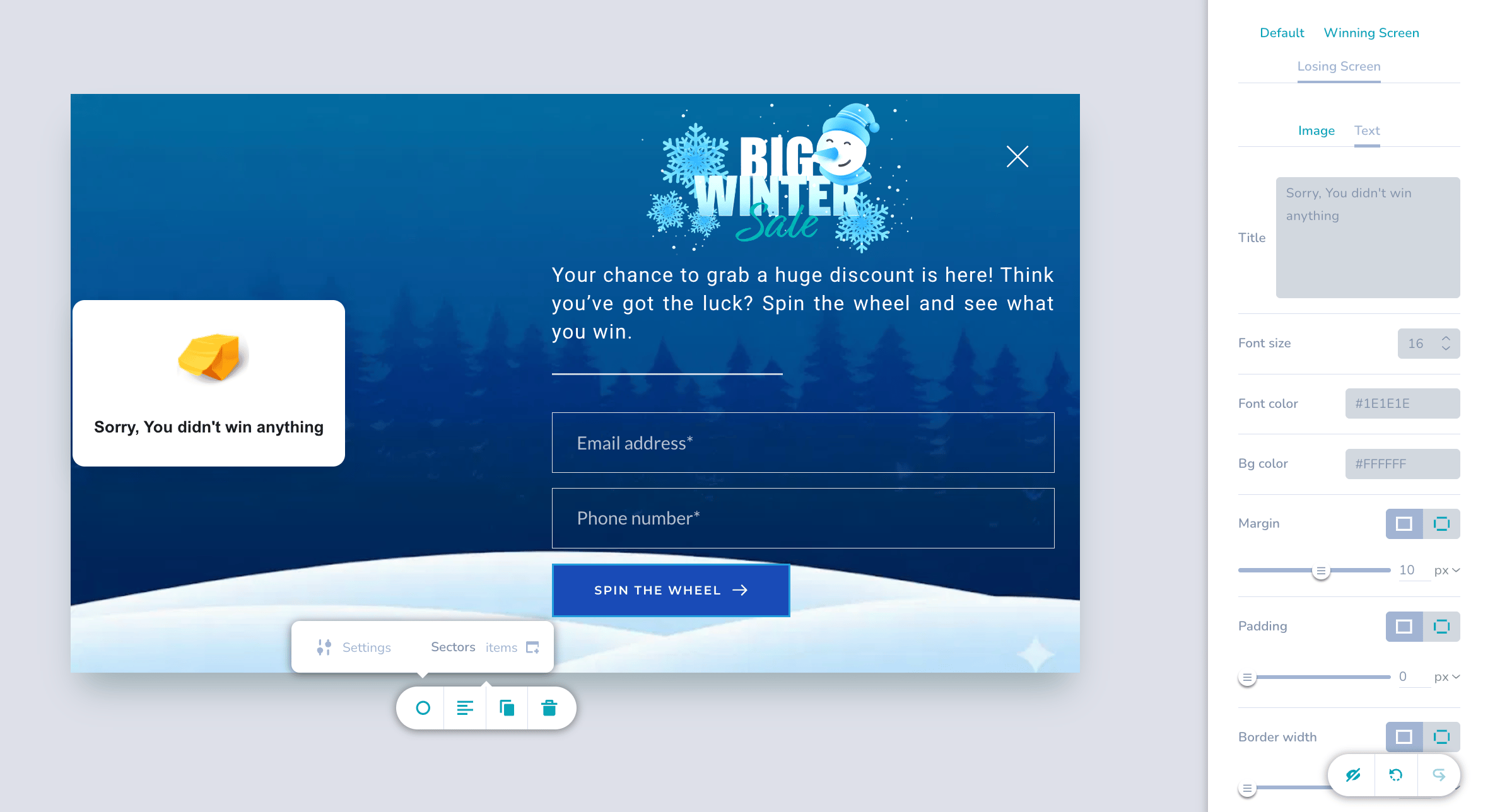
Scratch Card
The Scratch Card template creates a virtual “scratch-off” experience. Users interact with the campaign by scrubbing their cursor or finger over an image to reveal a hidden prize or message underneath.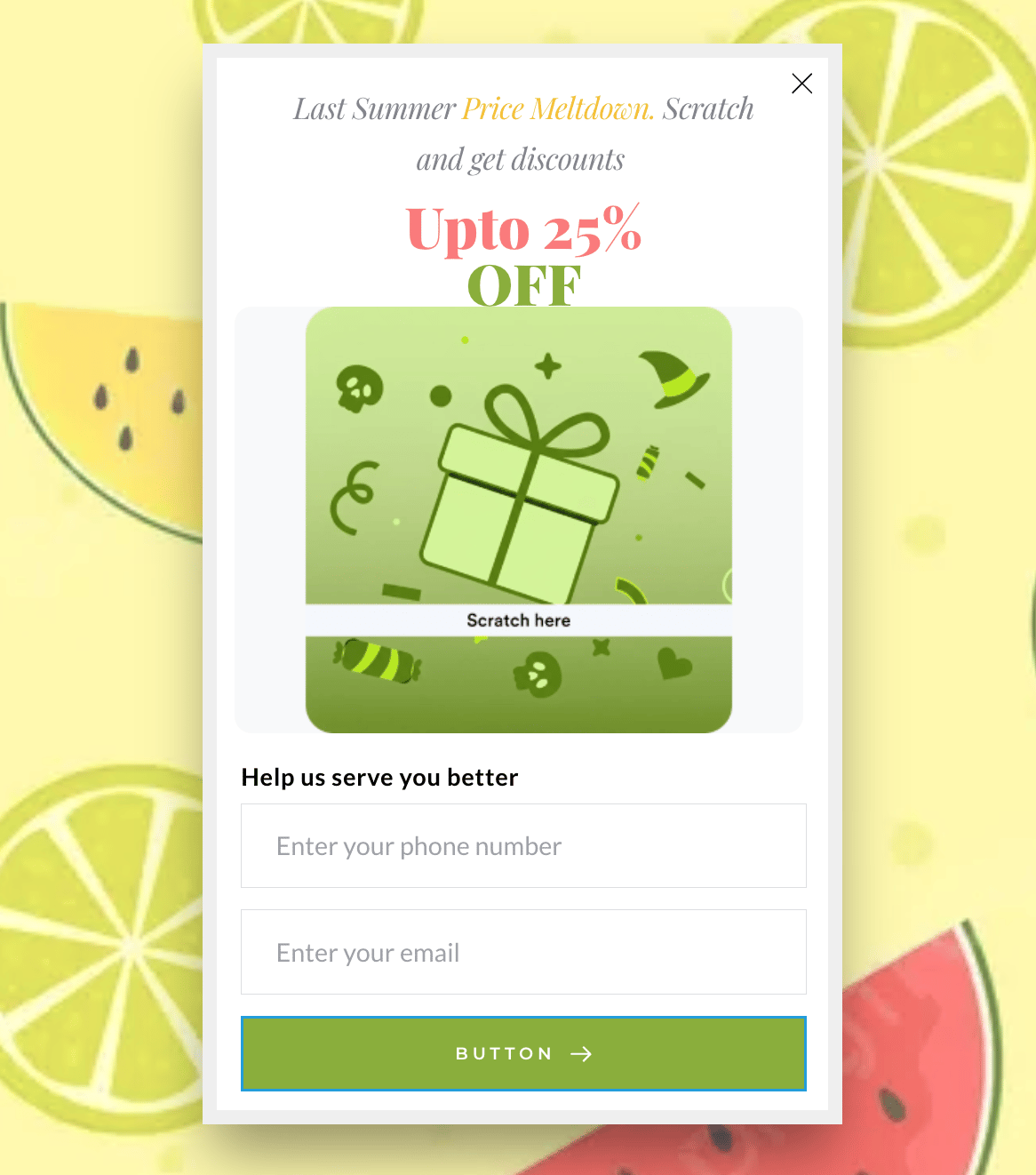
Use Cases
- Reveal mystery discounts: Build anticipation by hiding the discount amount (for example, “Scratch to reveal your deal”).
- Contest entries: Use a “Scratch and Win” mechanic for instant-win contests.
- Exclusive promos: Engage users by requiring an interaction to access a promo code.
Configure the Template
To configure the Scratch Card, you will use the floating toolbar and the configuration side panel. To access these settings:- Click the scratch card element on the canvas.
- On the floating toolbar, click the Settings icon.
- Click the square icon.
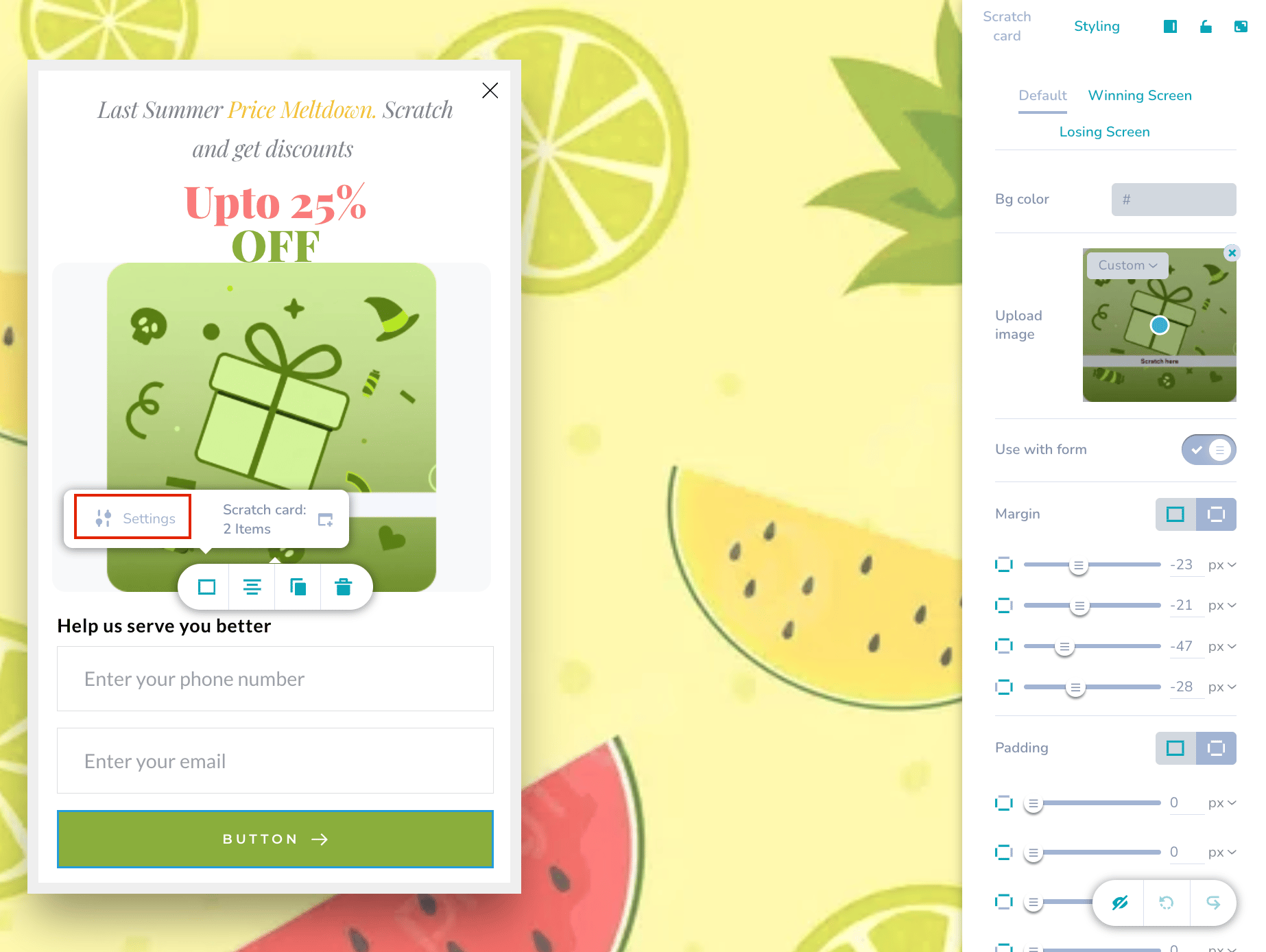
Configure Default Styling
Under the Styling tab, select Default. This section controls the card’s appearance before the user scratches it.Configure the Winning Screen
On the Styling tab, select Winning Screen. This section defines the content revealed when the user successfully scratches the card and wins. The Winning Screen has three sub-tabs: Image, Text, and Coupon box.Image

Text

Coupon Box