

- Log in directly to your last-used workspace.
- Verify your identity once and select from any workspace you’re authorized to access.
Find Your Login Page
Each workspace resides in a specific data center (for example, DC-01 atdashboard-01.moengage.com). Use the global login page to find your login URL:
1
Open the global login page
Go to dashboard.moengage.com.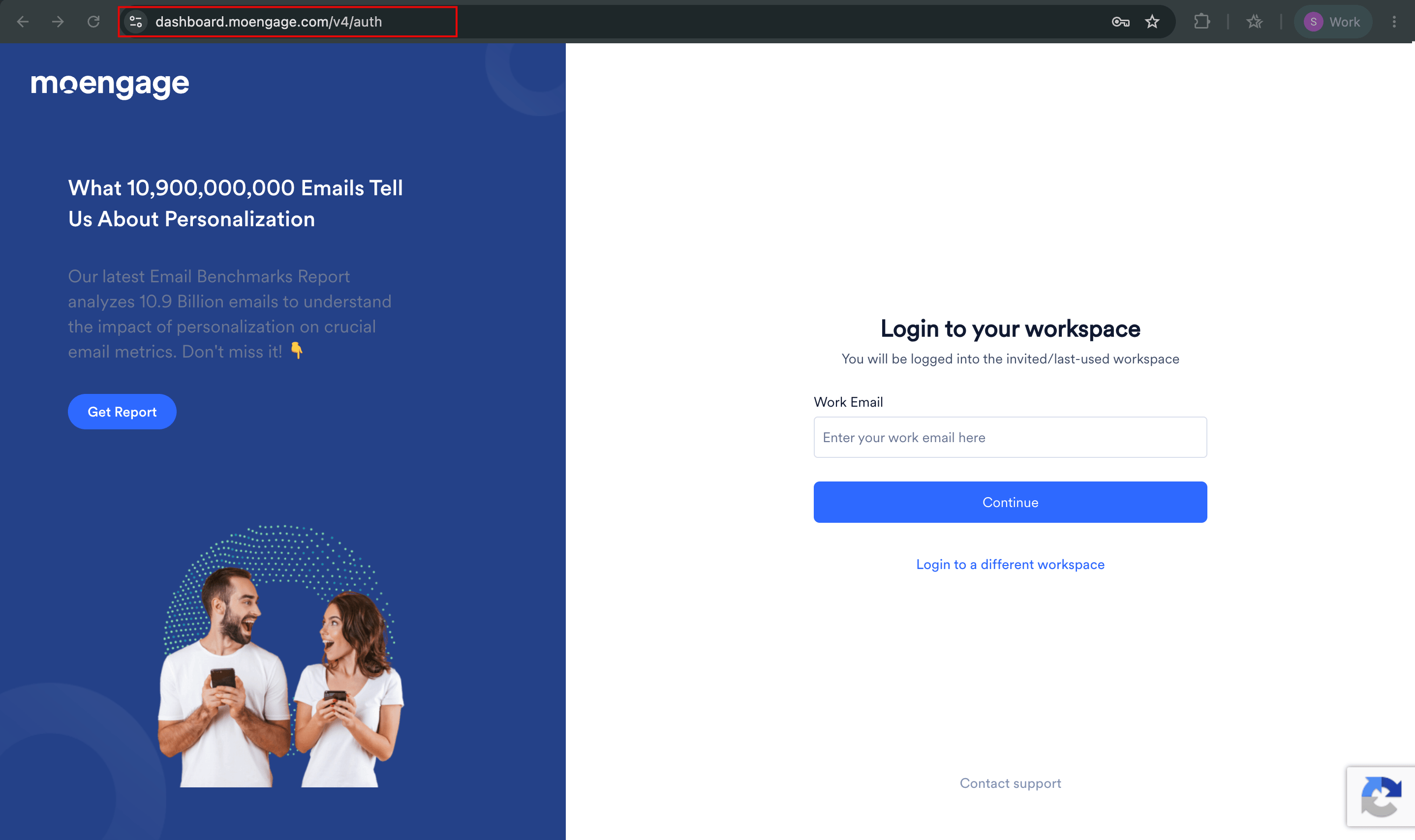
2
Enter your work email
In the Work email box, type your email address.
3
Continue to your data center
Click Continue. MoEngage redirects you to your last-used workspace’s login page on the correct data center.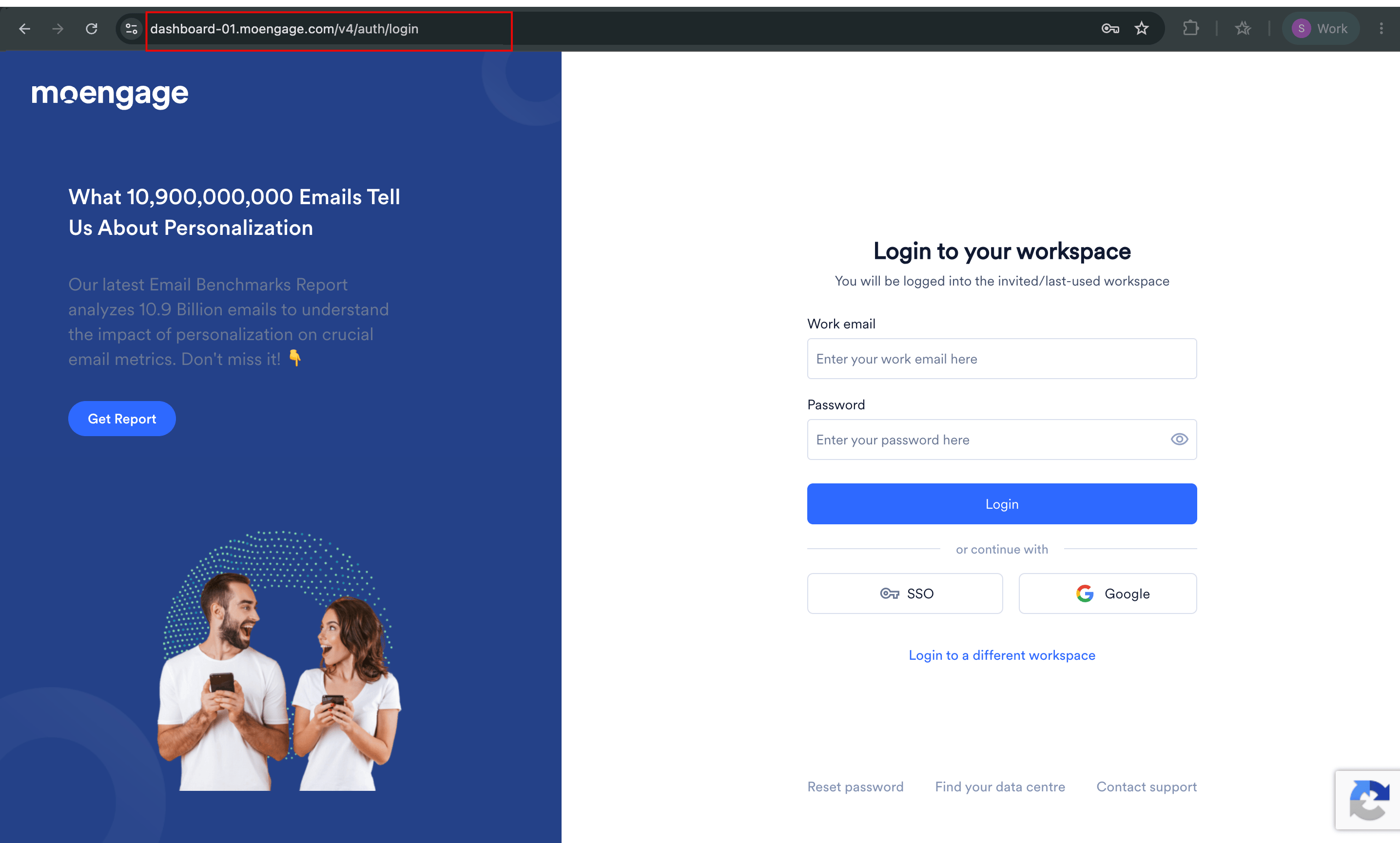
Your email address is pre-filled on the login page for verification.
If your last-used workspace has Single Sign-On (SSO) enabled, MoEngage redirects you automatically to that data center’s Login with Single Sign-On page.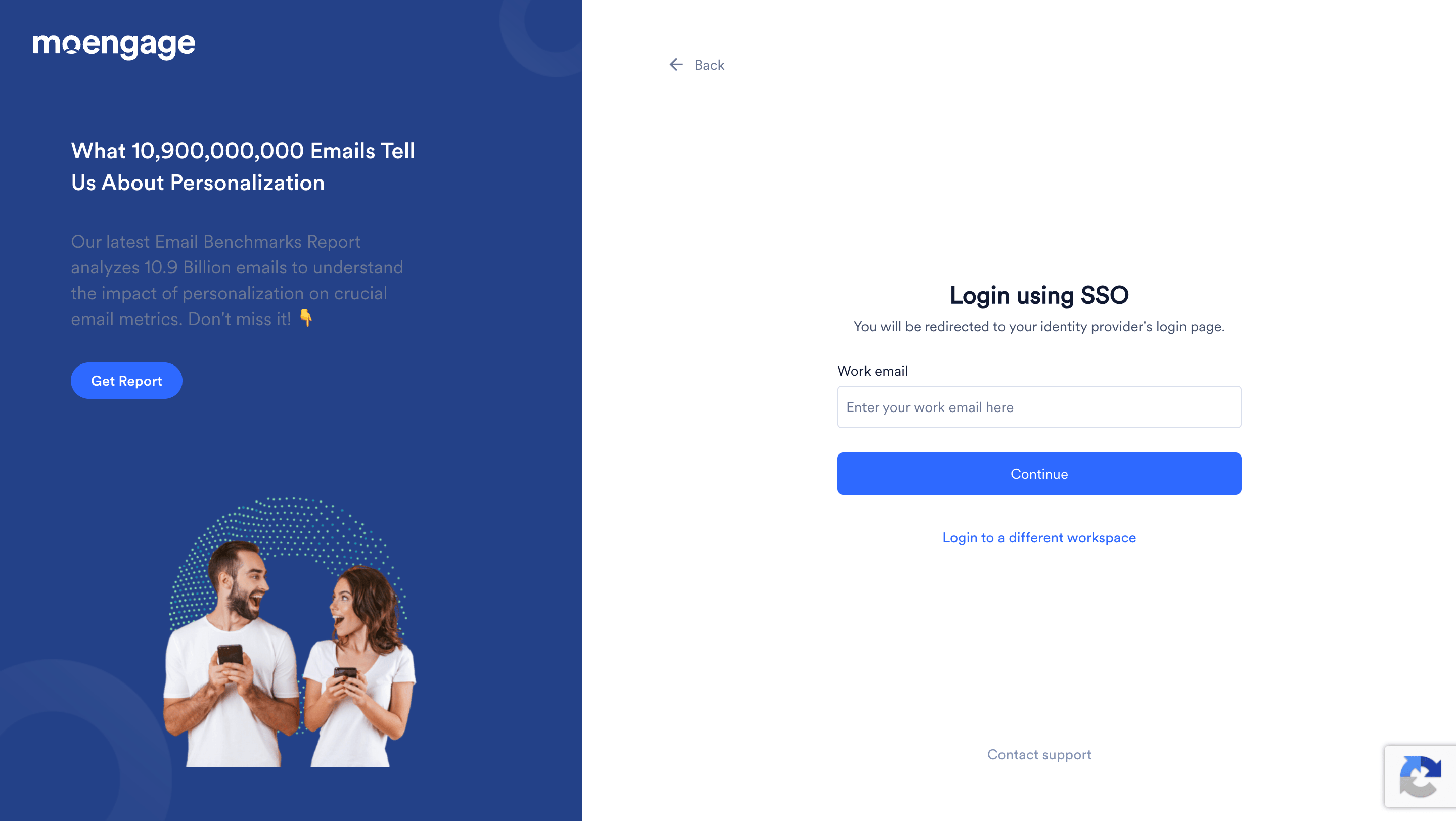
If you land on the wrong data center’s login page, click Find your data centre to return to the global login page and re-enter your email address.
Log In to Your Last-Used Workspace
Log in to your last-used workspace from its data center login page. When you log in for the first time, MoEngage redirects you to your invited workspace. Your Admin configures which login method your workspace uses:- Password
- Google
- SSO
If your Admin set the login method to Password or Google sign in, you can log in with either your email and password or the Google button.
- In a web browser, go to the URL of your MoEngage workspace. The login page appears.
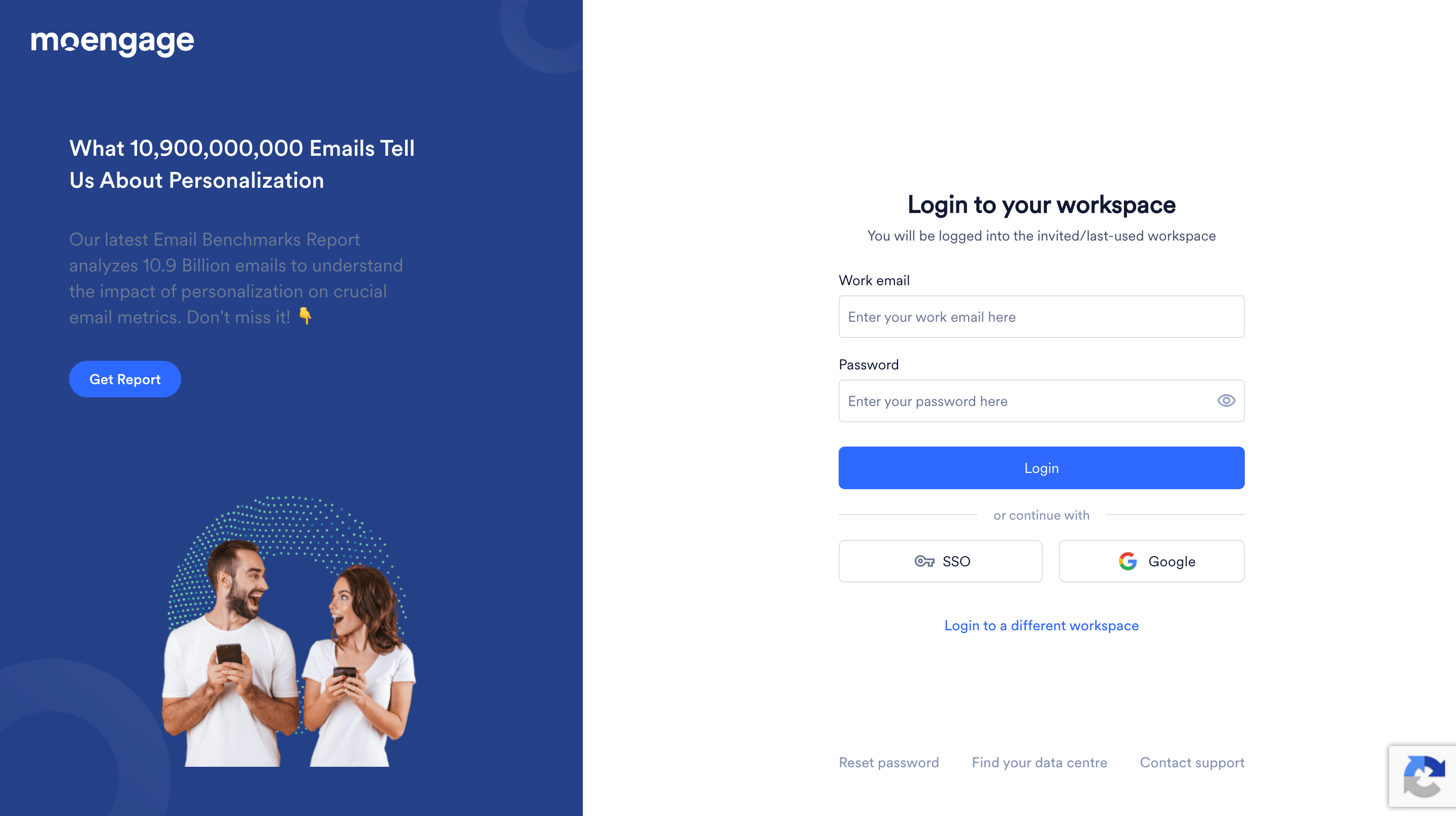
- In the Work email box, type your email address.
- In the Password box, type your password.
- Click Login. 2-step verification is mandatory when you log in with a password. Refer to Complete 2-Step Verification below.
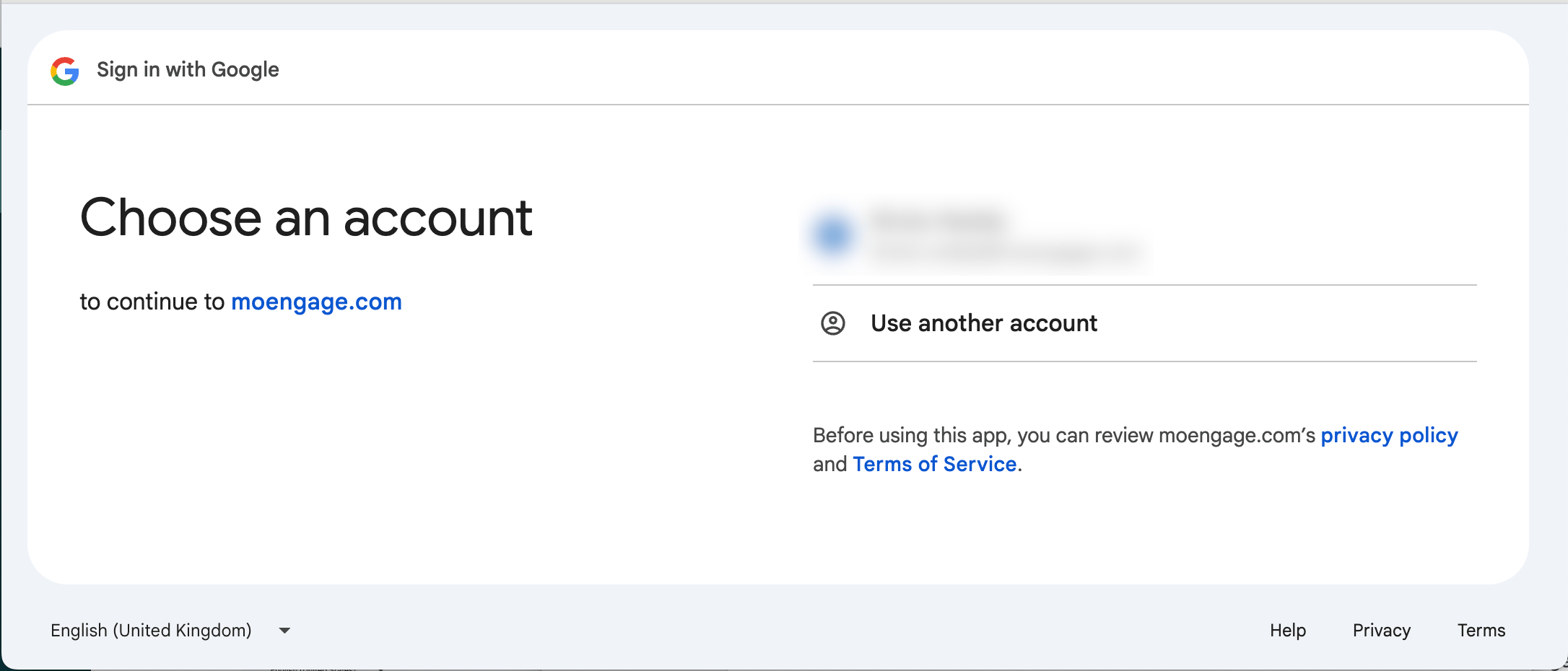
 If 2-step verification is enabled for your workspace, refer to
  The Login using SSO page appears, with your email pre-filled if you entered it on the previous screen.
Log Into a Different Workspace
Use this flow to log in to any workspace you’re authorized to use. Identity verification happens first (before workspace access checks), so an access issue with one workspace does not affect the others.1
Choose a different workspace
On the login page (or at dashboard.moengage.com), click Login to a different workspace.
2
Enter your email
In the Work email box, type your email address. If you entered it on the previous page, it’s pre-filled.
3
Verify your identity
Click Continue. The User Authentication page appears.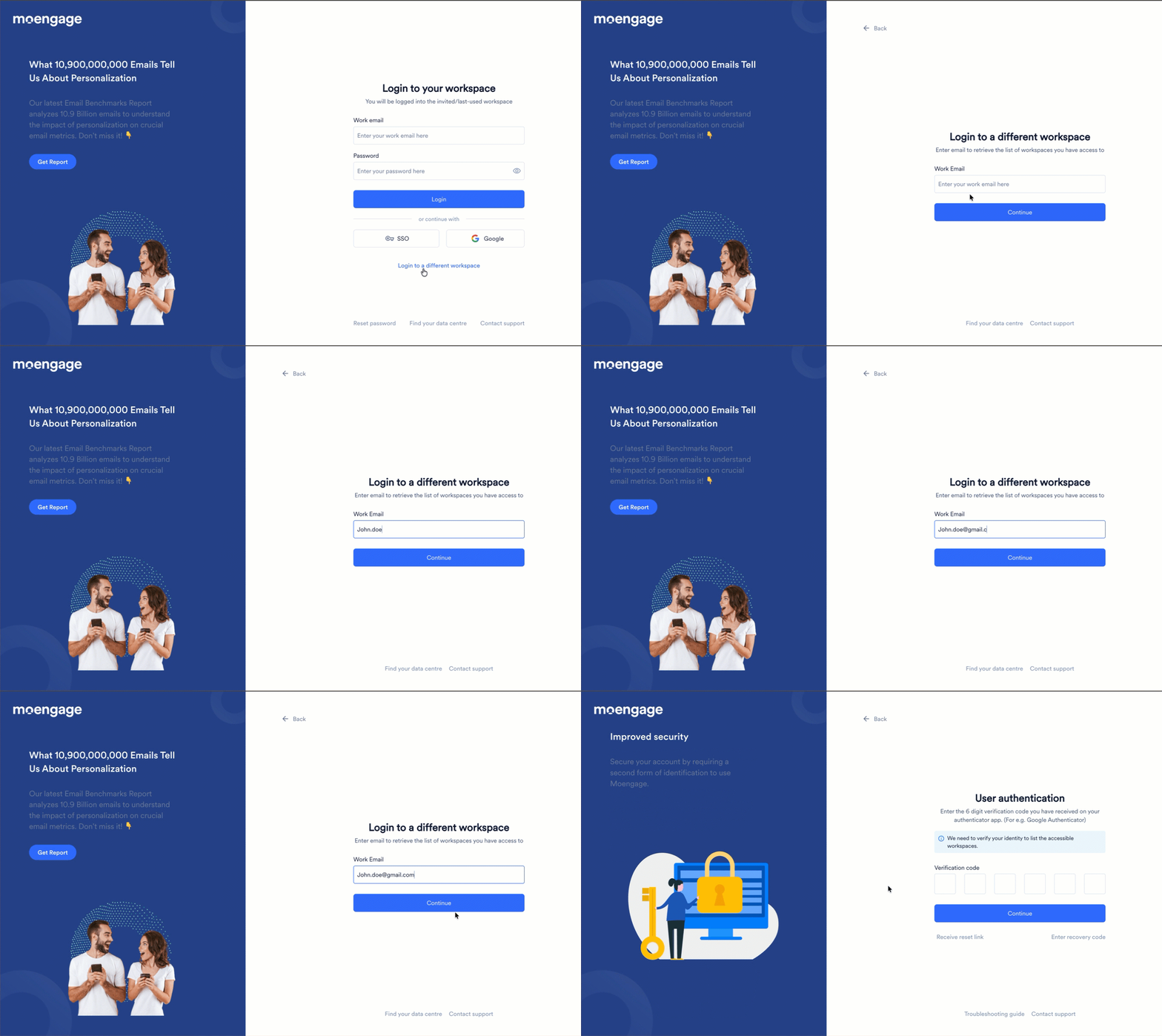
User Authentication uses your 2-step verification code to verify your identity before showing your workspaces. For setup details, refer to Set Up 2-Step Verification on Your Device.
4
Select a workspace and environment
Click Continue. The Select Workspace page appears. Choose the workspace and environment you want to access. Each entry shows: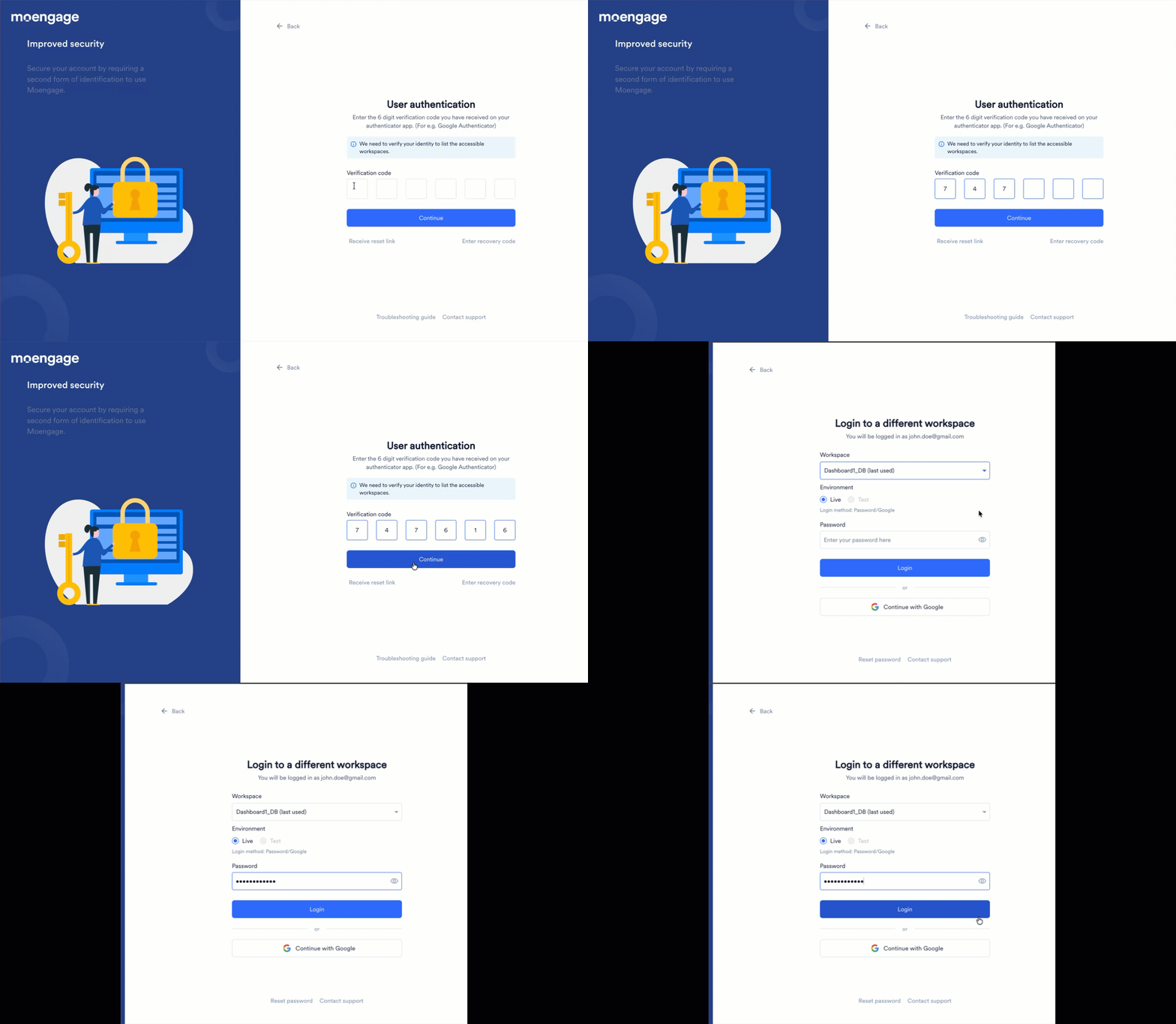
- Workspace name
- Whether it’s your last-used workspace
- Login method
- Environment (Live or Test)
5
Complete workspace authentication
Complete authentication using the login method configured for the selected workspace:
- Password: Enter your password and click Login.
- Google Sign-In: Click Google and choose your Google account.
- SSO: Click SSO to be redirected to your organization’s Identity Provider (IdP).
Log In via MCP Connection
Connect AI assistants (such as Claude and ChatGPT) via the MoEngage MCP (MoEngage Connection Protocol) server to work with your campaigns. MCP connections default to a workspace list rather than your last-used workspace (since they switch frequently). For setup details, refer to MoEngage MCP Server and Connector.1
Initiate a connection
In your MCP client, initiate a new MoEngage connection. MoEngage redirects you to the global login page.
2
Enter your email
In the Work email box, type your email address and click Continue. MoEngage redirects you to the login page for your last-used workspace’s data center.
3
Verify your identity
On the User Authentication page, open your authenticator app, find the 6-digit code for MoEngage, and type it in the verification box. Click Continue.
4
Select a workspace
On the Select Workspace page, choose the workspace and environment you want to connect to.
5
Complete workspace authentication
Complete authentication using the workspace’s configured login method (password, Google, or SSO).
MCP session details:
- Duration: 30 days (expiry), 7-day idle timeout
- Independent from Dashboard session: logging in via MCP does not affect Dashboard access
Complete 2-Step Verification
When 2-step verification is enabled, MoEngage shows the 2-Step Verification page after you authenticate. On first setup: MoEngage prompts you to configure 2-step verification. Refer to Set Up 2-Step Verification on Your Device. On subsequent logins: Enter your 6-digit code from your authenticator app: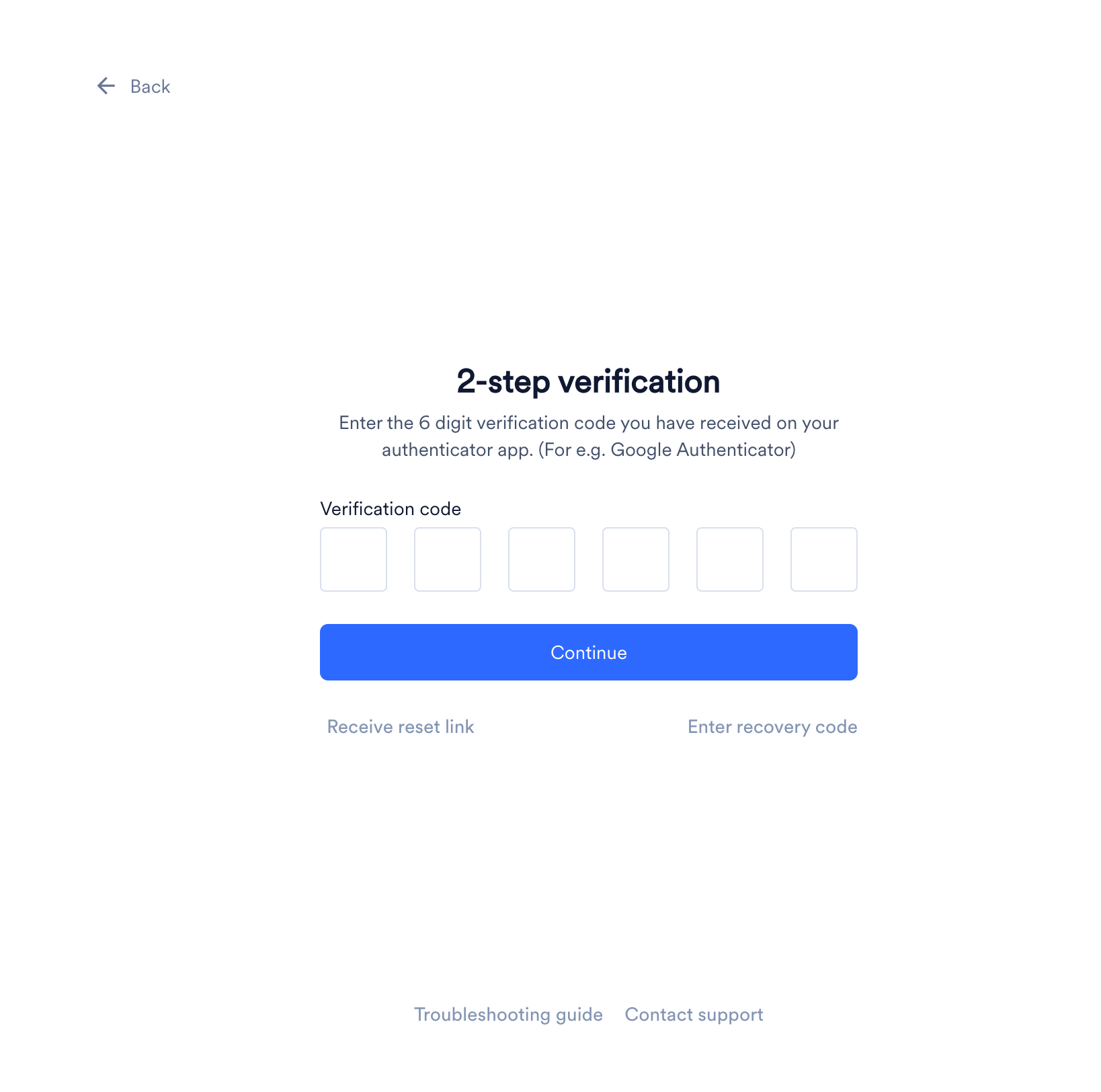
- Open the authenticator app on your device and find the 6-digit code for your MoEngage workspace.
- On the 2-Step Verification page, type the code in the Verification code boxes.
- Click Continue. MoEngage logs you in to the dashboard.
In the Log Into a Different Workspace flow, the equivalent step is called User Authentication and happens before workspace selection, not after.
Set Up 2-Step Verification on Your Device
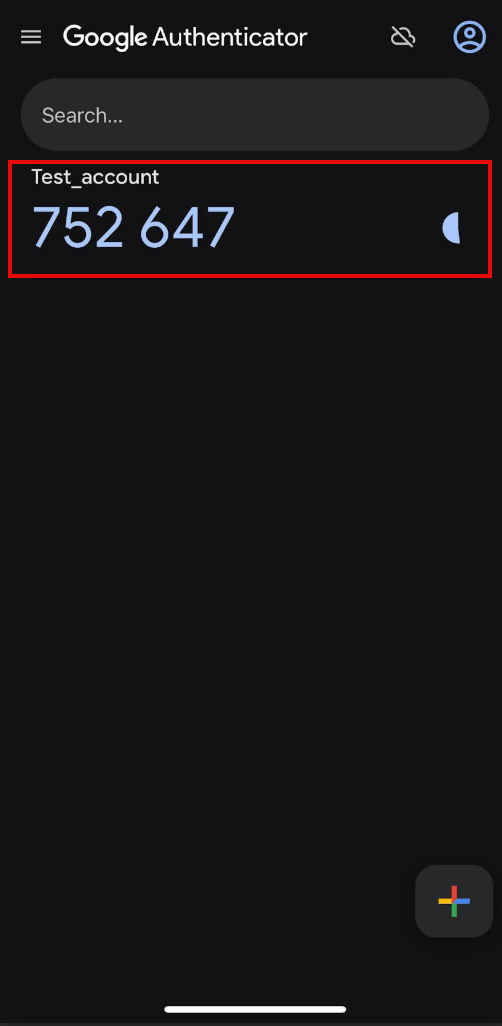
2-step verification requires a code from an authenticator app. Your app generates a new 6-digit code every 30 seconds. Set it up once and use it at every login.When 2-Step Verification is required
When 2-Step Verification is required
Setup occurs in these scenarios:
- Admin signs up for MoEngage or creates a new workspace (enabled by default).
- You’re invited to a workspace with 2-step verification enabled. A prompt appears after finishing your workspace setup.
- Admin enables 2-step verification after you’ve logged in. You’re logged out automatically and prompted on your next login.
- You enable it for your own account in My Profile.
Configuration Steps
-
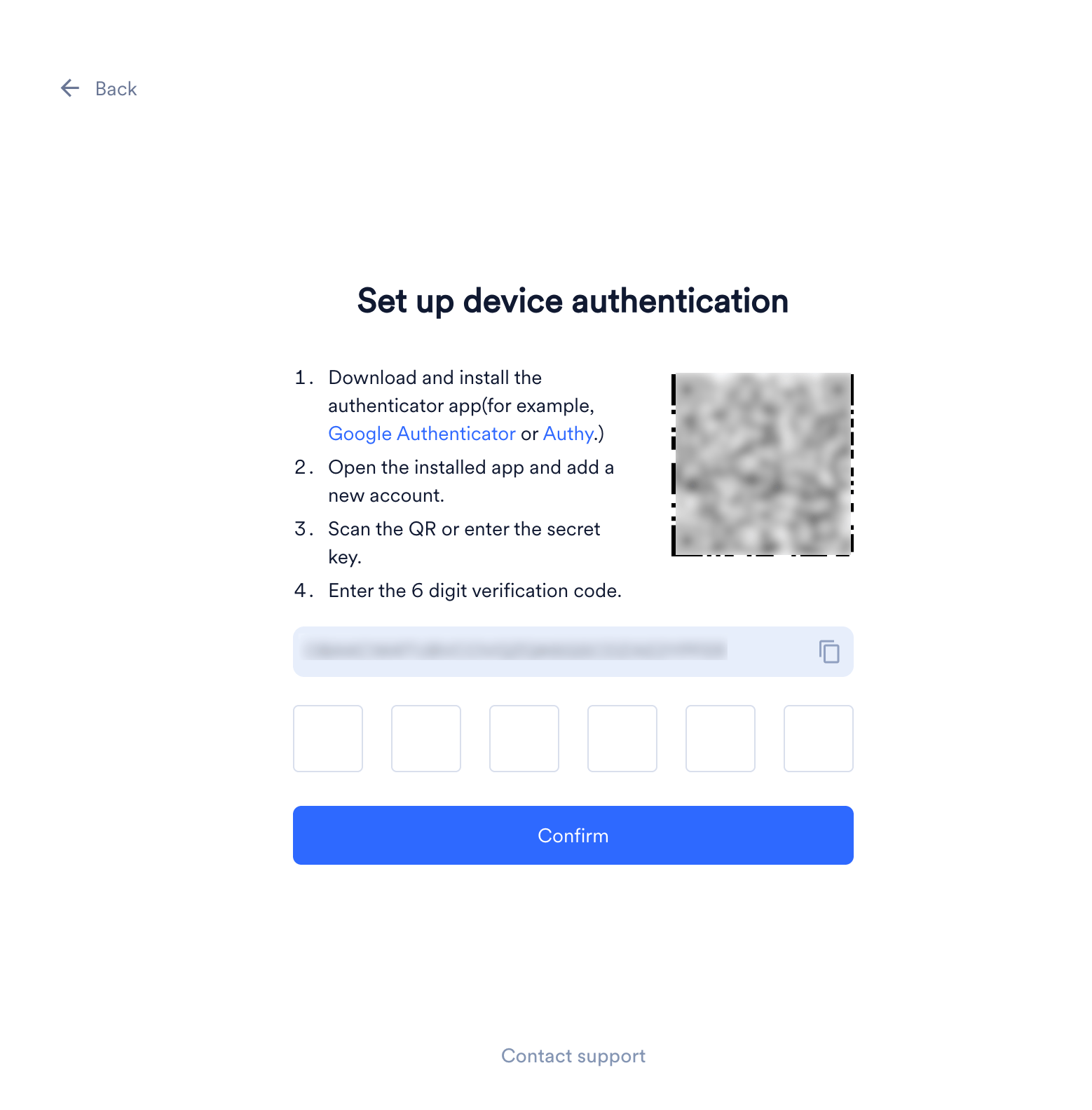
On the 2-Step Verification page, click Setup device Authentication. The Set your device authentication page appears.
-
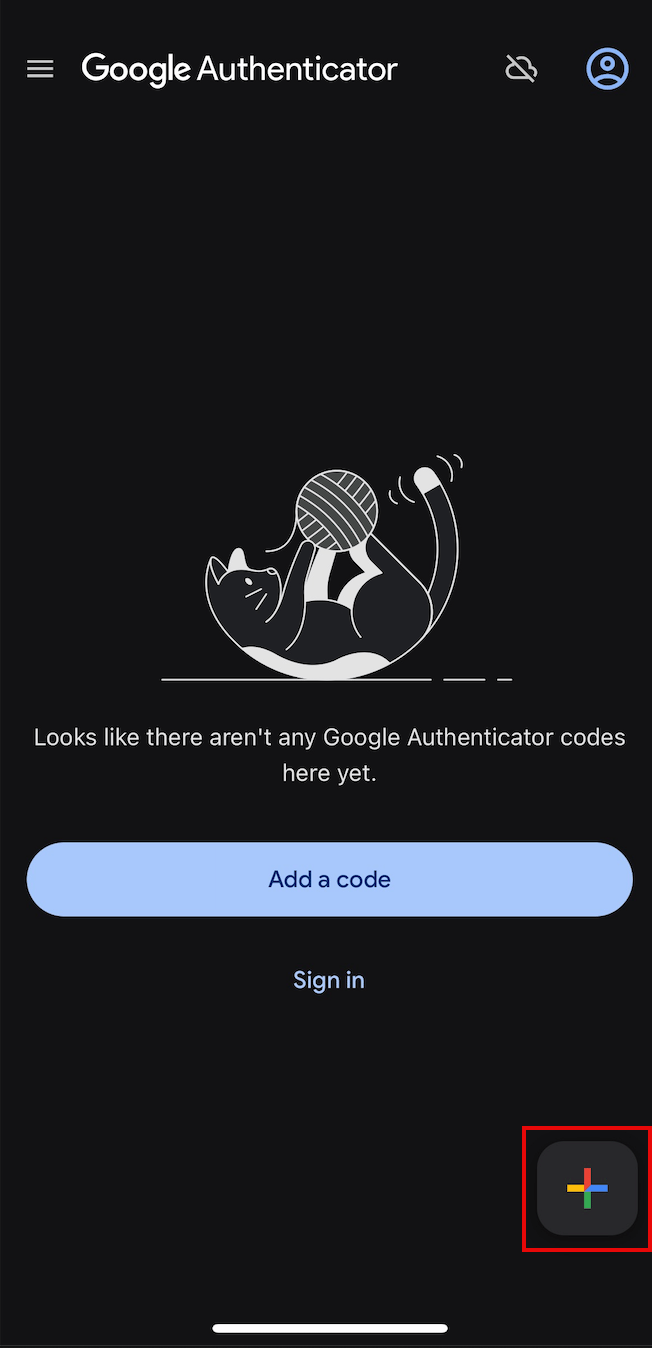
Open your authenticator app and tap the + icon.
-
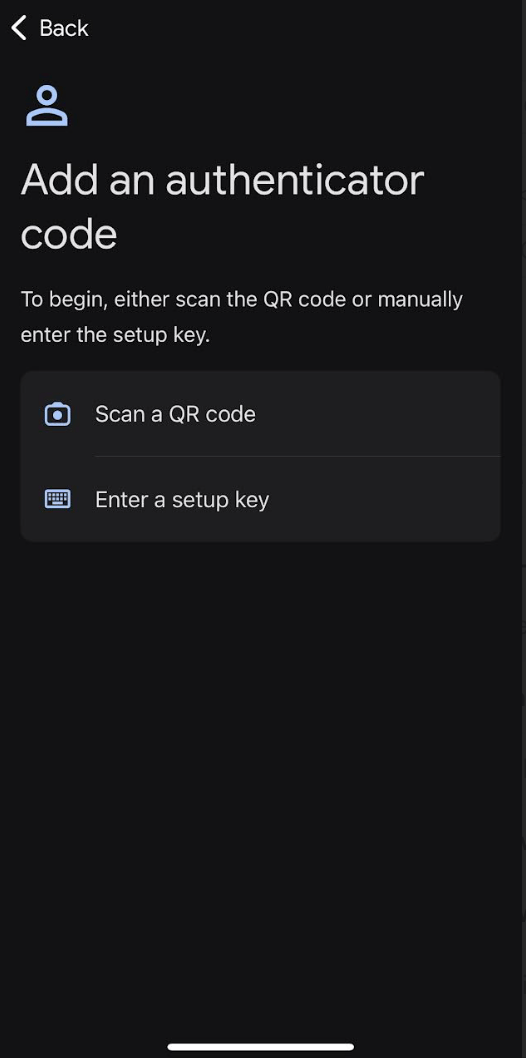
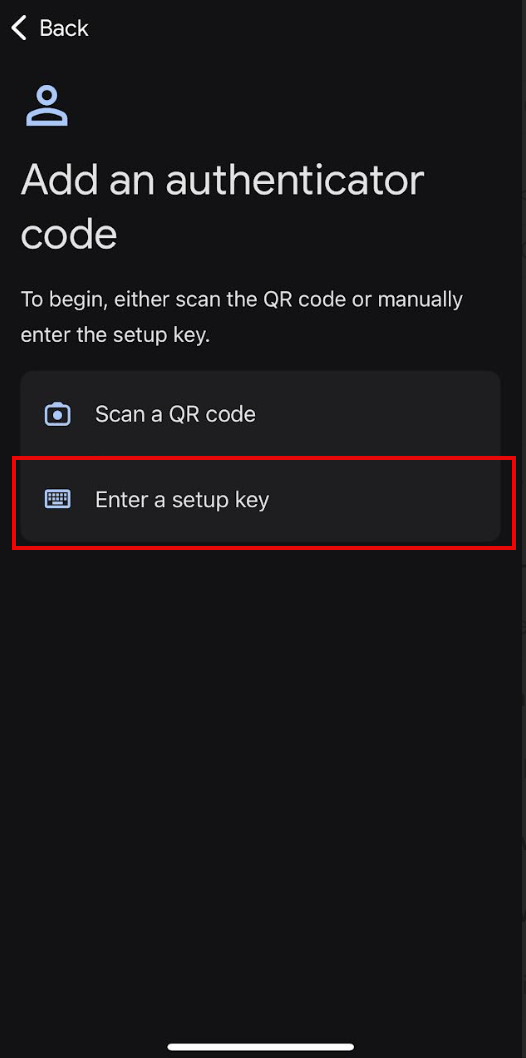
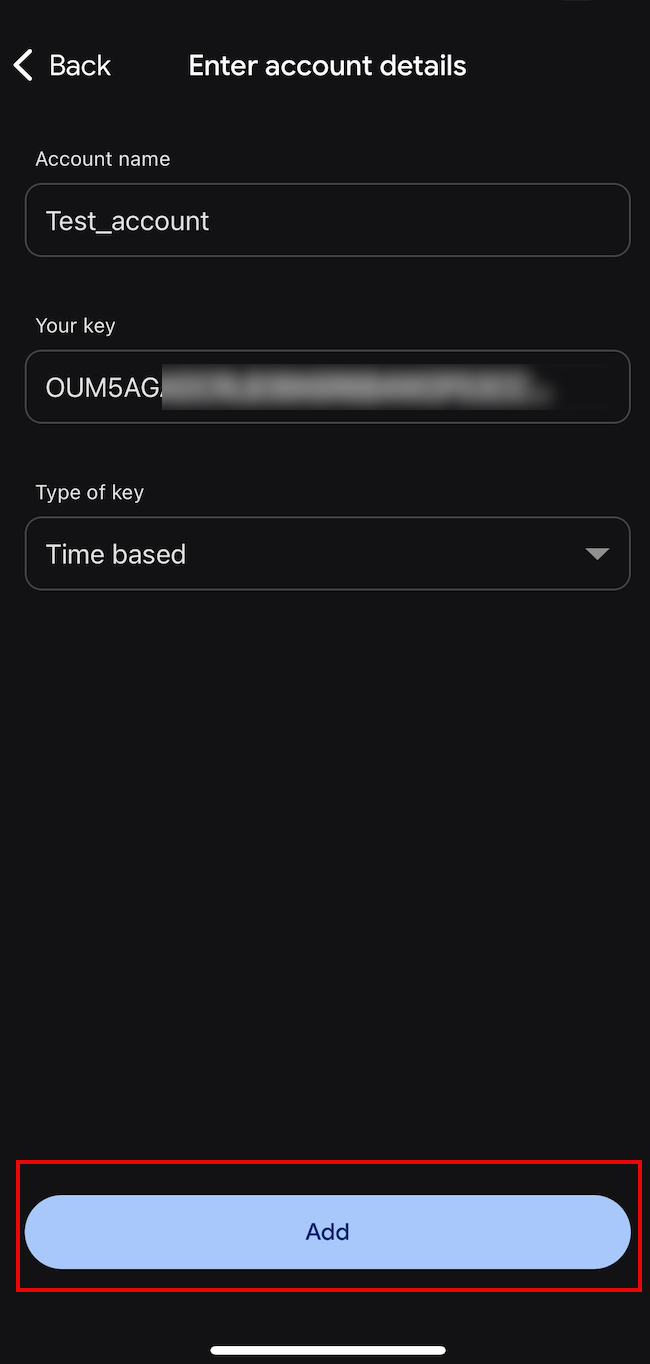
Add MoEngage to your authenticator app, use either option to add MoEngage:
- QR code
- Setup key
- Tap Scan a QR code.
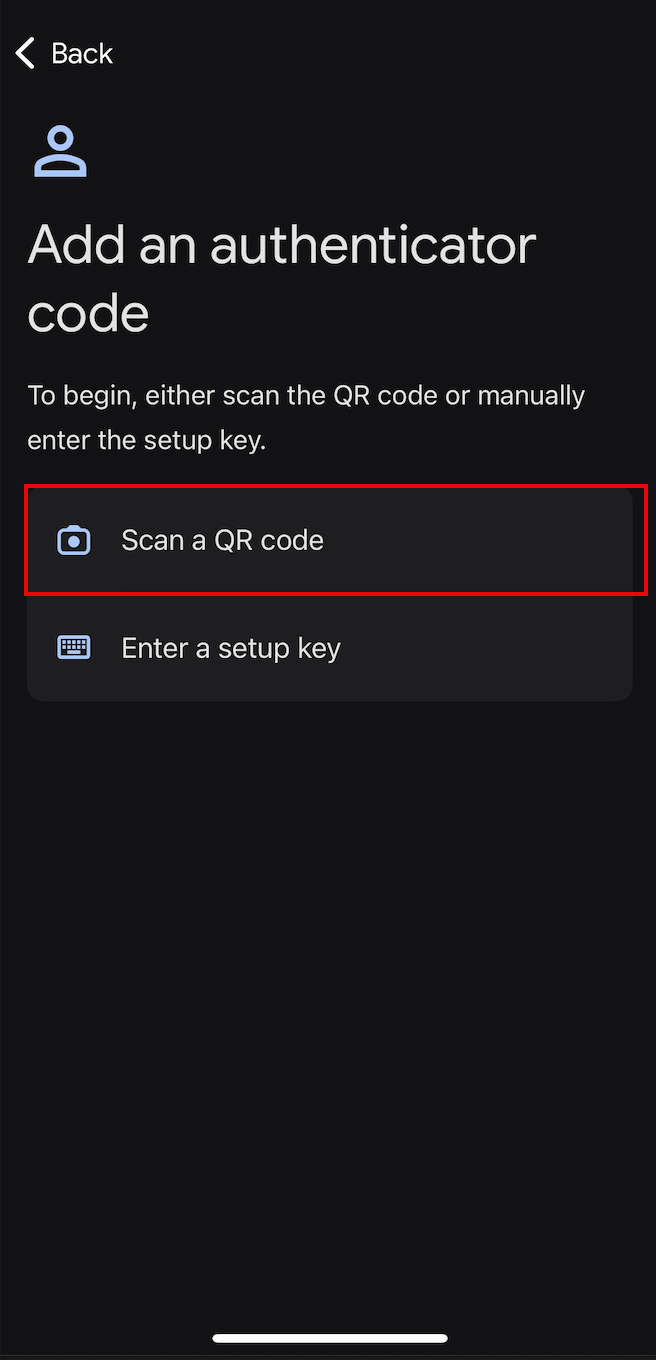
- Scan the QR code shown on the Set your device authentication page. Your authenticator app adds MoEngage and begins generating 6-digit codes.
-
In the Enter the 6 digit verification code box, type the current code from your authenticator app.
Each code is valid for 30 seconds. After that, your authenticator app generates a new code.
- Click Continue. 2-step verification is now configured on your device.
-
Click Download recovery codes to save your backup codes as a CSV file. For more information, refer to Recovery Codes.
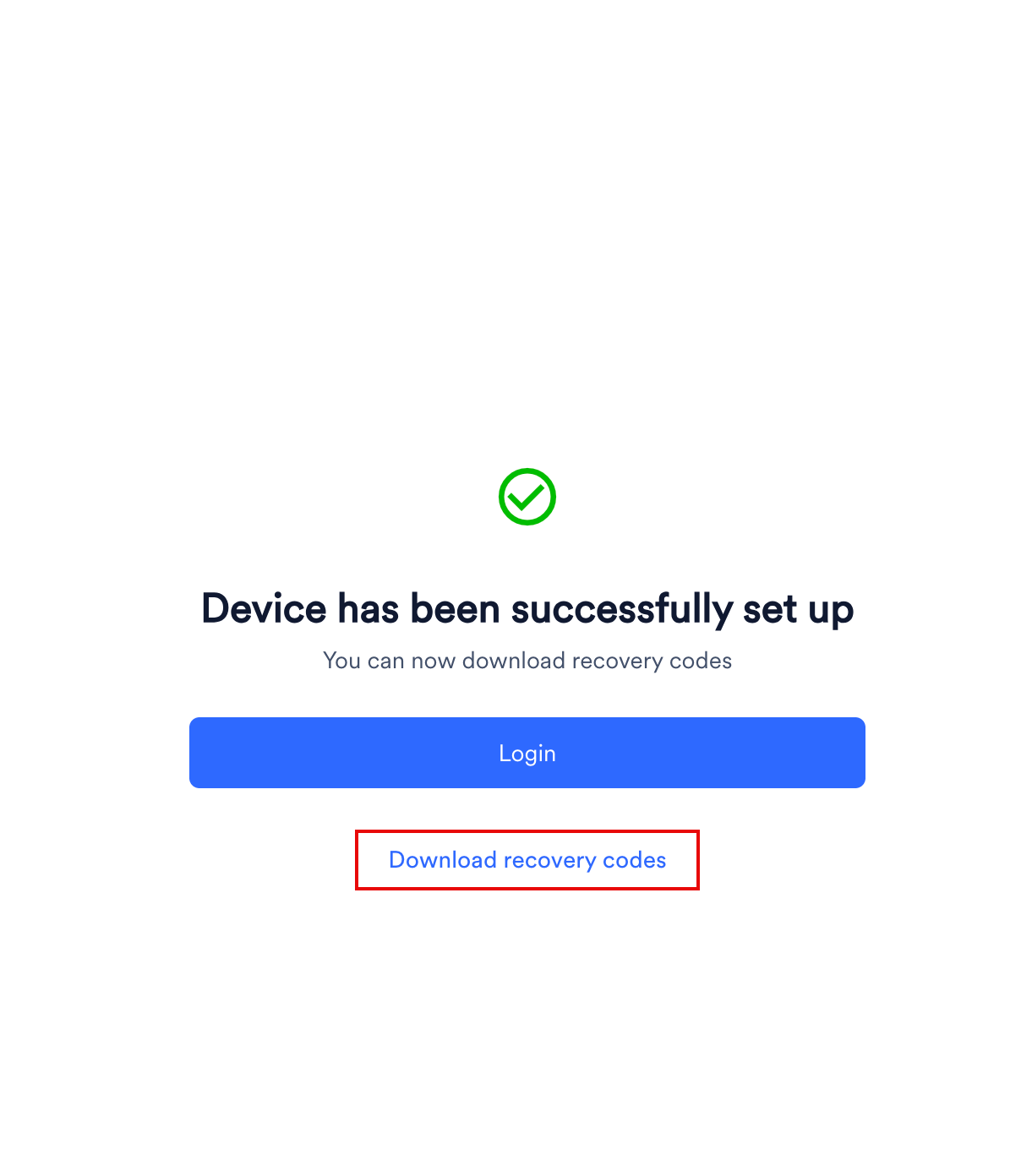
- Click Login. The Login page appears.
Recovery Codes
Recovery codes are 10 one-time-use backup codes you can use if your primary 2-step verification device is temporarily unavailable. MoEngage generates them when you first set up or reset 2-step verification.- Store in a secure location.
- Each code is single-use only.
- To get new codes, see Reset 2-Step Verification under Troubleshooting.
Troubleshooting
You can click Contact support on the login page to raise a support ticket directly.
Codes don't verify or don't match
Codes don't verify or don't match
Make sure both your login device and the device with your authenticator app are set to the same timezone. Codes are time-based and expire after 30 seconds.
Login page won't load or behaves unexpectedly
Login page won't load or behaves unexpectedly
Clear your browser’s cookies and cache, then try again.
Not sure you're on the right login page
Not sure you're on the right login page
Verify you’re using the correct login URL for your workspace. Each workspace is hosted on a specific data center. For more information, refer to Data Centers in MoEngage.
Didn't receive a reset email
Didn't receive a reset email
Check that your organization hasn’t blocked the MoEngage domain.
Forgot Your Password
Forgot Your Password
1
Request a password reset
On your workspace login page, click Forgot Password?. 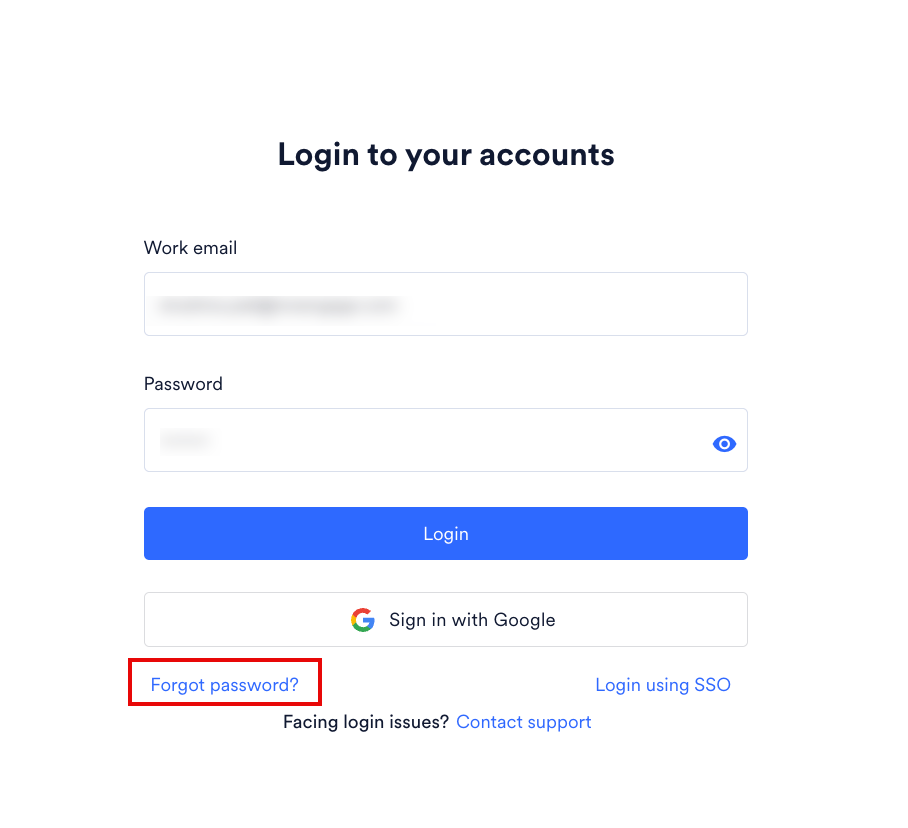
2
Enter your email
Type your MoEngage email and click Send Link. 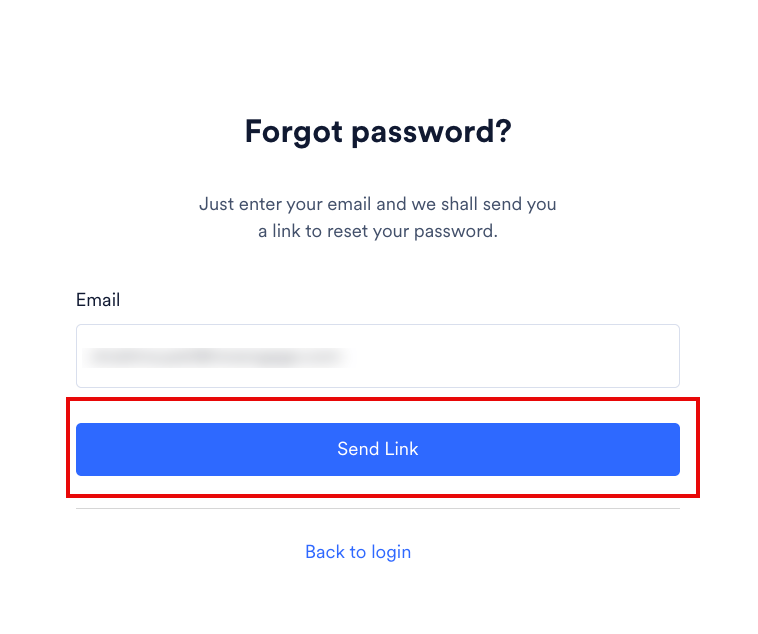
3
Open the reset link
Click the reset link in your email. 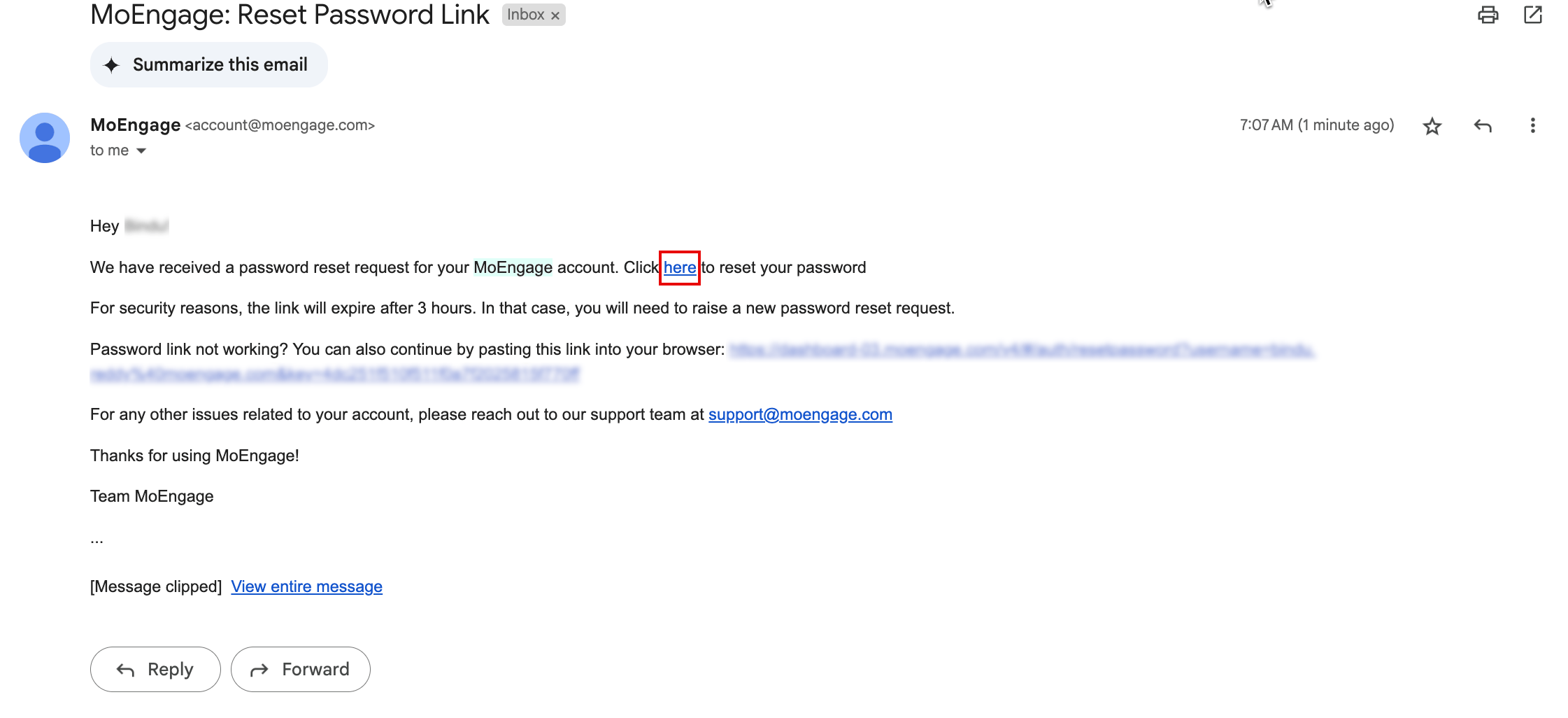
4
Create a new password
Your password must contain: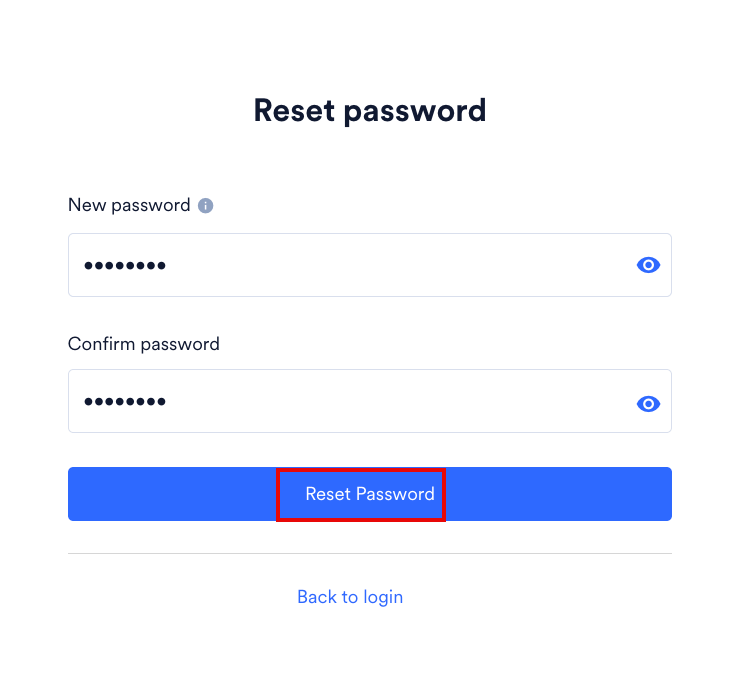
- 8–20 characters
- At least one uppercase letter
- At least one number
- At least one special character:
! @ # $ % ^ & * ( ) _ ? / , < > ; : { } | ~
Reset 2-Step Verification
Reset 2-Step Verification
Reset 2-step verification to set up a new authenticator device (if you changed or replaced your device) or to generate a new set of recovery codes after using your existing ones.
- Try to log in to your workspace using your credentials.
- On the ** Reset 2-Step Verification** page, enter your work email id and click Send link.
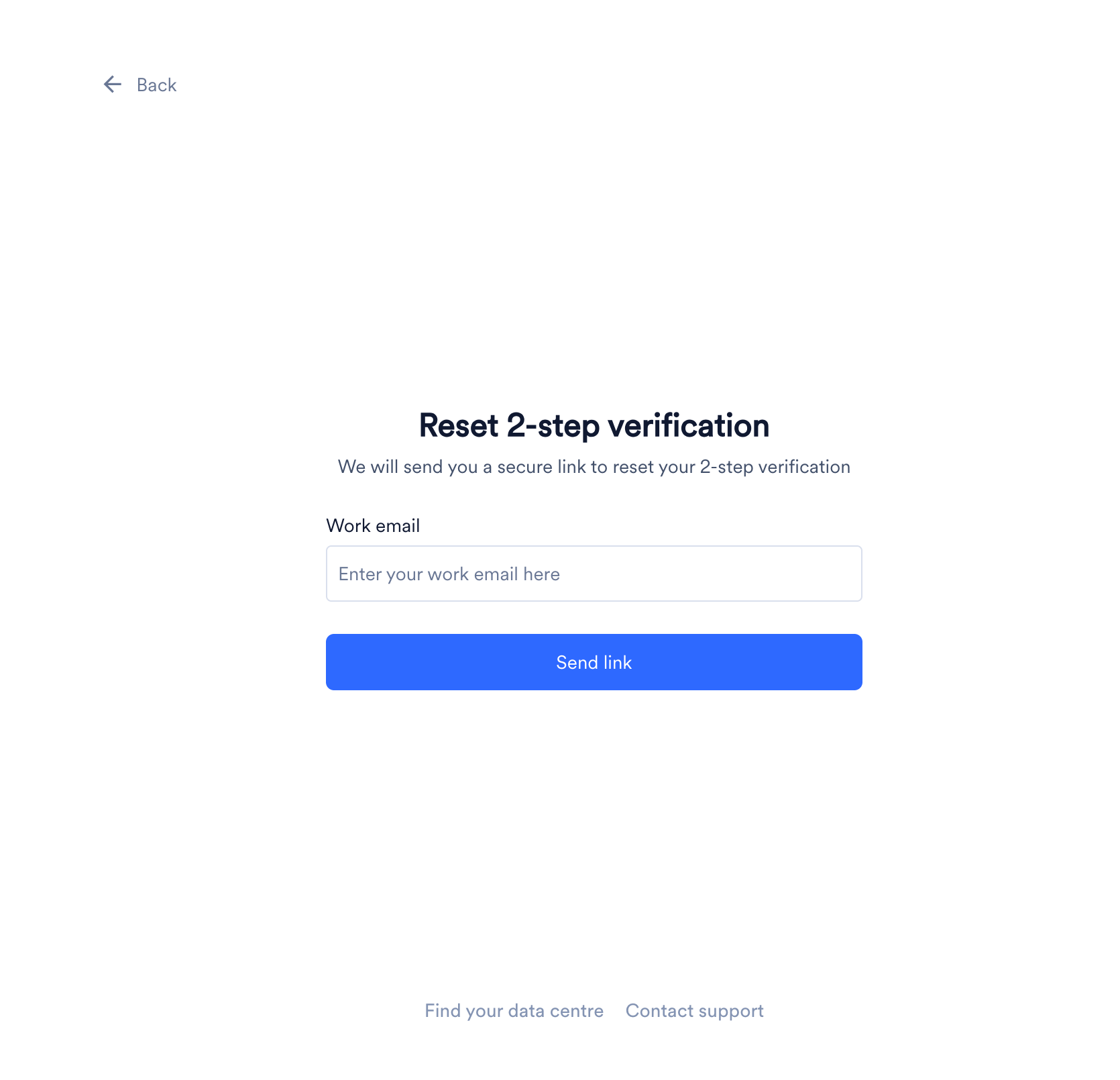
- MoEngage sends a reset link to your email address.
- Open the email from MoEngage and click here to reset your 2FA credentials.
 You land on the Login to your accounts page in a new browser tab.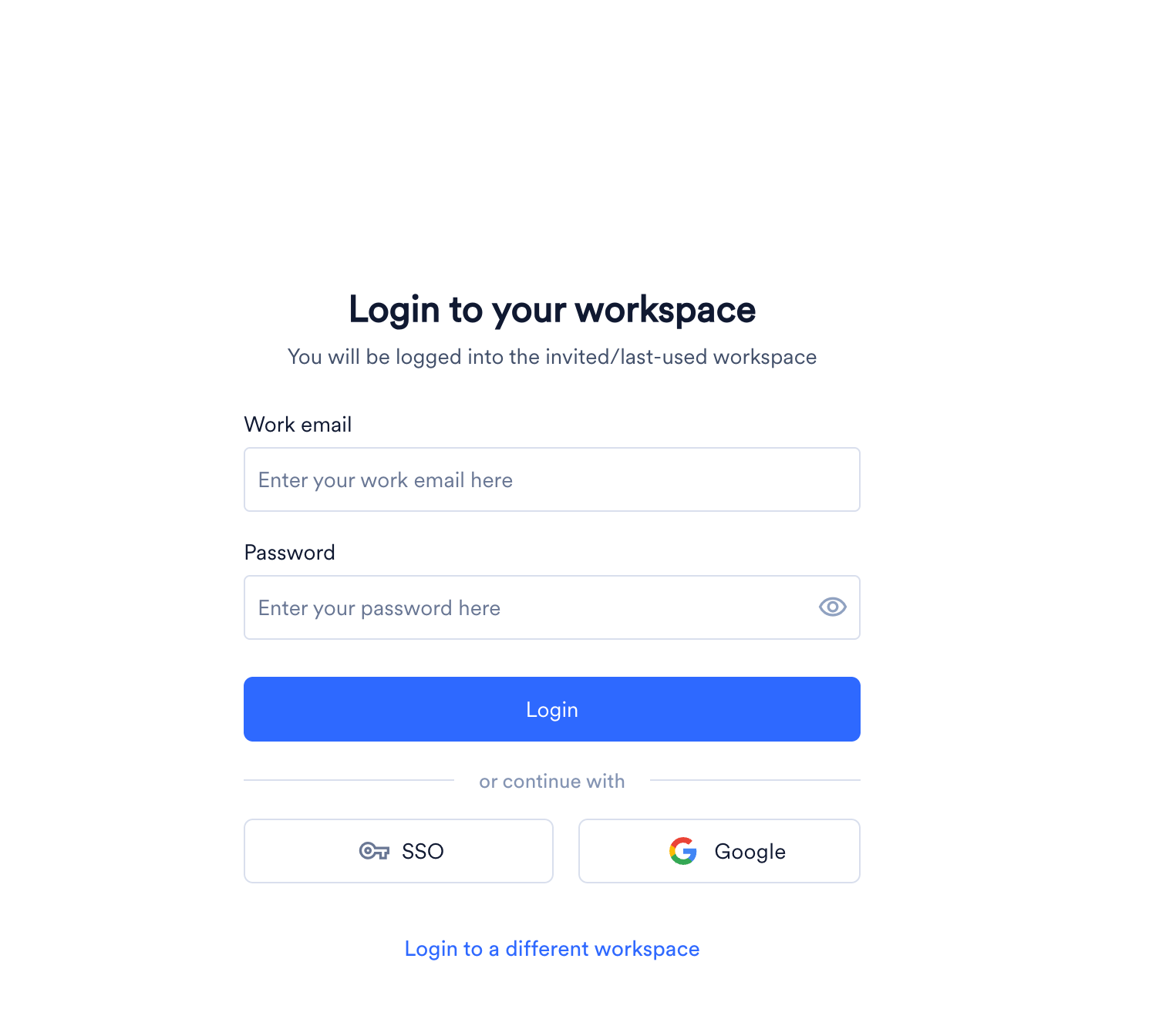
- Log in using your credentials. MoEngage takes you to the 2-Step Verification page.
- Click Setup your device. The Set up your device authentication page appears.
Add MoEngage to your authenticator app using either a QR code or a setup key. Refer to Configuration Steps for details on both options.
- In the Enter the 6 digit verification code box, type the code from your authenticator app.
Each code is valid for 30 seconds.
- Click Confirm. 2-step verification is now reset on your device. Use the verification code from this new authenticator instance for all future logins.
- Click Download recovery codes to save a new set of backup codes as a CSV file. Your previous recovery codes no longer work.
- Click Login.
Log In Using a Recovery Code
Log In Using a Recovery Code
Use a recovery code if your primary 2-step verification device is temporarily unavailable.
1
Log in with your credentials
Log in to your workspace with your credentials.
2
Switch to recovery code
On the 2-Step Verification page, click Enter recovery code. 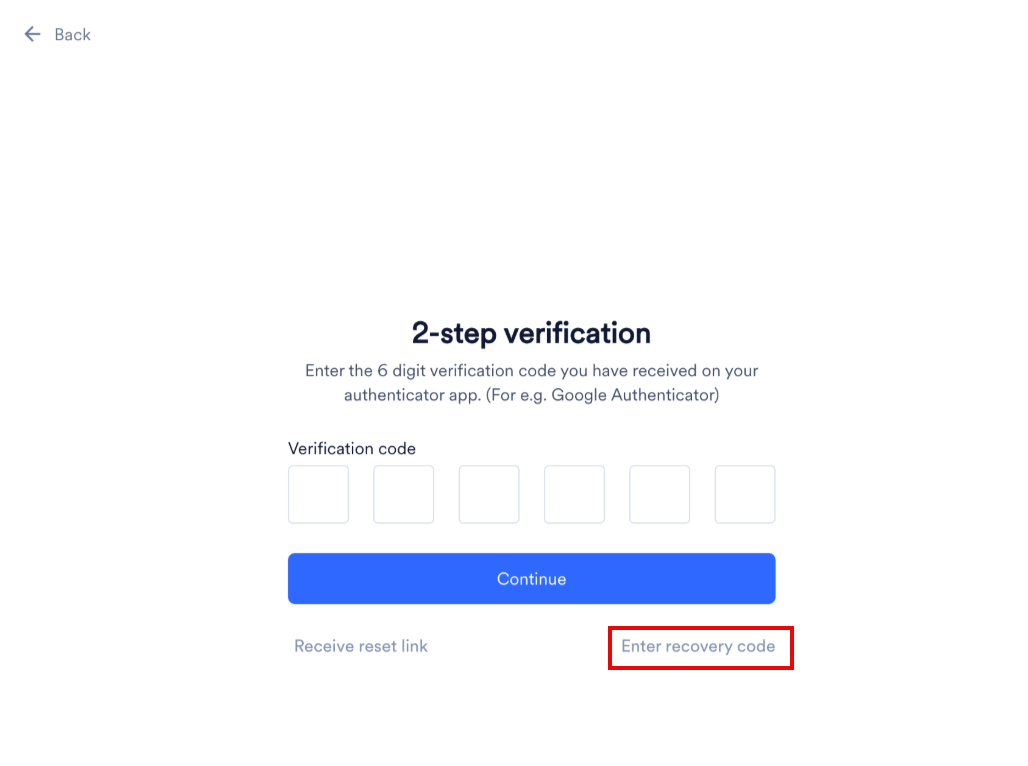
3
Enter your code
Type one of your saved recovery codes.
Each code is single-use only.
4
Verify
Click Continue.  You’re logged in.
You’re logged in.